Split Category Node
Using Slipbox Nodes (Split Category)
The Split Category node splits an over-broad category (INDEX) Slip into several sub-categories in one step. It creates a new sub-category for each group you specify and moves the listed child Slips under it. If anything goes wrong partway through, the entire operation is rolled back, so you never end up with a half-split category — and the Slip bodies themselves are never touched.
This node also works well connected to an agent as a tool, but this tutorial covers it in an Ability to walk through the most basic usage first. Connecting it to an agent will be covered in a separate Slipbox agent integration guide. Which category you split in real use is entirely up to you and your project — in this tutorial, you'll build an Ability workflow that creates a test category and several child Slips in the Agentria Docs slipbox and splits them into two groups.
Before You Begin
A slipbox must already be set up in your project, and the category (INDEX) Slip you want to split — along with several child Slips under it — must already exist, before starting this tutorial. For instructions on building a slipbox, see the 🔗Slipbox Guide. This tutorial creates a test category and child Slips inside the Agentria Docs slipbox to use along the way.
After completing this tutorial, you will be able to:
Use the Split Category node to split one category into several sub-categories.
Connect each input variable of the Split Category node to the Start Node's input values.
Build a
groupsvalue that specifies which Slips move into which group.Verify the category was split successfully by running the test and checking the debug log.
Workflow Overview
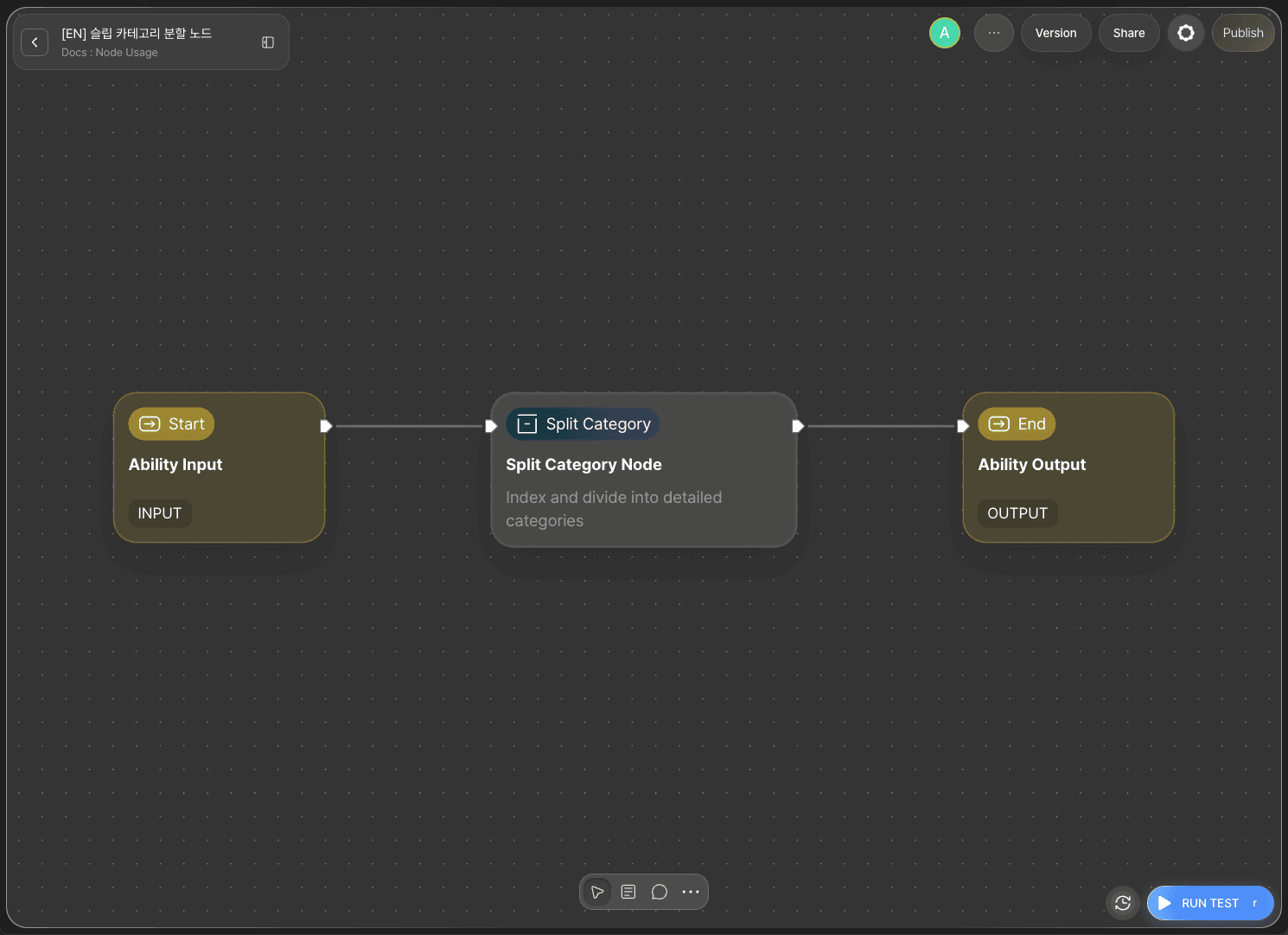
The core of this tutorial is the Split Category node.
The Split Category node identifies the target category (INDEX) Slip by its UUID and, based on the group list you pass in, creates new sub-categories and moves the specified child Slips into them. Any child not mentioned in a group stays exactly where it was.
Split Category Node Basic Info
The Split Category node provides the following options.
Option | Required | Description |
|---|---|---|
| Required | The UUID of the category (INDEX) Slip to split. Rejected if given a regular Slip. |
| Required | A list of group objects. Each item has |
| Required | The Slipbox this node operates on. Bound at design time in the builder. |
This tutorial uses all three options.
Step 1: Create an Ability
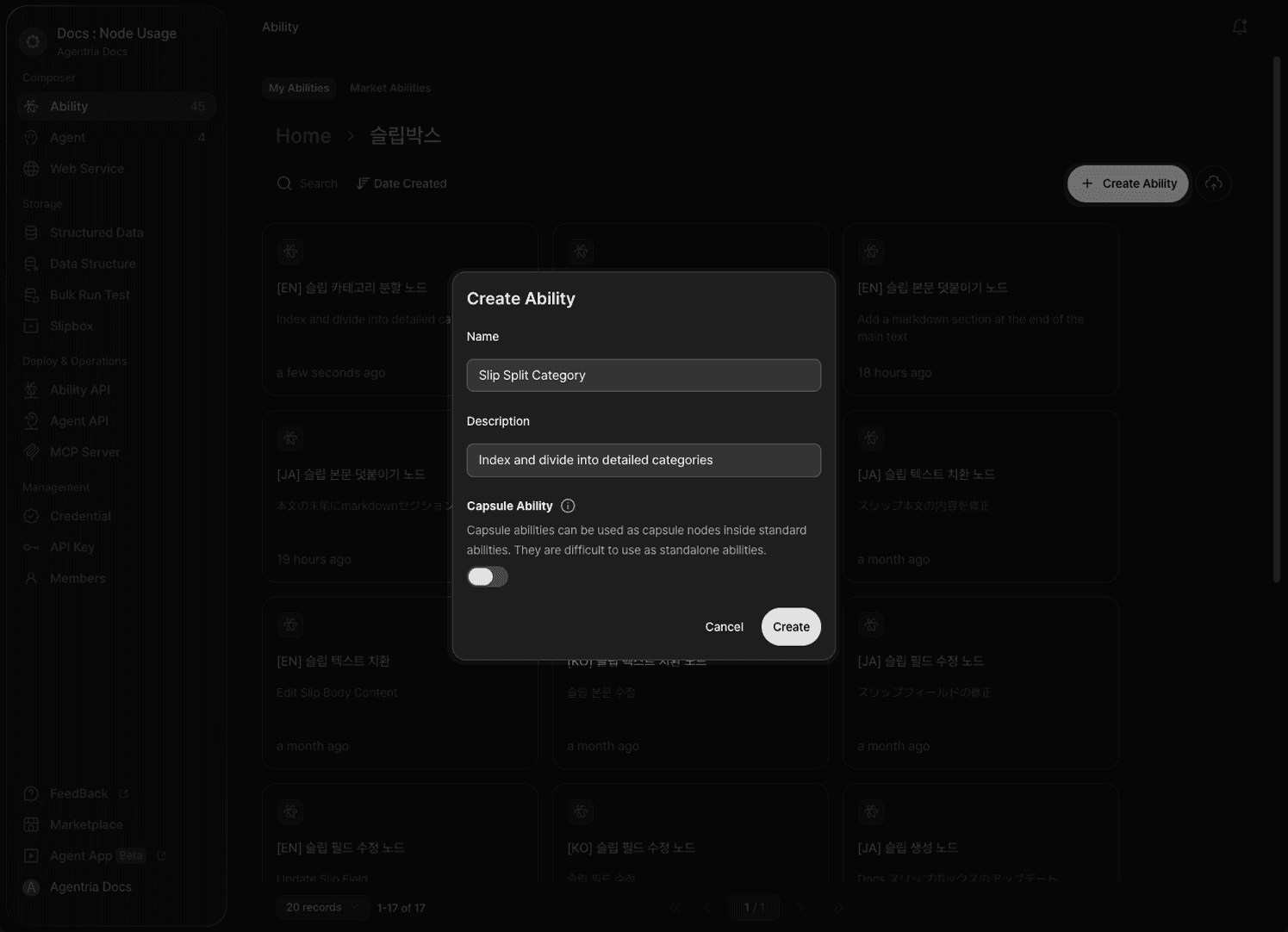
Create a new Ability. Enter Split Category node for Name and Split a category into sub-groups for Description. This Ability connects the Split Category node directly to the category you want to split. Which category you target is up to you — this tutorial targets a test category in the Agentria Docs slipbox.
Step 2: Configure the Start Node
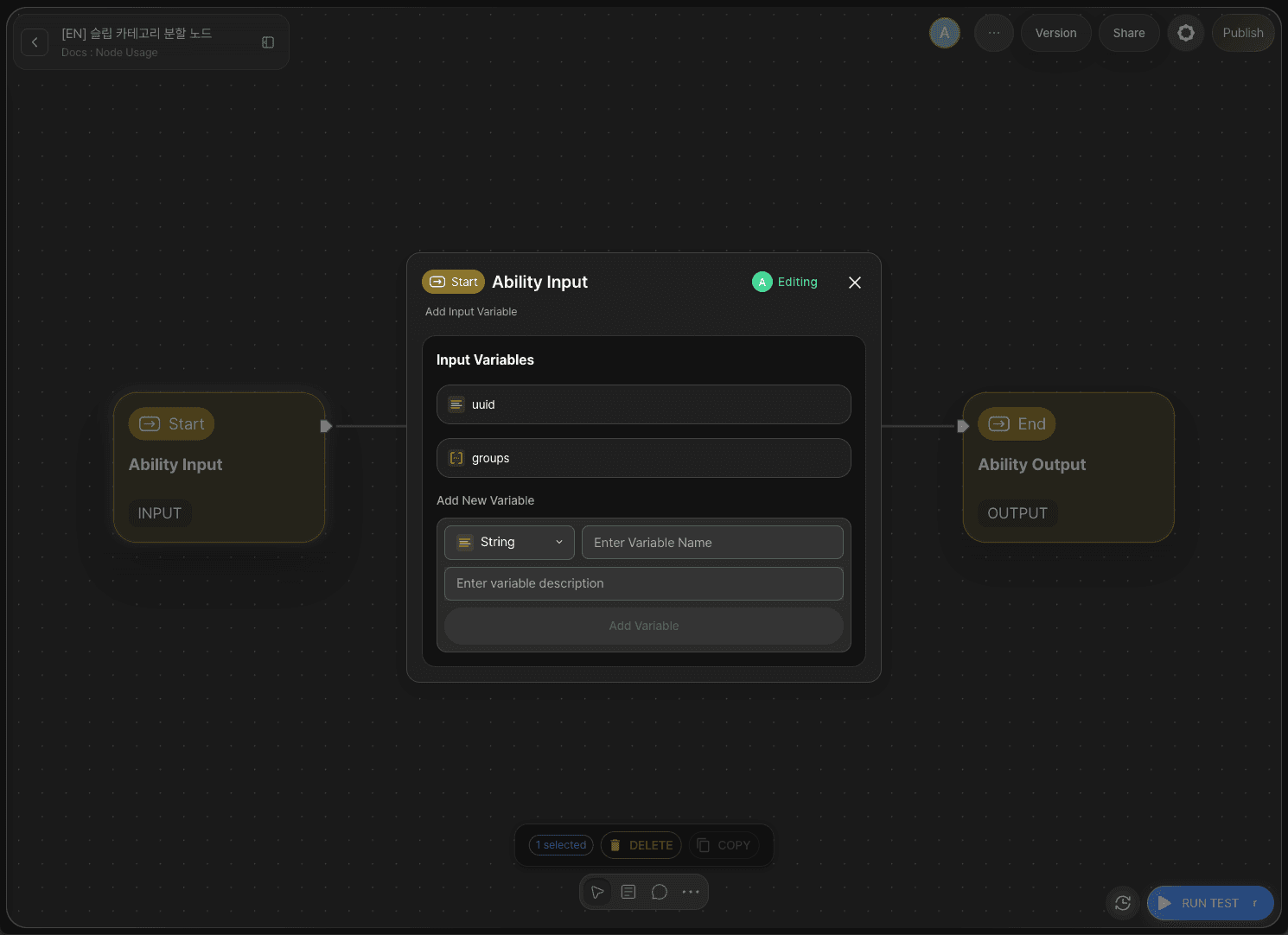
Double-click Start Node to enter the Node Editor. Add the following two variables.
uuid: accepts the UUID of the target category to split. (String)groups: accepts the list that specifies which Slips move into which group. (Array)
Add groups as an Array type, not a String.
Step 3: Add the Split Category Node
Click +Add Node → add a Split Category node from the Slipbox category.
Step 4: Configure the Split Category Node
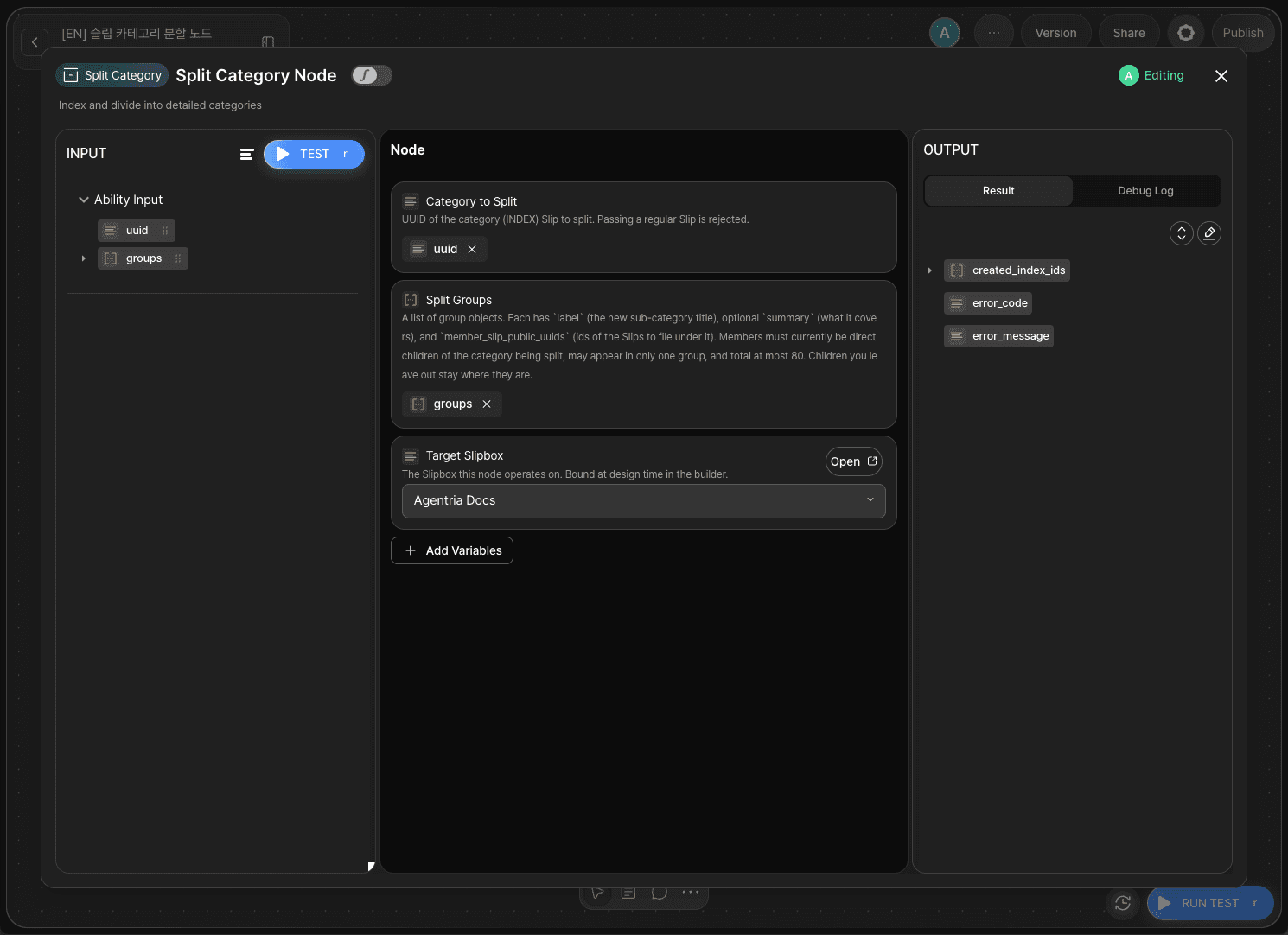
Double-click the Split Category node to enter the Node Editor. In Target Slipbox, select Agentria Docs.
Drag and drop the Start Node's input values onto the remaining fields as follows.
Adapter Variable | Bound Value |
|---|---|
|
|
|
|
Once the node runs successfully, it outputs created_index_ids (the UUIDs of the newly created sub-categories, as an array), error_code, and error_message.
Step 5: Configure the End Node
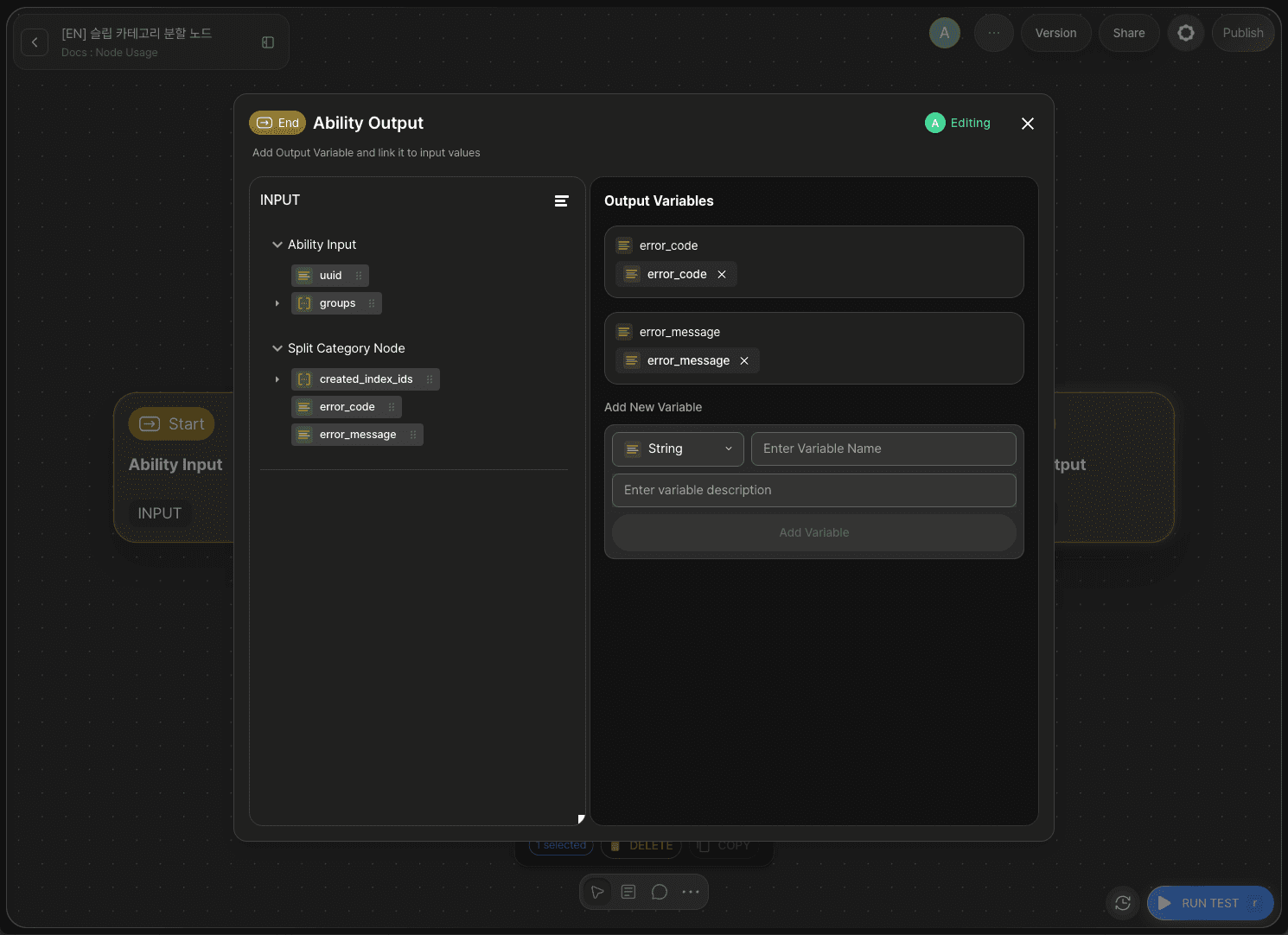
Double-click End Node to enter the Node Editor. Add a String output variable named result and drag and drop error_code from the Split Category node to bind it. This lets you check whether the split succeeded or failed from the output value.
Step 6: Prepare a Test Category and Child Slips
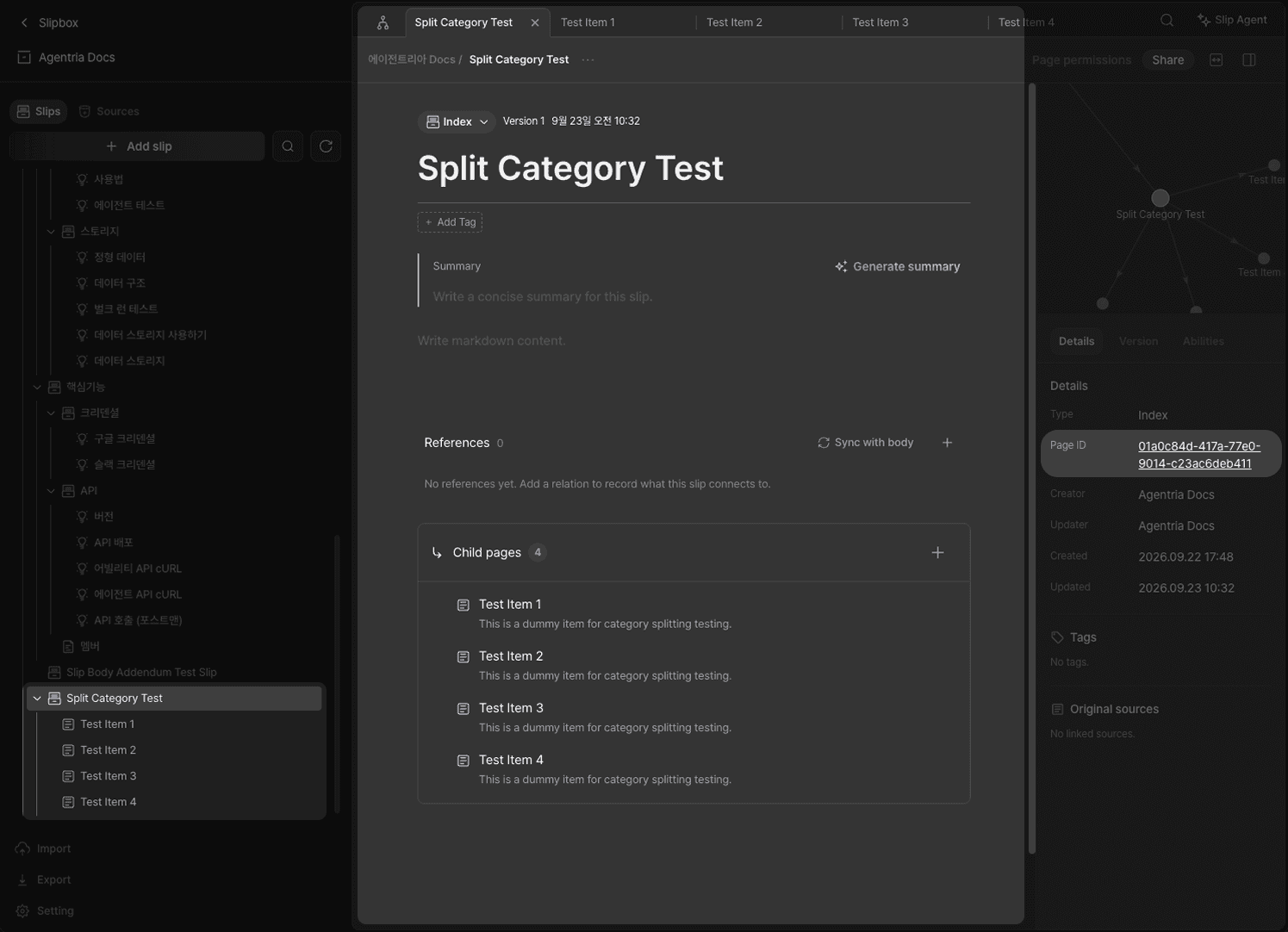
Go to the Agentria Docs slipbox and click Add Slip to create a new test category. Keep the new Slip's Type at its default value, Index. Open this category and use the + button in the Child Pages area to add about four child Slips (e.g., Test Item 1 through 4). Finally, copy the public UUID of the category Slip and each child Slip from the details panel on the right. You'll use these values as the uuid and groups inputs when you run the test.
Step 7: Run the Test
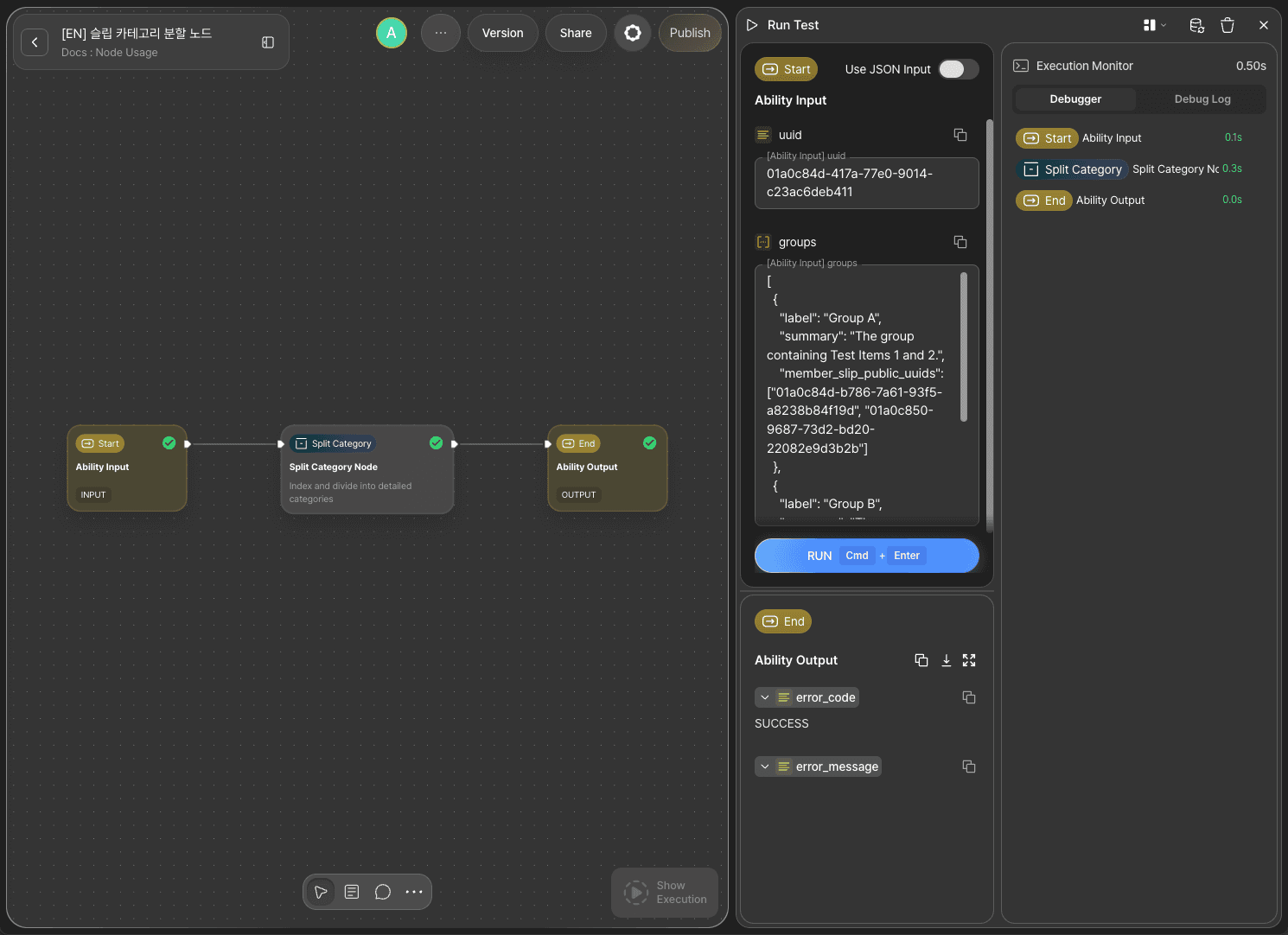
Paste the test category's public UUID you copied earlier into uuid. In groups, write a JSON array that splits the child Slips into two groups.
Click RUN TEST. If the result output is SUCCESS, the test succeeded.
Step 8: Check the Debug Log
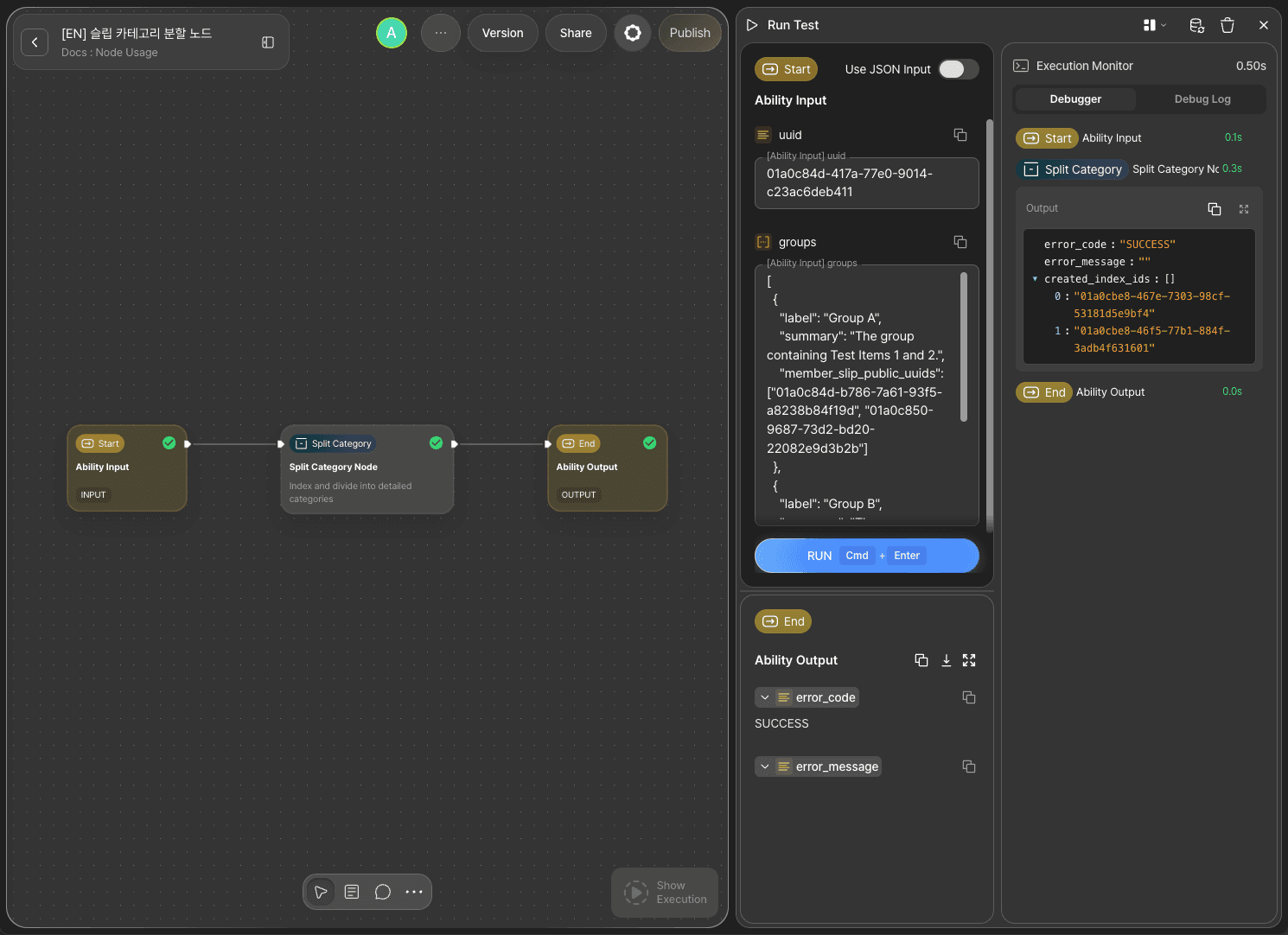
Check the Debug Log of the Split Category node to see the details showing error_code returned as SUCCESS, along with the created_index_ids value that came back with it. It holds an array of UUIDs, one for each newly created sub-category.
Step 9: Verify the Result in the Slipbox
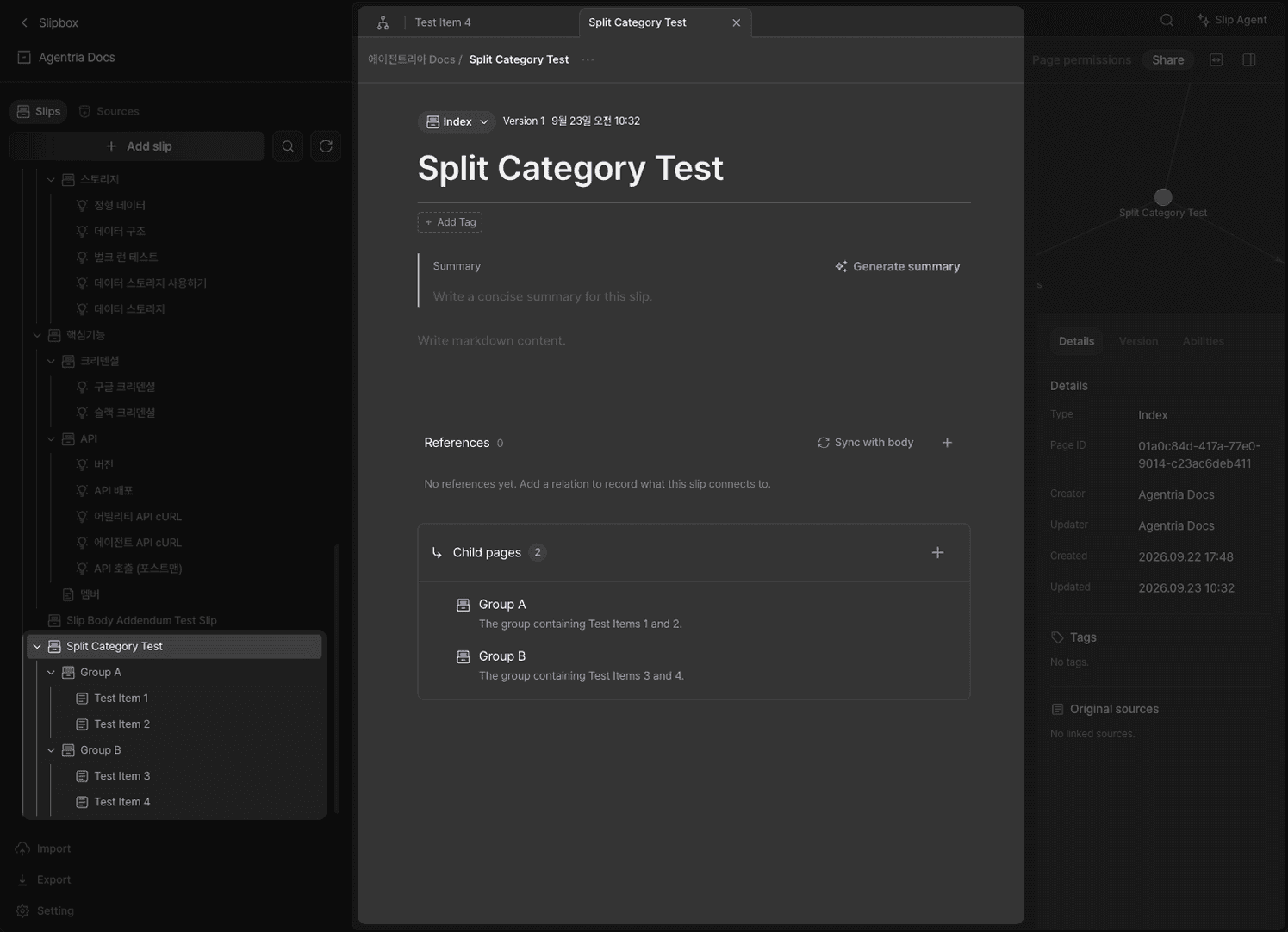
Go to the Agentria Docs slipbox and open the test category you just split — instead of the individual child Slips you had before, you'll see as many new sub-categories as you specified in groups (in this tutorial, Group A and Group B). Open each sub-category and you'll find the Slips you assigned to that group moved underneath it, with their own titles and bodies left exactly as they were.
Next Steps
🎉 Congratulations! You've successfully built the "Split a Category into Sub-Groups" workflow using Agentria.
Connect this node to an Agent Loop node as a tool, and you can extend it into a workflow where the agent reorganizes an over-broad category into sub-categories on its own whenever it decides it's needed during a conversation.
Agentria is a place where ideas become reality—your workflow can expand infinitely with your creativity.
For more node examples, visit the 🔗Node Usage page.
Frequently Asked Questions
What does the Split Category node do?
The Split Category node splits one category (INDEX) Slip in a Slipbox into several sub-categories. It identifies the target category by its UUID and, based on the group list you pass in, creates new sub-categories and moves the specified child Slips into them. Any child not mentioned in a group stays exactly where it was.
Are there any restrictions on which Slips I can put in groups?
Yes. Every Slip you list in member_slip_public_uuids must be a current direct child of the category you're splitting, and the same Slip can't appear in more than one group. The total number of members across all groups combined is also capped at 80.
Can I target a regular Slip (not an INDEX) for splitting?
No. Category to Split only accepts a Slip of type Index. If you give it the UUID of a regular Slip, the node rejects the request.
If something fails partway through, does the category end up half-split?
No. The Split Category node treats creating the groups and moving the Slips as a single operation — if anything fails along the way, the entire operation is rolled back. You won't end up with some groups created and others missing.