Structured Data Deletor Node
Using Database Nodes (DB Deletor)
This tutorial covers how to use the DB Deletor node in Agentria. The DB Deletor node removes records from Data Storage. Use the DB Reader node to retrieve the target records, then use a Python node to extract the record IDs before passing them to the DB Deletor node.
In this tutorial, you will build a workflow that looks up a customer by name and deletes that customer's data.
Before You Begin
For instructions on accessing the Agentria canvas, refer to the 🔗3-Step Core Guide.
The DB Deletor node requires Data Storage to be configured in advance. Refer to the 🔗Data Storage Guide.
After completing this tutorial, you will be able to:
Use the DB Reader node to retrieve the target records for deletion.
Use a Python node to extract a list of
data_record_idvalues.Use the DB Deletor node to delete records from Data Storage.
Workflow Overview
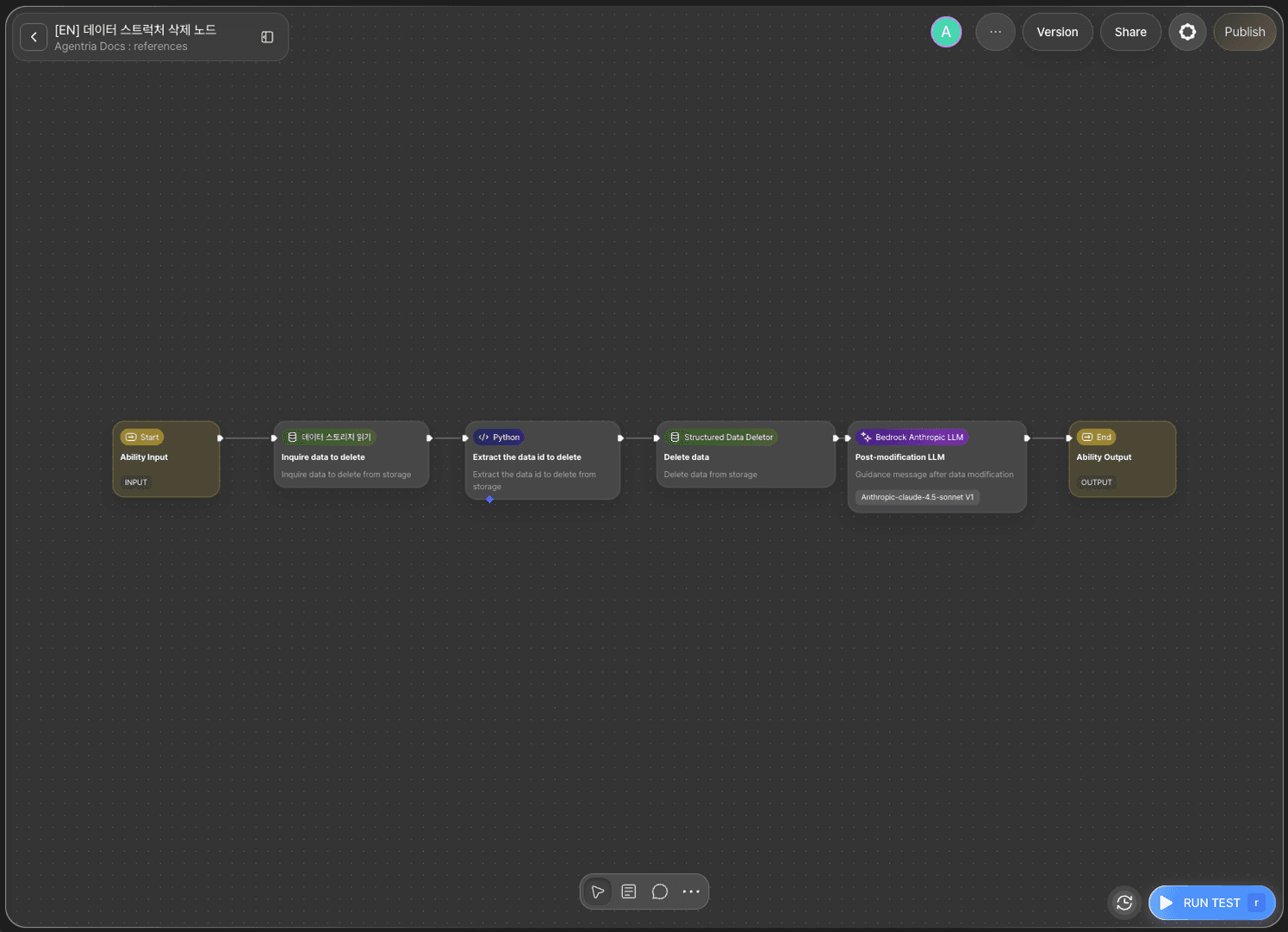
The core of this tutorial is the DB Deletor node.
The DB Deletor node receives an array of data_record_id values and deletes all matching records. The record IDs are included in the DB Reader node's query results — the Python node extracts only the IDs to pass along.
For detailed instructions on the DB Reader node, refer to the 🔗DB Reader Node Guide.
Step 1: Create an Ability
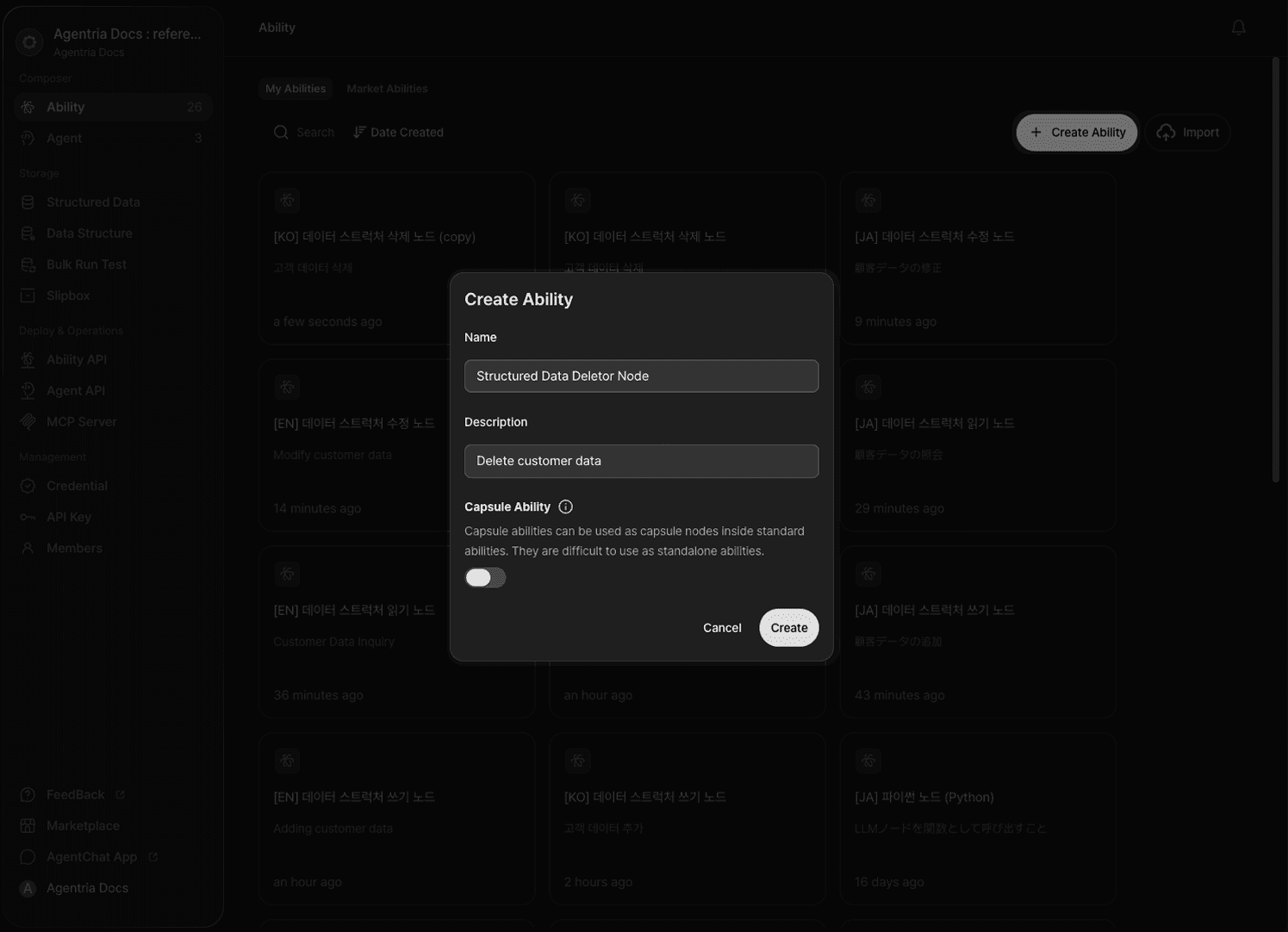
Create a new Ability on the Agentria canvas.
Use the +Add Node button to add a DB Reader node, a Python node, a DB Deletor node, and an LLM node to the canvas.
Step 2: Declare Input Variables
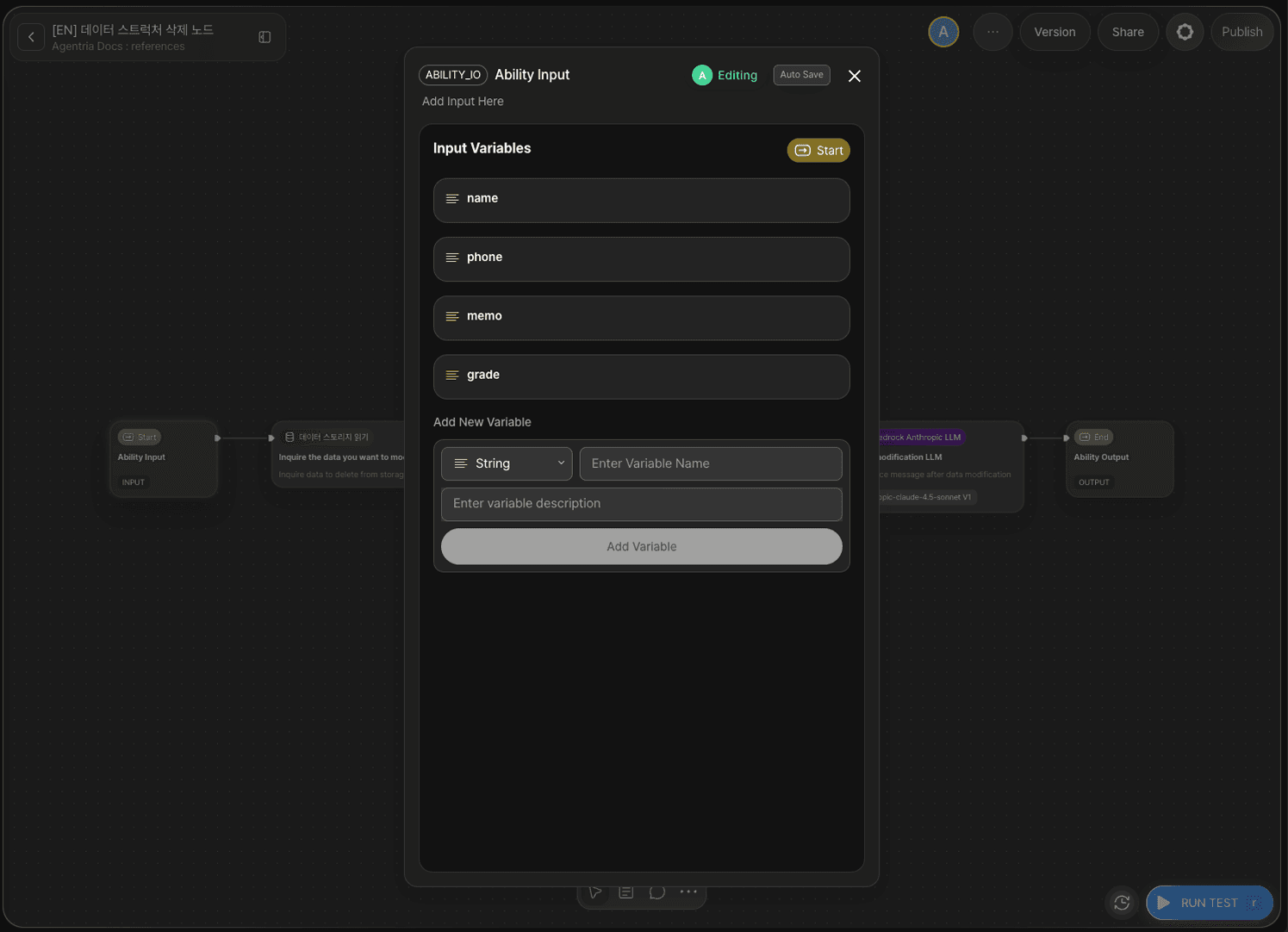
Double-click the Input Node to open the Node Editor.
Declare input variables to match the column structure of the storage. The storage used in this tutorial is Customer Data.
Variable | Type | Description |
|---|---|---|
| String | Customer name to search by |
| String | Phone number |
| String | Customer grade |
| String | Memo |
Step 3: Configure the DB Reader Node
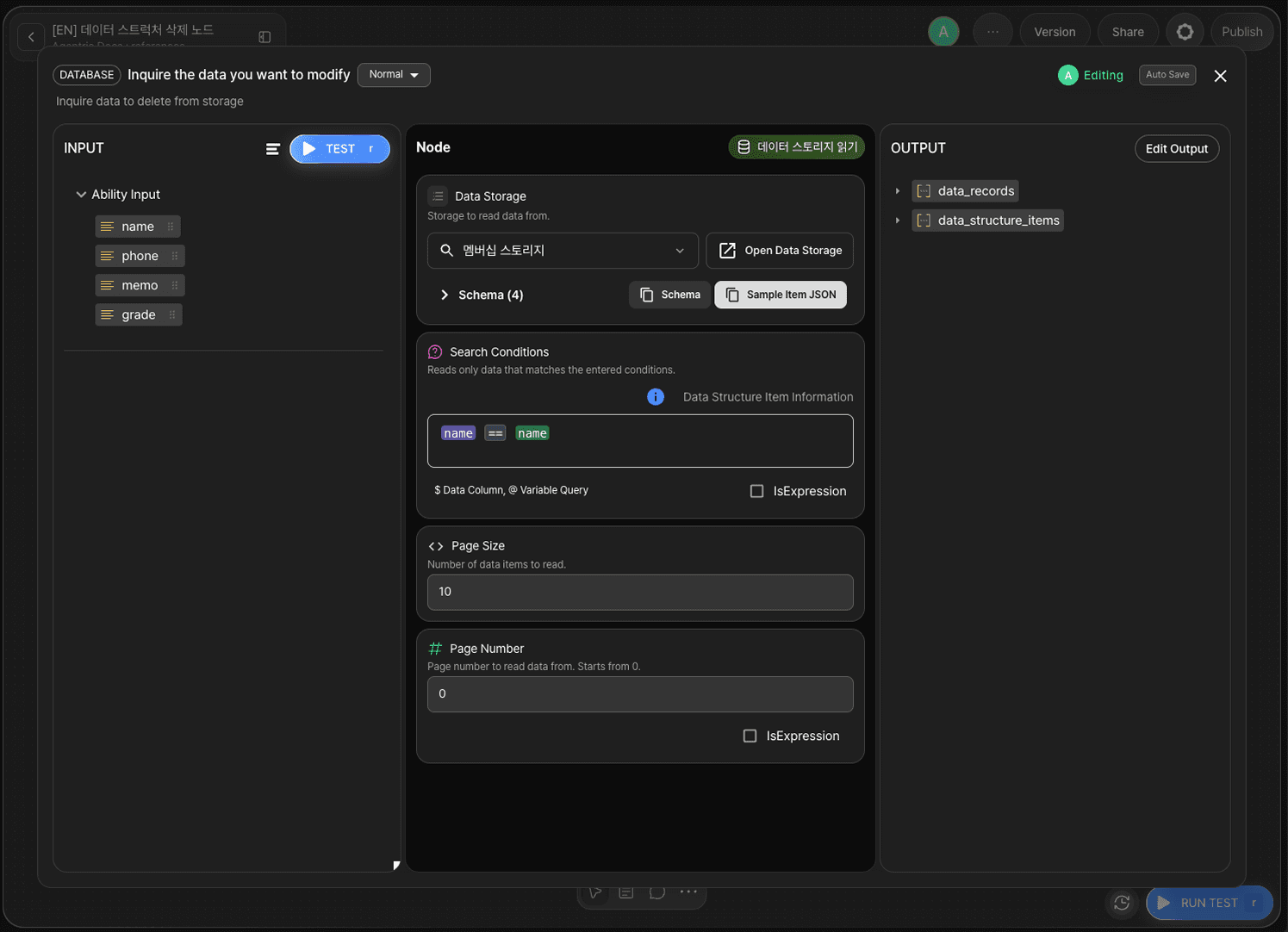
Double-click the DB Reader node to open the Node Editor. First, retrieve the target records to delete.
Select Storage
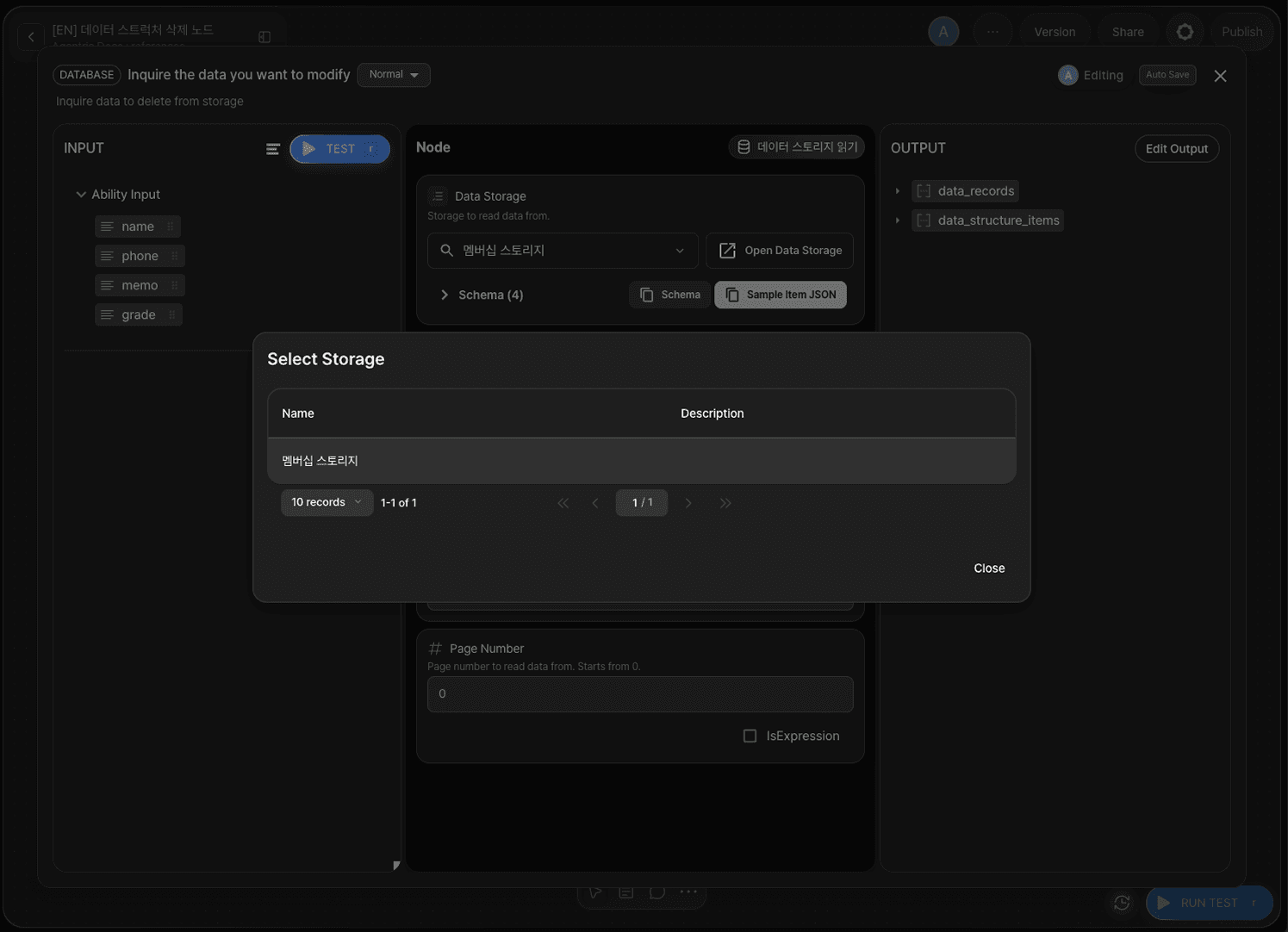
Click the Select Storage button to open the selection screen. Select the storage that holds the customer data.
Search Condition and Page Settings
Option | Value | Description |
|---|---|---|
|
| Retrieve target records by customer name |
|
| Maximum records to retrieve at once |
|
| First page |
Step 4: Configure the Python Node

Double-click the Python node to open the Node Editor.
The Python node extracts only the data_record_id from the records returned by the DB Reader node to build a list of IDs to delete.
Enter the code below. Drag and drop the data_records variable from the left input panel.
Code logic:
data_records— the list of records returned by the DB Reader nodemap(...)— extractsdata_record_idfrom each recordfilter(None, ...)— removes any entries where the ID isNoneoutput— returns the list of record IDs to delete
Important: In the Output Section of the Python node, set the type of the
outputvariable to Array.
Step 5: Configure the DB Deletor Node
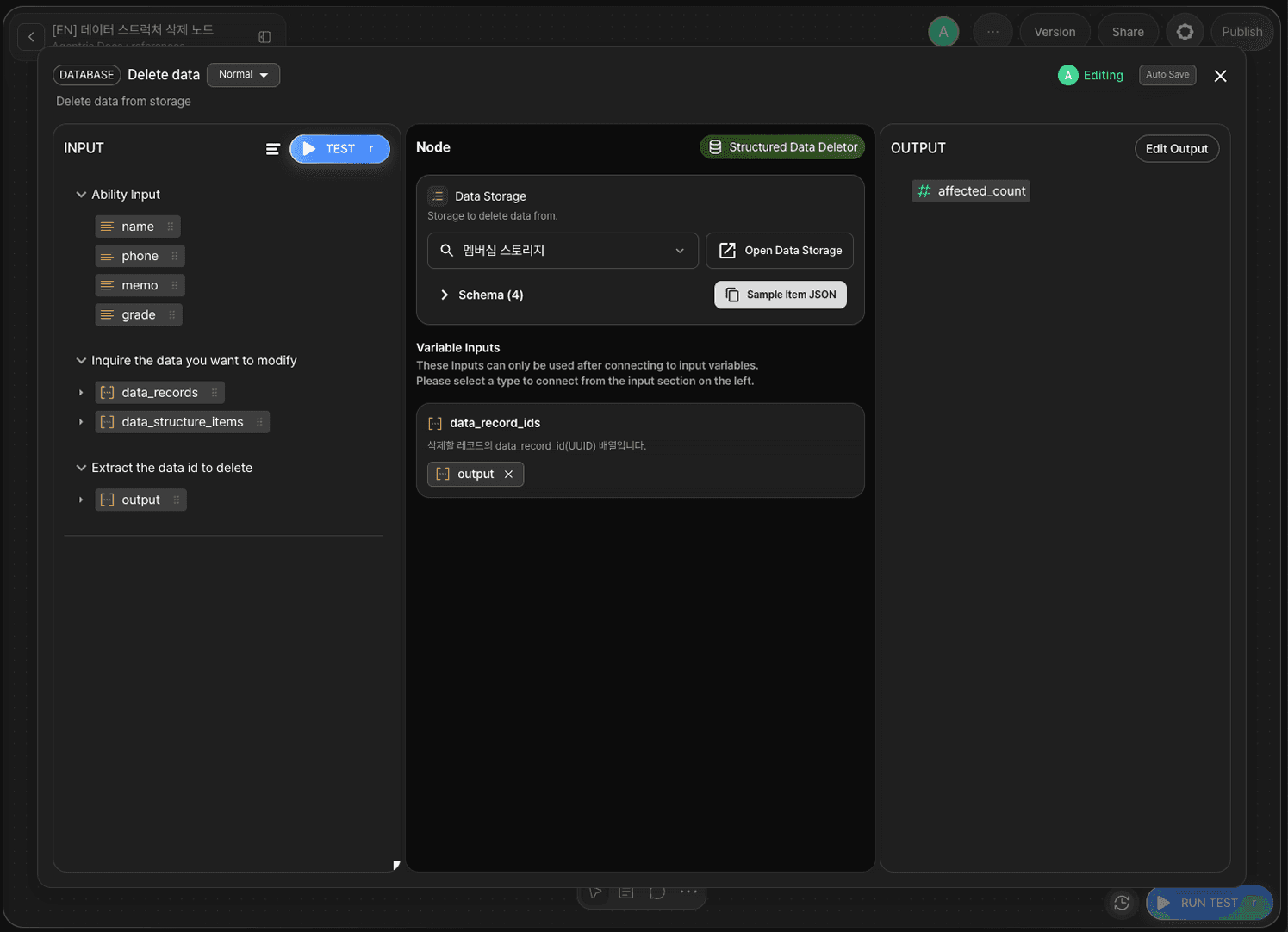
Double-click the DB Deletor node to open the Node Editor.
The DB Deletor node provides the following options.
Option | Required | Description |
|---|---|---|
| Required | Select the storage that holds the records to delete |
| Required | List of record IDs to delete (Array type) |
Select Storage
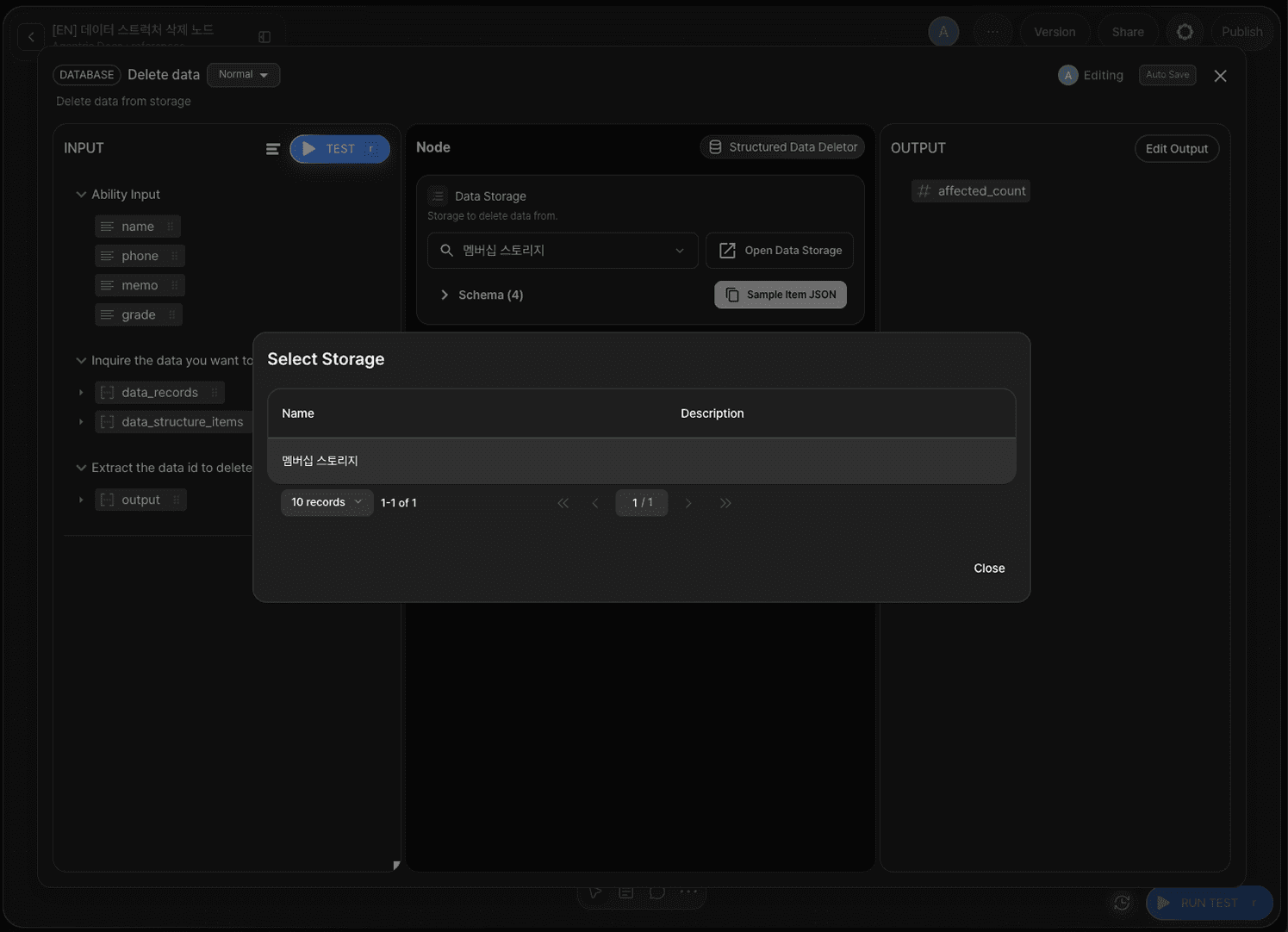
Click the Select Storage button to open the selection screen. Select the storage that holds the customer data.
Set data_record_ids
Drag and drop the Python node's output onto the data_record_ids adapter variable.
Step 6: Configure the LLM Node (Optional)
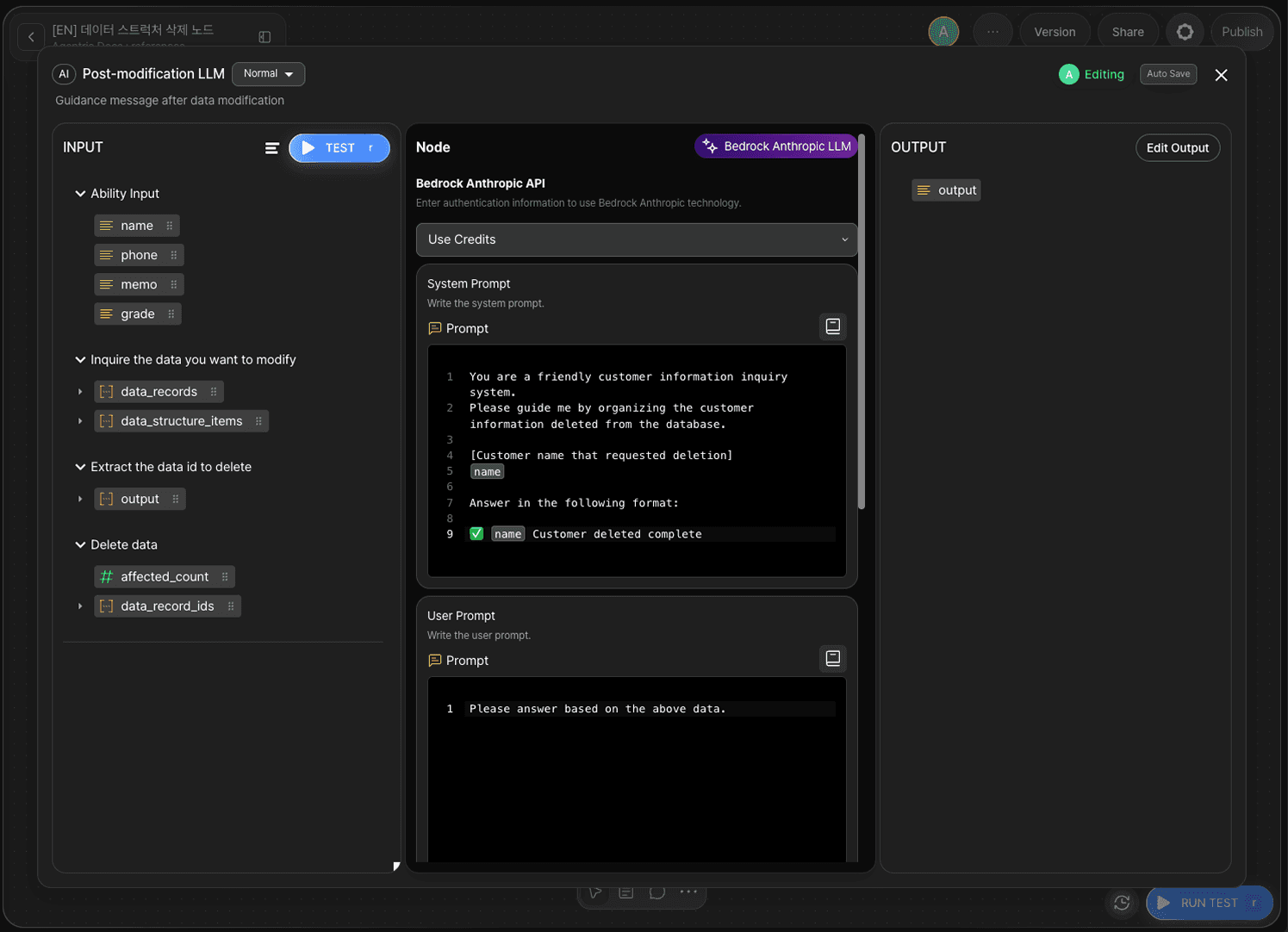
To output a confirmation message after the deletion, add a prompt to the LLM node. Double-click the LLM node to open the Node Editor and enter the following in the System Prompt field.
The LLM node is optional. If omitted, connect the DB Deletor node's Out-Pin directly to the Output Node.
Step 7: Configure the Output Node
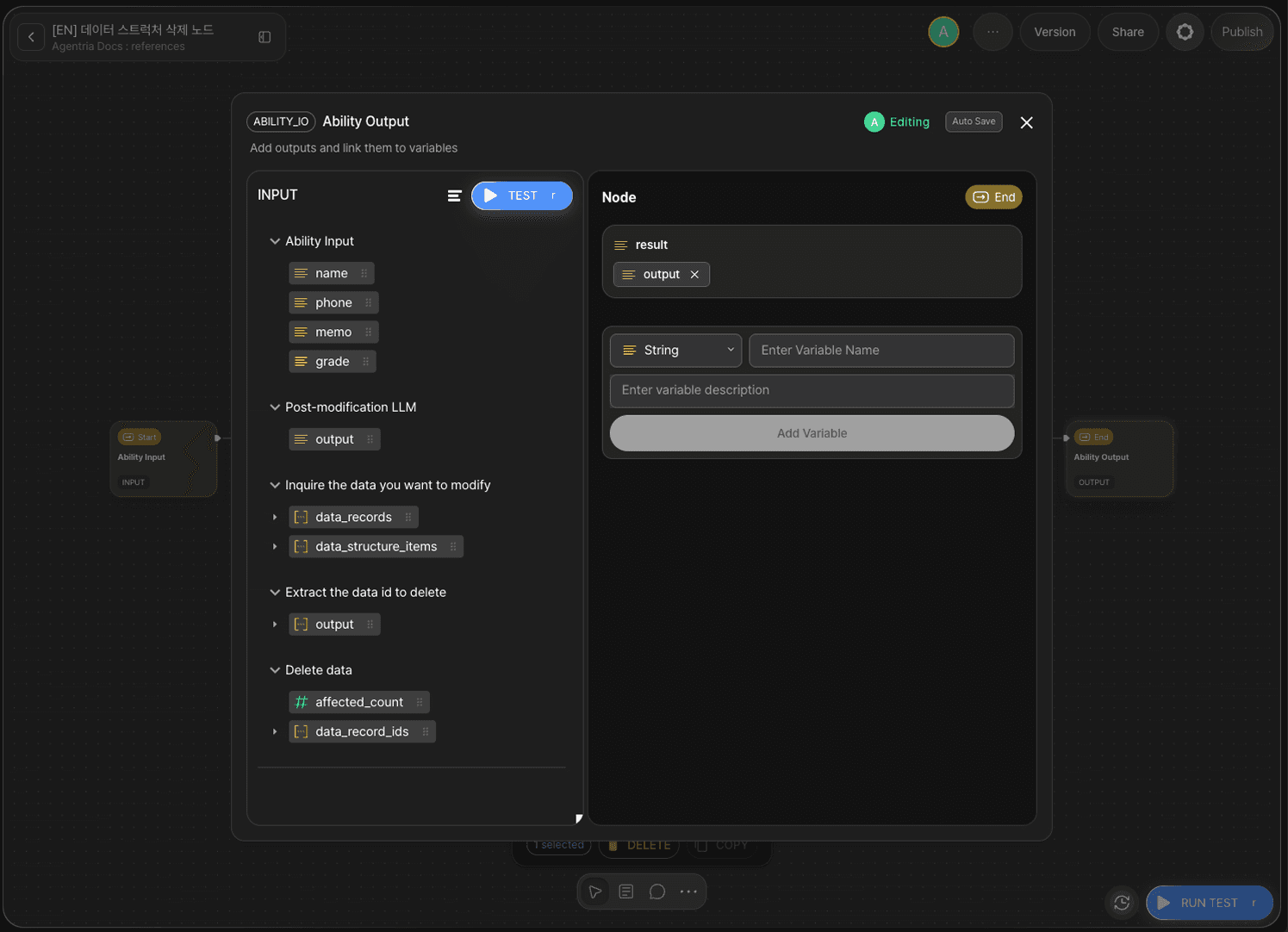
Double-click the Output Node to open the Node Editor. Add the following variable to the Output Section.
Variable | Type |
|---|---|
| String |
Drag and drop the output variable from the LLM node onto the result variable in the Output Node.
Connect the edges.
Out-Pin of
Input Node→ In-Pin ofDB Reader nodeOut-Pin of
DB Reader node→ In-Pin ofPython nodeOut-Pin of
Python node→ In-Pin ofDB Deletor nodeOut-Pin of
DB Deletor node→ In-Pin ofLLM nodeOut-Pin of
LLM node→ In-Pin ofOutput Node
Step 8: Run Test
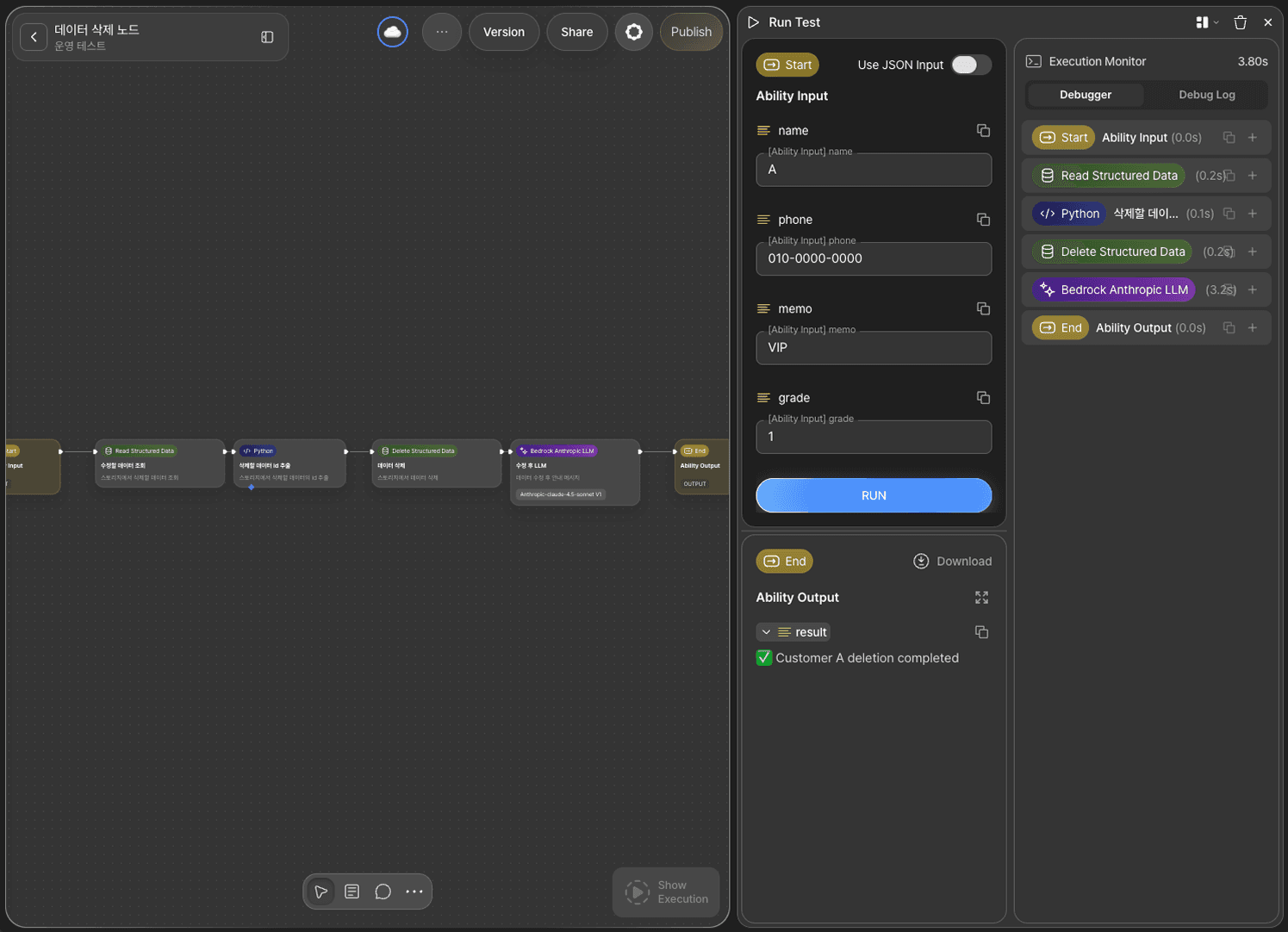
Click the RUN TEST button at the bottom right of the canvas.
Enter the name of the customer to delete in the name field and run the test — that customer's data will be deleted.
Step 9: Verify Data Storage
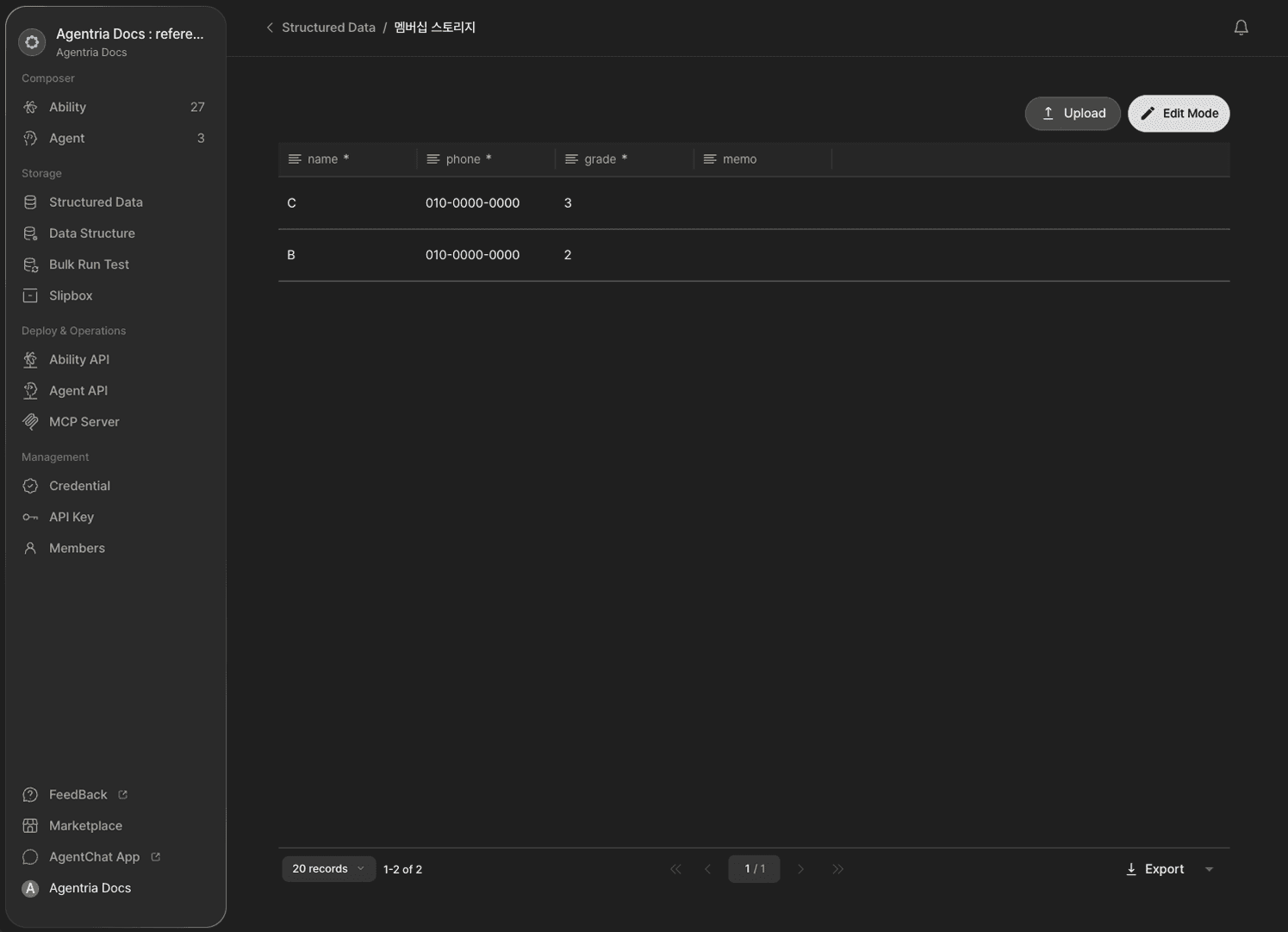
Open Data Storage from the Agentria menu. Confirm that the customer's data has been deleted.
Next Steps
🎉 Congratulations! You've successfully built the "Customer Data Delete" workflow using Agentria.
Try modifying the search condition to delete multiple records at once, or combine this with the DB Writer node to clean up old records and add new ones.
Agentria is a place where ideas become reality—your workflow can expand infinitely with your creativity.