PDF Text Reader Node
Learning to Use Nodes — PDF Text Reader Node
This tutorial walks you through the PDF Text Reader node in Agentria. The PDF Text Reader node extracts only the text content from a PDF file and returns it as a string, together with information about the range each page occupies within that string.
In this tutorial, you will build a "PDF Text Extraction" workflow that extracts and returns the text of an uploaded PDF file.
Before You Begin
For instructions on how to enter the Agentria Canvas, refer to the 🔗3-Step Core Guide.
Prepare one PDF file in advance. A file with two or more pages is recommended so that you can examine the page range information.
First, confirm that the prepared file has a text layer. What the PDF Text Reader node reads is the text layer, which stores character data inside the file. Open the file in a PDF viewer and drag across the text: if a selection is made, or if a word can be found through in-document search, the file has a text layer. If neither selection nor search works, the pages consist only of images and no text will be extracted.
If you use a file without a text layer, the node returns an empty string without raising an error, which makes the cause difficult to identify. This is explained in detail in Reference: Characteristics of the Extracted Text below.
After completing this tutorial, you will be able to:
Connect a file-type variable to the
pdffield of the PDF Text Reader node.Receive the extracted text as
full_textand reference it from other nodes.Check the range each page occupies within
full_textusingpage_infos.Verify extraction results immediately with a Node Test.
Verify the behavior of the entire workflow with an Ability Test.
Workflow Overview
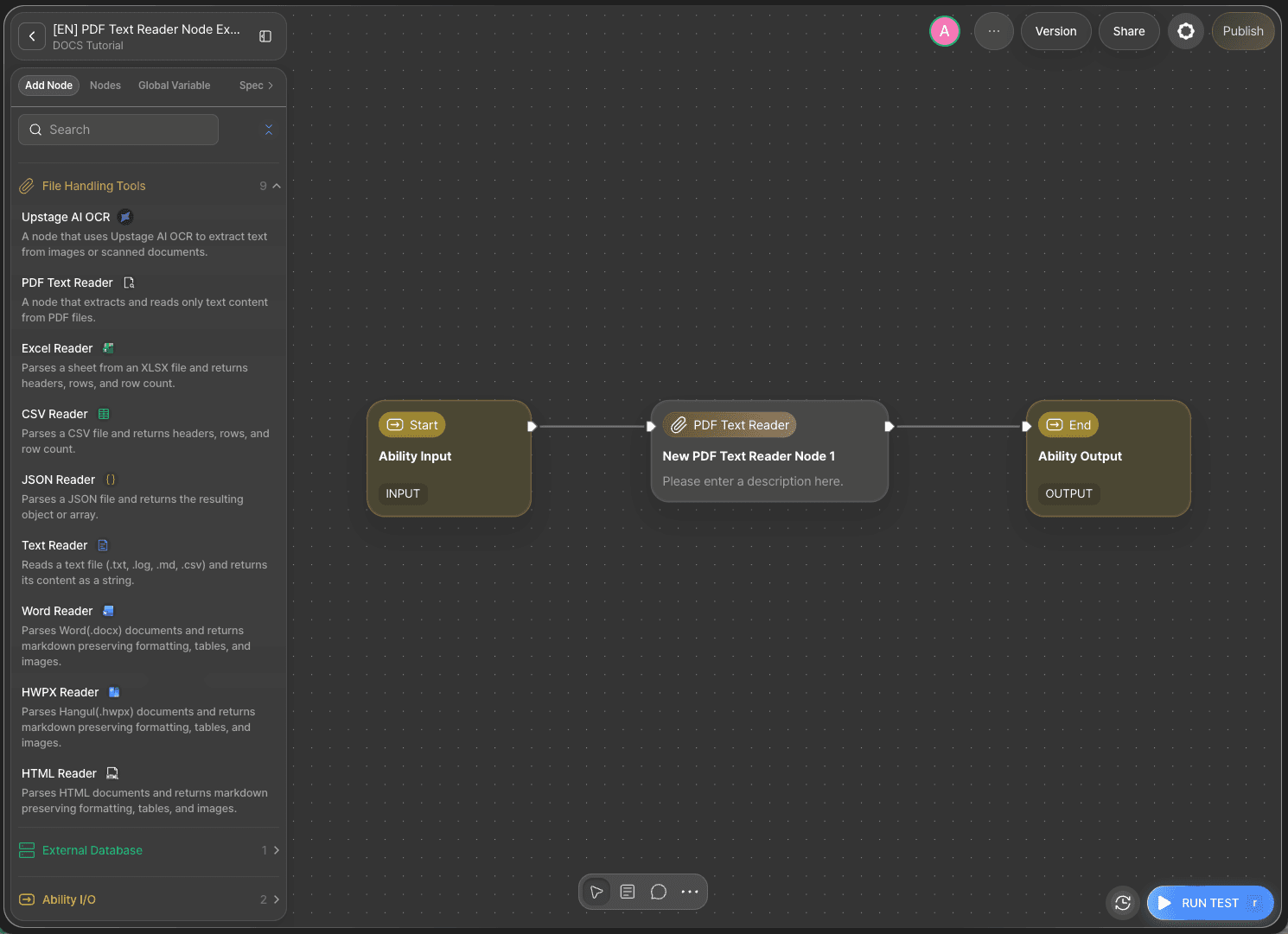
The core of this tutorial is the PDF Text Reader node.
The PDF Text Reader node extracts the text content from the connected PDF file and returns it as a single full_text string. In addition, page_infos indicates which range of that string corresponds to each page, so you can also pick out the text of a specific page.
The PDF Text Reader node belongs to the File Handling Tools category. Depending on the file format you need to process, you can also use the nodes below.
Node | Supported Format | Return Format |
|---|---|---|
Upstage AI OCR node | Images and scanned documents | String |
Excel Reader node | .xlsx, .xls | Headers, rows, row count |
CSV Reader node | .csv | Headers, rows, row count |
JSON Reader node | .json | Object/array |
Text Reader node | .txt, .log, .md, .csv | String |
Word Reader node | .docx | Markdown |
HWPX Reader node | .hwpx | Markdown |
HTML Reader node | .html | Markdown |
Step 1: Declare Input Variables (Start Node)
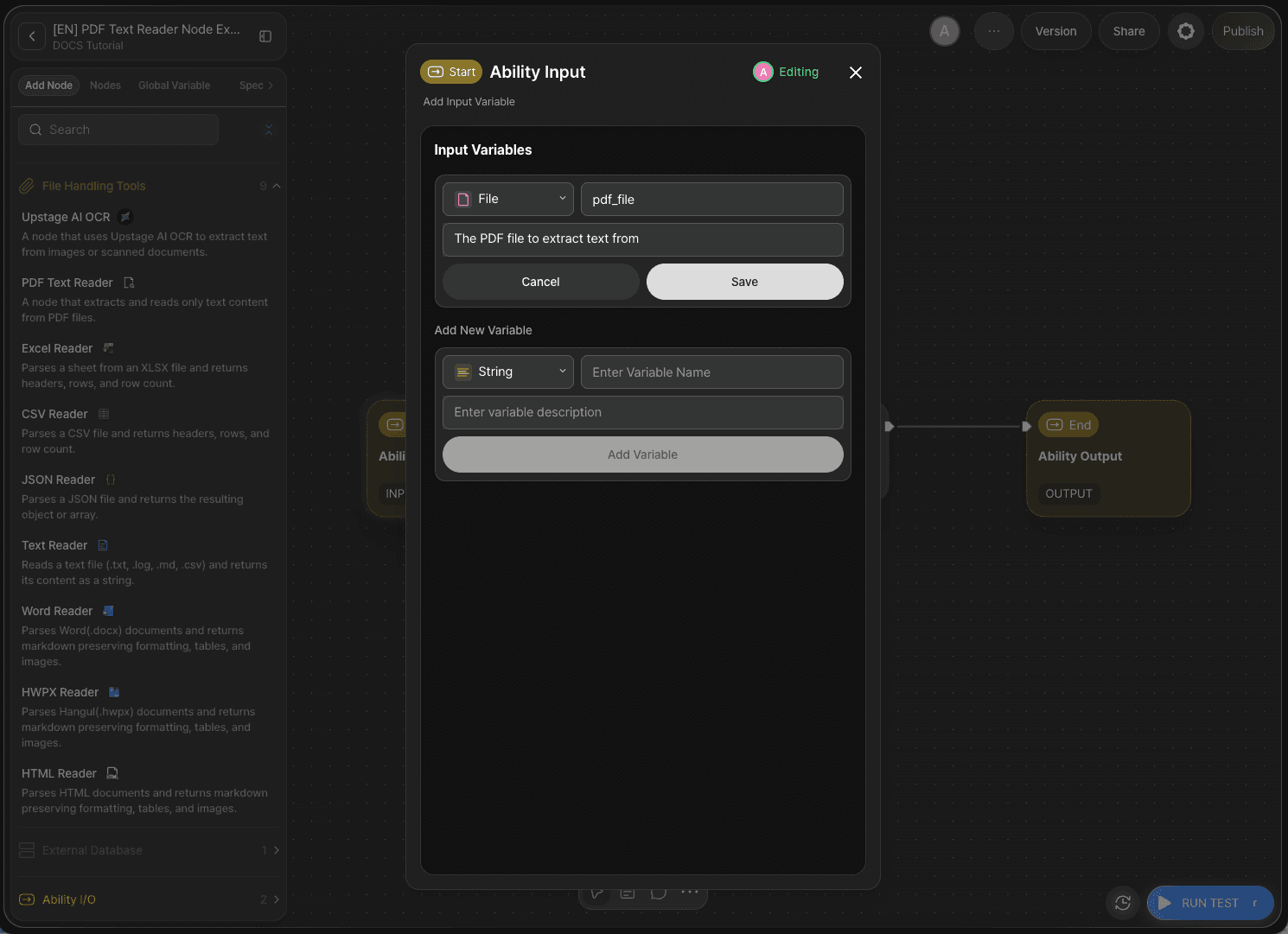
Double-click the Start Node to open the Node Editor. On the Ability Canvas, the Start Node is displayed as Ability Input.
In the Input Variables section, add the variable below and click Save.
Type | Variable Name | Description |
|---|---|---|
|
| The PDF file to extract text from |
pdf_file is the variable you will connect as the input of the PDF Text Reader node in the next step.
Step 2: Add the PDF Text Reader Node
Click Add Node on the Canvas, then drag and drop the PDF Text Reader node from the File Handling Tools category onto the Canvas.
Step 3: Configure the PDF Text Reader Node
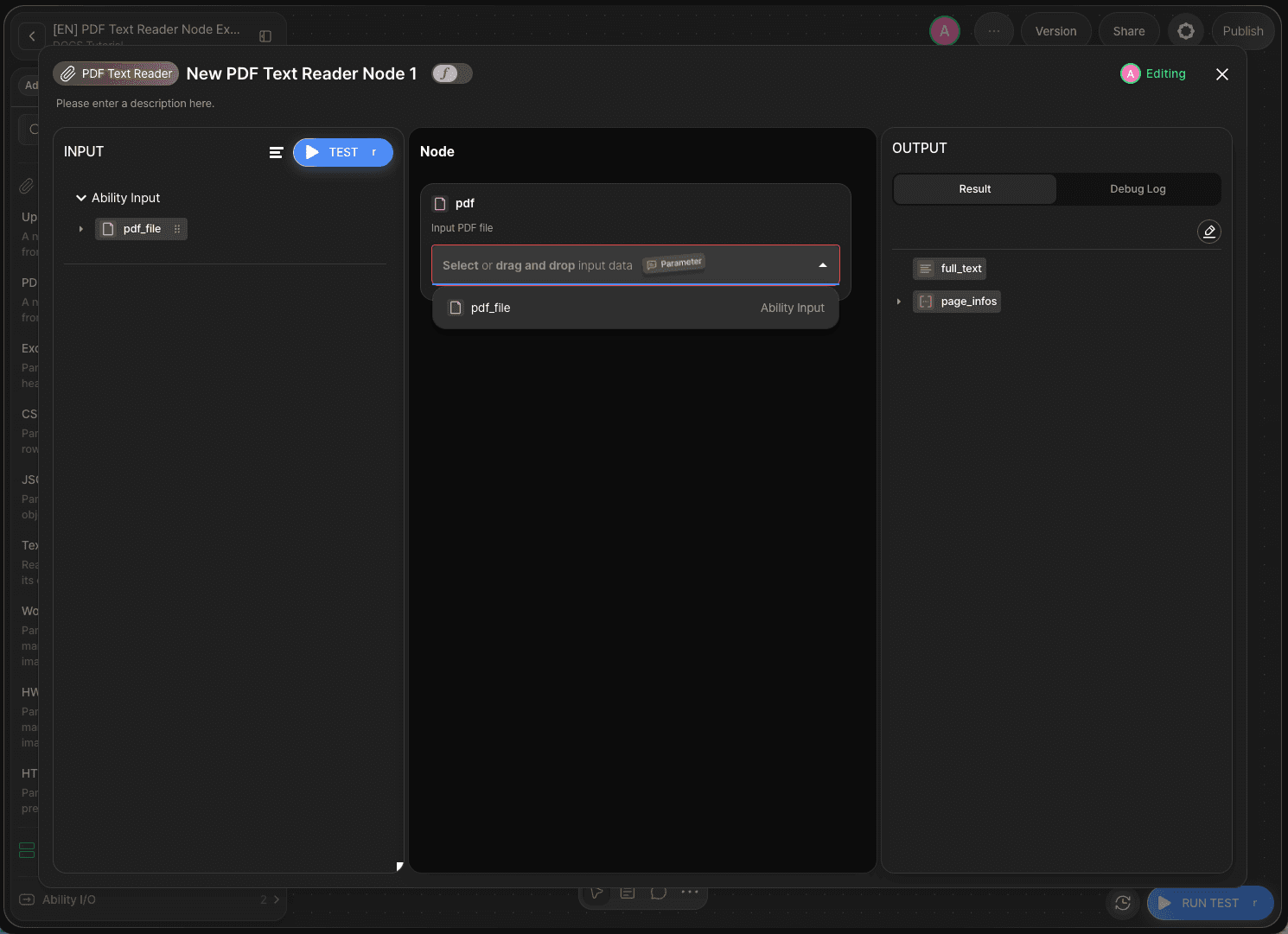
Double-click the New PDF Text Reader Node 1 node to open the Node Editor.
The PDF Text Reader node provides the field below.
Field | Required | Description |
|---|---|---|
| Required | The PDF file to extract text from. Only a single file can be provided |
Connect the pdf_file variable from the Start Node to the pdf field using drag and drop.
When the node runs successfully, it outputs the two values below.
Output | Type | Description |
|---|---|---|
| String | The text extracted from the entire PDF |
| Array | Information about the range each page occupies within |
Each element of page_infos consists of three values: page, offset, and length.
page: The page number. It starts from 0, so the first page is0.offset: The character position withinfull_textwhere the text of that page begins.length: The number of characters in the text of that page.
full_text is a single string in which the text of all pages is joined without any separator. Therefore, slicing from offset for length characters returns the text of a specific page.
full_textcontains no line break or separator at the point where the page changes. The last character of the previous page and the first character of the next page are joined directly. In other words, page boundaries cannot be determined fromfull_textalone, so usepage_infoswhen content must be processed page by page.
Step 4: Connect the Nodes with Edges
Connect the Edges on the Canvas in the following order.
Out-Pin of the
Start Node→ In-Pin of theNew PDF Text Reader Node 1nodeOut-Pin of the
New PDF Text Reader Node 1node → In-Pin of theEnd Node
Step 5: Configure the End Node
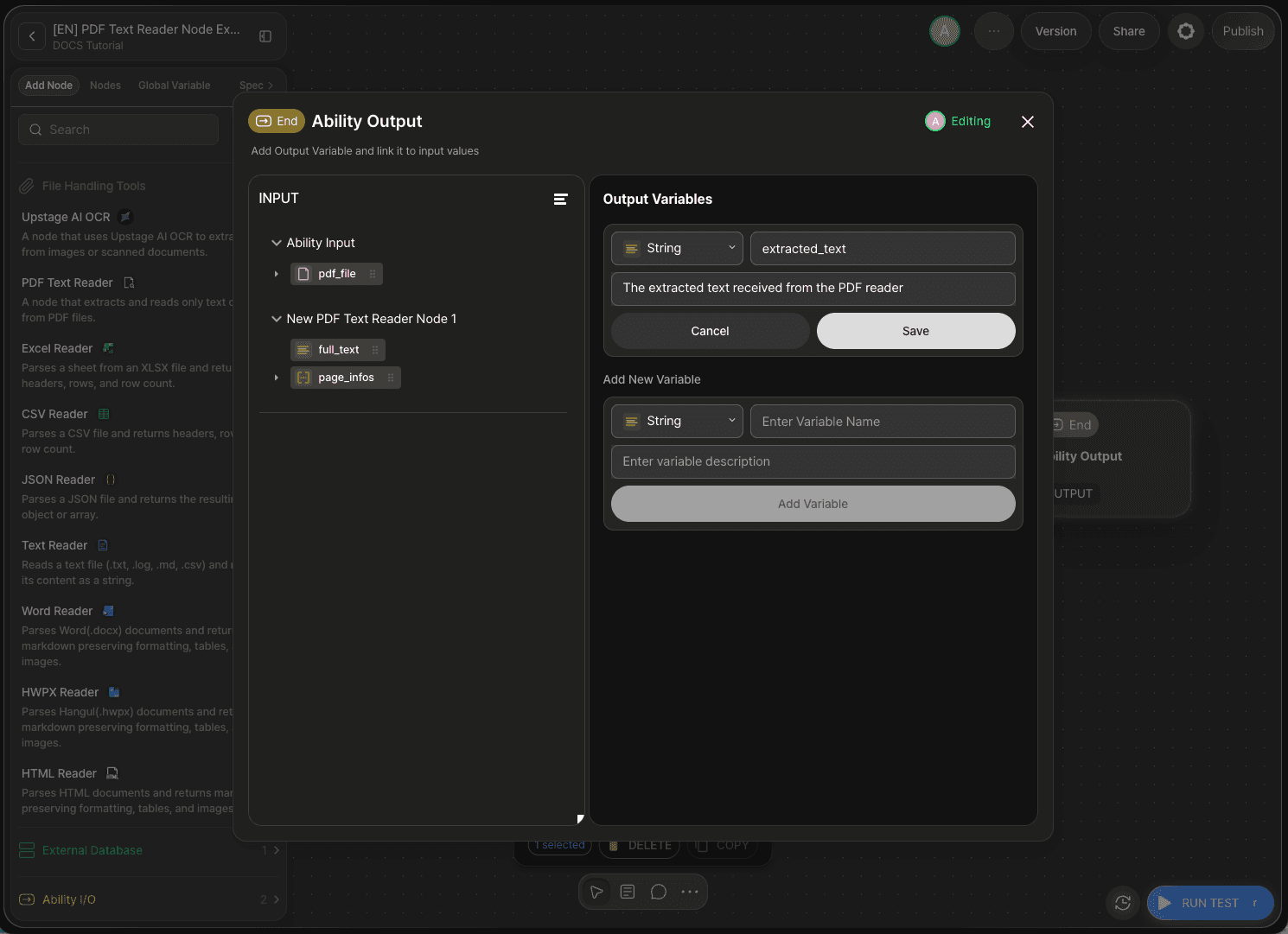
Double-click the End Node to open the Node Editor. On the Ability Canvas, the End Node is displayed as Ability Output.
In the Output Variables section, add the variable below and click Save.
Type | Variable Name | Description |
|---|---|---|
|
| The extracted text received from the PDF reader |
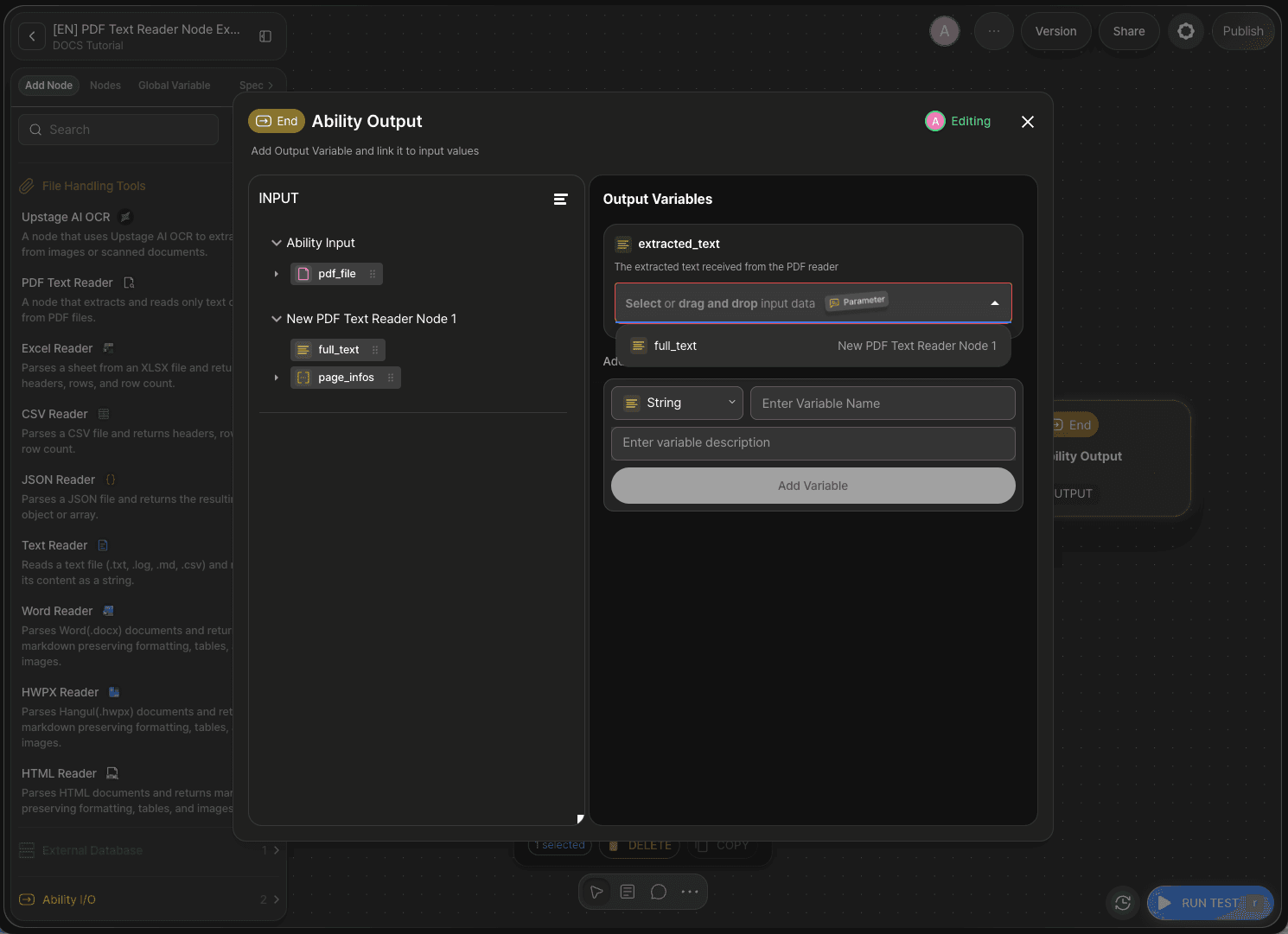
Connect full_text from the PDF Text Reader node to the extracted_text field you added, using drag and drop.
Step 6: Check the Output with a Node Test
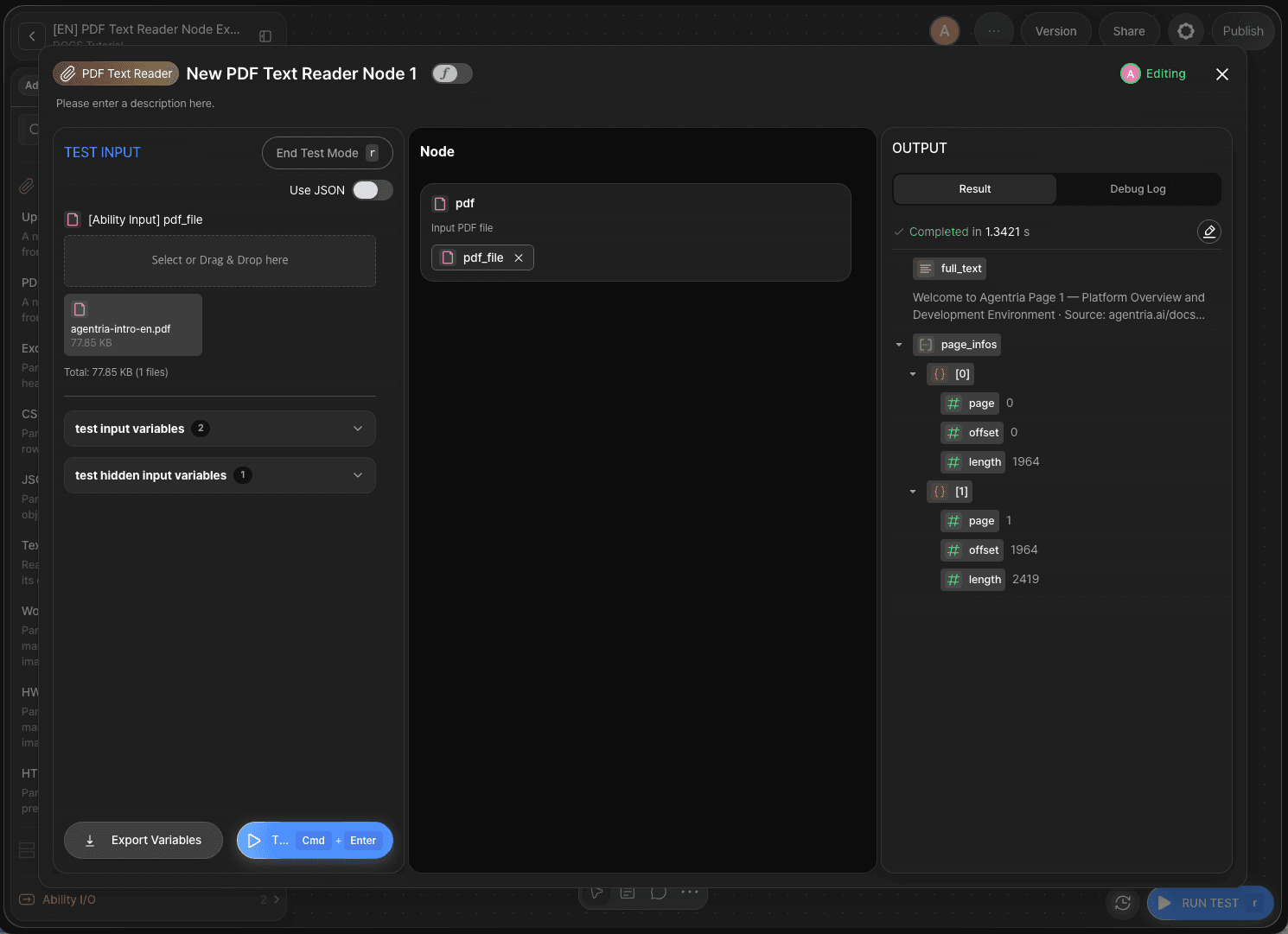
Click the TEST button at the top of the Node Editor to open the Test Input panel on the left. Drag and drop the prepared PDF file onto the [Ability Input] pdf_file field, then click Test.
Check the two results below in the Output Section.
full_textholds the text contained in the PDF as a string.page_infoscontains as many elements as there are pages. For a two-page document,[0]and[1]are displayed.
Expand page_infos and check that the values connect to one another. For example, if length of [0] is 1092, then offset of [1] is also 1092, because the next page begins where the previous page ended.
A Node Test runs only that node on its own. Because extraction results can be checked before the surrounding nodes are connected, it is useful for verifying that a file is read correctly before completing the workflow.
If
full_textis empty, the file most likely has no text layer. Check whetherlengthis0for every element ofpage_infos. This is explained inReference: Characteristics of the Extracted Textbelow.
Step 7: Run the Entire Workflow with an Ability Test
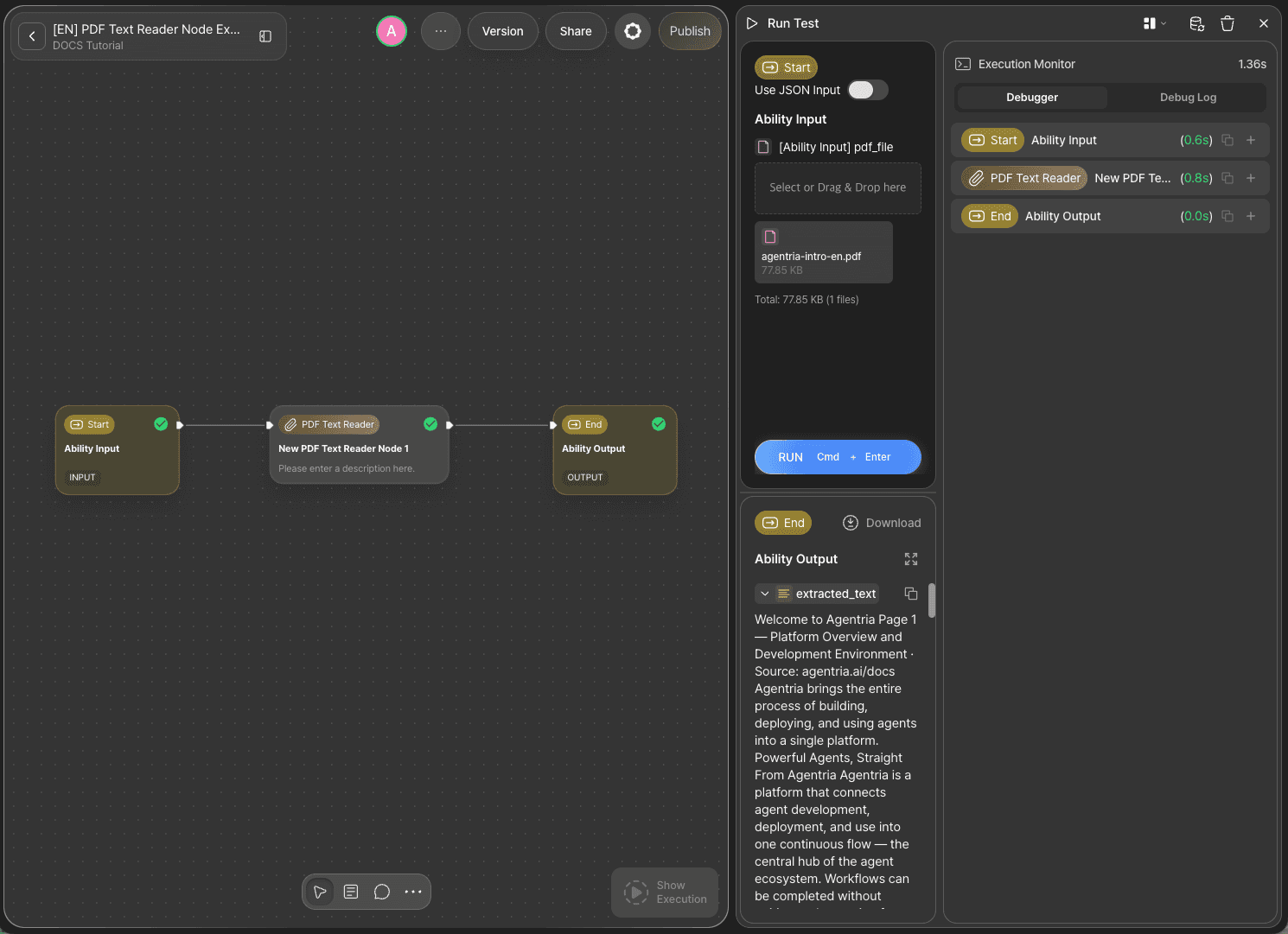
Click the RUN TEST button at the bottom right of the Canvas to run an Ability Test.
Upload a PDF file to the pdf_file field and run the test. The extracted text is returned in extracted_text of the End Node.
Reference: Characteristics of the Extracted Text
The PDF Text Reader node reads the text contained in a PDF as is and joins it together. The visual structure of the original is not preserved, so keep the characteristics below in mind when using the extraction results in the next node.
Text is extracted only from PDFs that have a text layer. A PDF page can contain a text layer, which holds character data, and images, which are made up of pictures. What the PDF Text Reader node reads is the text layer. A PDF created by scanning or photographing a paper document consists only of images on each page, so there is no text layer to read.
However, even a scanned document can be extracted if the PDF has gone through Optical Character Recognition (OCR) and therefore contains a text layer. The text recognition features of scanner software and document editing tools save the recognized characters as invisible text overlaid on the original image. The document looks exactly like a scanned image, but character data is stored inside the file as well. Such a PDF is called a searchable PDF.
If you connect a file without a text layer, the node does not raise an error. It is processed as completed successfully and returns an empty string in full_text. Since the workflow proceeds as if it had succeeded and passes an empty value to the next node, the cause can be hard to trace. In this case, checking page_infos together allows you to identify the issue.
Case |
|
|
|---|---|---|
PDF with a text layer | Extracted text |
|
PDF without a text layer | Empty string | Elements are created, but |
As many elements as there are pages are created normally, but length is returned as 0 for every element. This means the pages were recognized but contain no character data.
To obtain text from a document without a text layer, use a node that performs optical character recognition, such as the Upstage AI OCR node, or an AI model node that can also interpret images.
The text layer of an OCR-processed PDF stores the recognition results as they are. Therefore, even when extraction succeeds, characters that differ from the original may be included.
Only cell text remains from tables. The contents of table cells are listed from left to right and top to bottom, and no values distinguishing rows and columns are included. Header rows are mixed in as ordinary text, and there is no marker indicating where a table ends. If table data must be handled row by row, use a node that returns headers and rows separately, such as the Excel Reader node or the CSV Reader node.
Headers and footers are extracted as well. In a document where a page number or document title is repeated, the same phrase appears repeatedly throughout the extracted text.
A space is inserted at each line break position of the original. In languages such as Korean, a line can break in the middle of a word, so a word may appear split into two pieces at the point where the line broke. This is rarely an issue when the text is passed to an AI model node for summarization or classification, but it must be taken into account in workflows that need to match a specific word exactly as a string.
Next Steps
🎉 Congratulations! You've successfully built the "PDF Text Extraction" workflow using Agentria.
Connect the extracted text to an AI model node to expand into document processing workflows such as summarization, classification, and question answering. You can also use the range information in page_infos to build a configuration that processes only the text of a specific page.
Agentria is a place where ideas become reality—your workflow can expand infinitely with your creativity.
Frequently Asked Questions
What is the PDF Text Reader node?
The PDF Text Reader node is a node in Agentria that extracts and returns only the text content of a PDF file. It belongs to the File Handling Tools category, and when a single PDF file is connected to the pdf field, it outputs the entire text as the full_text string and the range each page occupies within that string as the page_infos array.
When should I use the PDF Text Reader node?
Use it when the contents of a PDF document need to be handled as text within a workflow. To pass a PDF such as a contract, report, or manual to an AI model node for summarization or classification, the text must first be extracted with the PDF Text Reader node. Note that the PDF must have a text layer holding character data; text cannot be extracted from a file whose pages consist only of images. If the file format is not PDF, use the reader node for that format, such as the Excel Reader node or the Word Reader node.
What is the difference between full_text and page_infos?
full_text is a single string in which the text of every page of the PDF is joined together, while page_infos is an array that provides the basis for dividing that string page by page. Each element of page_infos holds the page number (page, starting from 0), the starting position (offset), and the character count (length). Use full_text to handle the document as a whole, and the range information in page_infos to process a specific page.
Can I process multiple PDF files at once?
One PDF Text Reader node processes one file. Only a single file can be connected to the pdf field, so to handle multiple PDFs, place as many PDF Text Reader nodes on the Canvas as there are files to process and connect one file to each.
How is the PDF Text Reader node different from the Upstage AI OCR node?
The two nodes are not alternatives to each other; they handle different kinds of documents. The PDF Text Reader node reads and returns the text layer already contained in a PDF, so an empty string is returned for a file whose pages consist only of images. The Upstage AI OCR node recognizes characters directly from images or scanned documents through Optical Character Recognition (OCR) and produces text from them, and it is used by entering an external API key in the node's API Key field. Even a scanned document can be extracted with the PDF Text Reader node if the PDF contains a text layer added through OCR processing, so choose between the two based on whether the file has a text layer rather than whether it is a scan.