Slip Append Node
Using Slipbox Nodes (Slip Append)
The Slip Append node appends a new section to the end of an existing slip's body. The server preserves the existing content as-is, so you don't need to resend the entire body — just pass the new content you want to add. It's especially useful when creating a slip failed because a slip with the same title already exists, and you want to add to that existing slip instead of creating a new one.
This node also works well connected to an agent as a tool, but this tutorial covers it in an Ability to walk through the most basic usage first. Connecting it to an agent will be covered in a separate Slipbox agent integration guide. Which slip you append to in real use is entirely up to you and your project — in this tutorial, you'll build an Ability workflow that creates a test slip in the Agentria Docs slipbox and appends new content to it.
Before You Begin
A slipbox must already be set up in your project, and the slip you want to append to must already exist, before starting this tutorial. For instructions on building a slipbox, see the 🔗Slipbox Guide. This tutorial creates a test slip inside the Agentria Docs slipbox to use along the way.
After completing this tutorial, you will be able to:
Use the Slip Append node to add a new section to the end of an existing slip's body.
Connect each input variable of the Slip Append node to the Start Node's input values.
Record the source of the content you append.
Verify the content was appended successfully by running the test and checking the debug log.
Workflow Overview
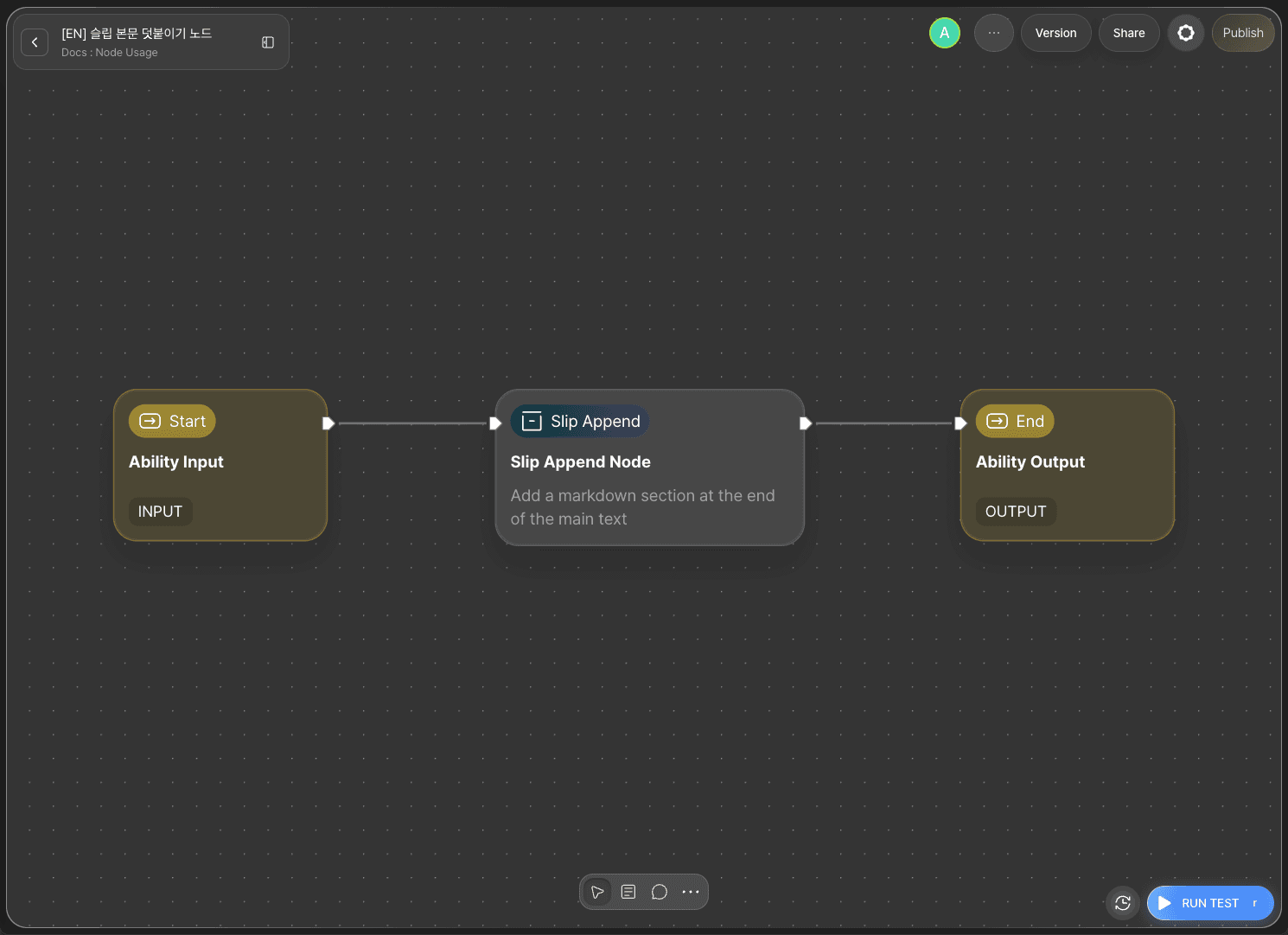
The core of this tutorial is the Slip Append node.
The Slip Append node identifies the slip by its public UUID and adds the markdown section you pass to the end of its body. It never touches the existing body, and the slip's version goes up by one each time you append
Slip Append Node Basic Info
The Slip Append node provides the following options.
Option | Required | Description |
|---|---|---|
| Required | Select the slipbox that the slip to append to belongs to. |
| Required | The UUID of the target slip to append to. Typically comes from a search, query, or read node's output. |
| Required | The markdown section to add to the end of the body. Write only the new content — the existing body is preserved by the server as-is. |
| Optional | The source of the appended content (document name, URL, or speaker). Recorded as a single line below the section. |
This tutorial uses all four options.
Step 1: Create an Ability
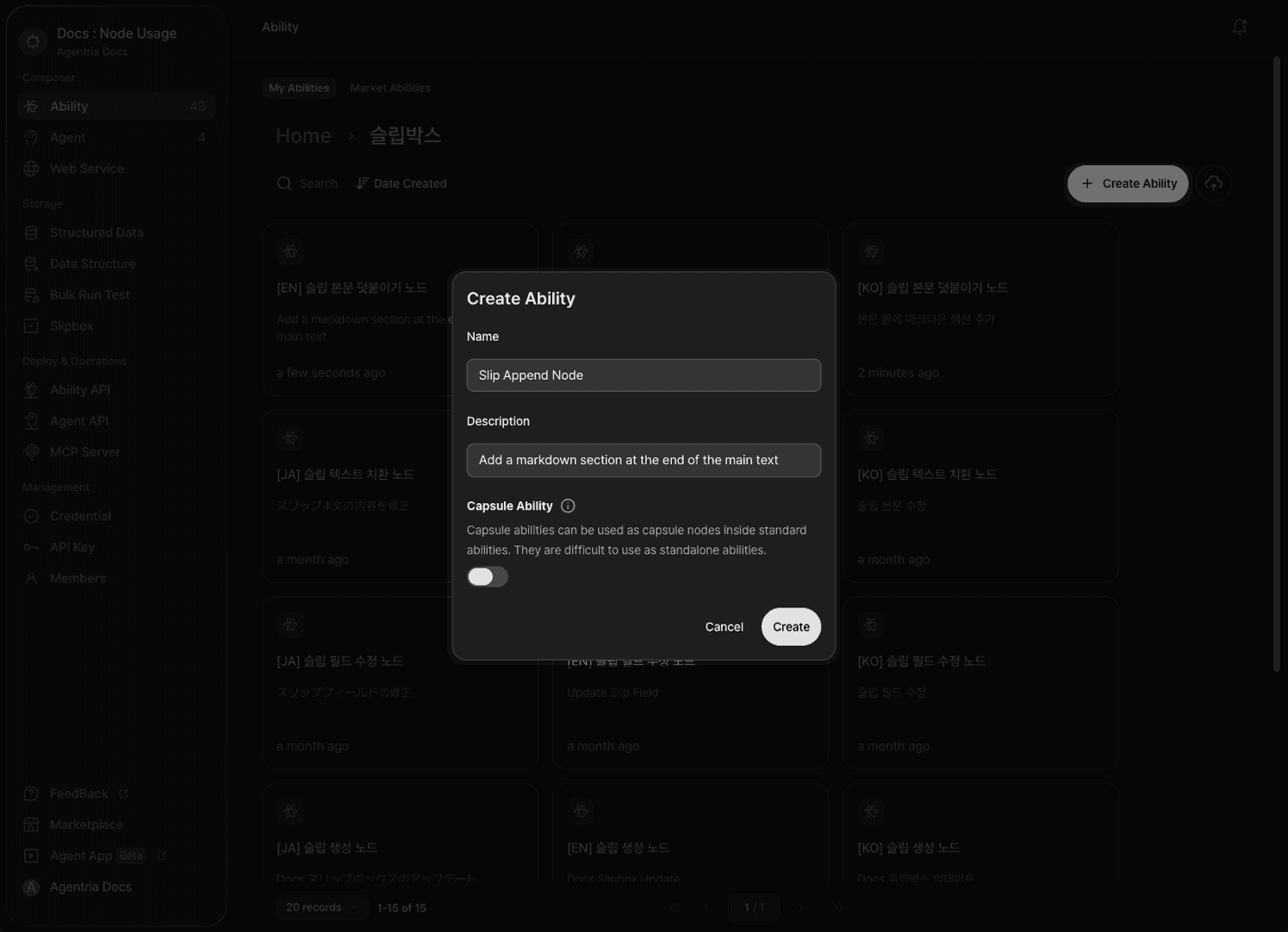
Create a new Ability. Enter Slip Append node for Name and Append content to a slip for Description. This Ability connects the Slip Append node directly to the slip you want to append to. Which slip you target is up to you — this tutorial targets a test slip in the Agentria Docs slipbox.
Step 2: Configure the Start Node
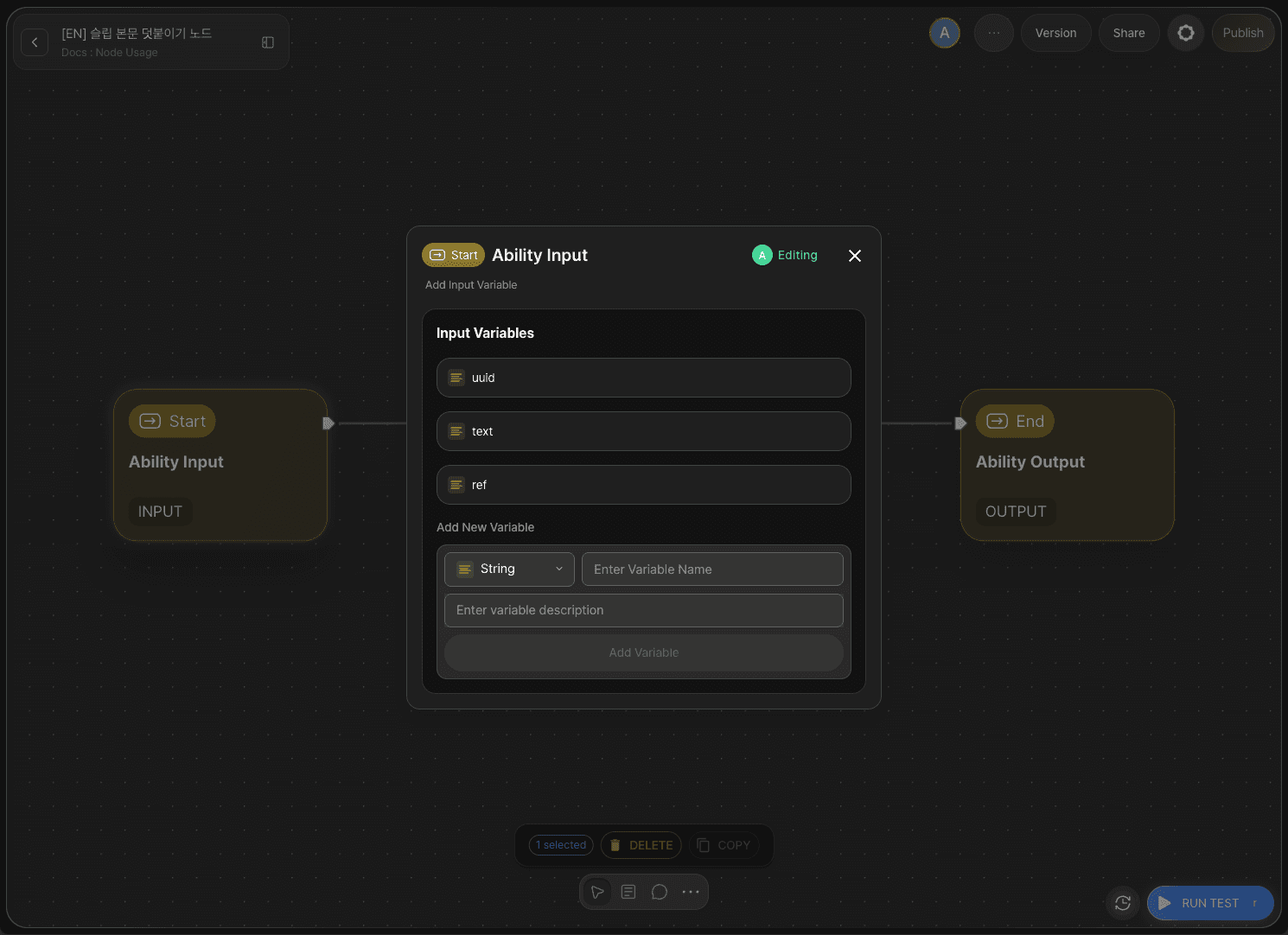
Double-click Start Node to enter the Node Editor. Add three String variables.
uuid: accepts the UUID of the target slip to append to. (String)text: accepts the markdown section to append to the end of the body. (String)ref: accepts the source of the appended content. (String)
Step 3: Add the Slip Append Node
Click +Add Node → add a Slip Append node from the Slipbox category.
Step 4: Configure the Slip Append Node
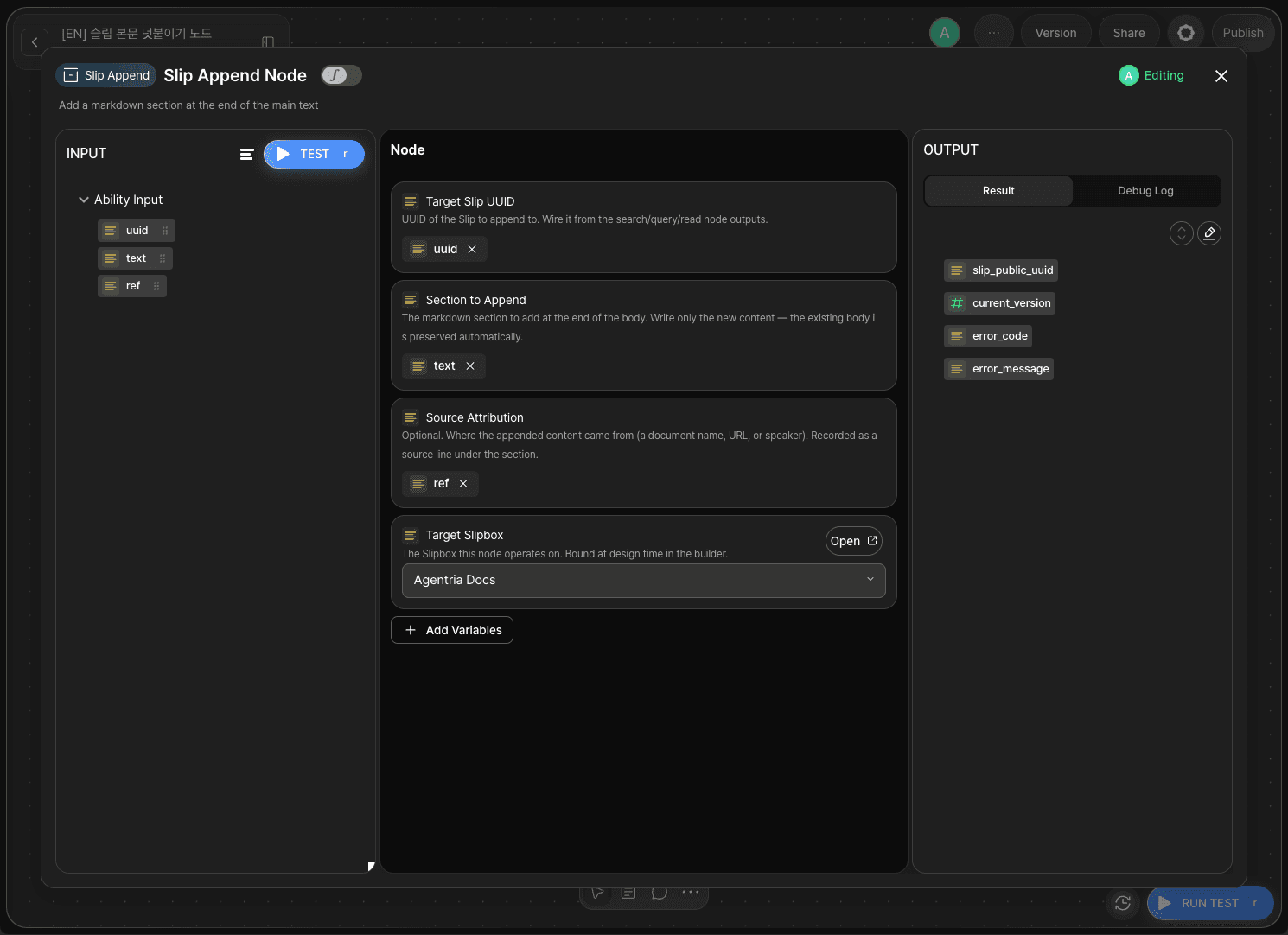
Double-click the Slip Append node to enter the Node Editor. In Target Slipbox, select Agentria Docs.
Drag and drop the Start Node's input values onto the remaining fields as follows.
Adapter Variable | Bound Value |
|---|---|
|
|
|
|
|
|
Once the node runs successfully, it outputs slip_public_uuid (the UUID of the slip appended to), current_version (the version number after appending), error_code, and error_message.
Step 5: Configure the End Node

Double-click End Node to enter the Node Editor. Add a String output variable named result and drag and drop error_code from the Slip Append node to bind it. This lets you check whether the content was appended successfully or failed from the output value.
Step 6: Copy the UUID of the Slip to Append To
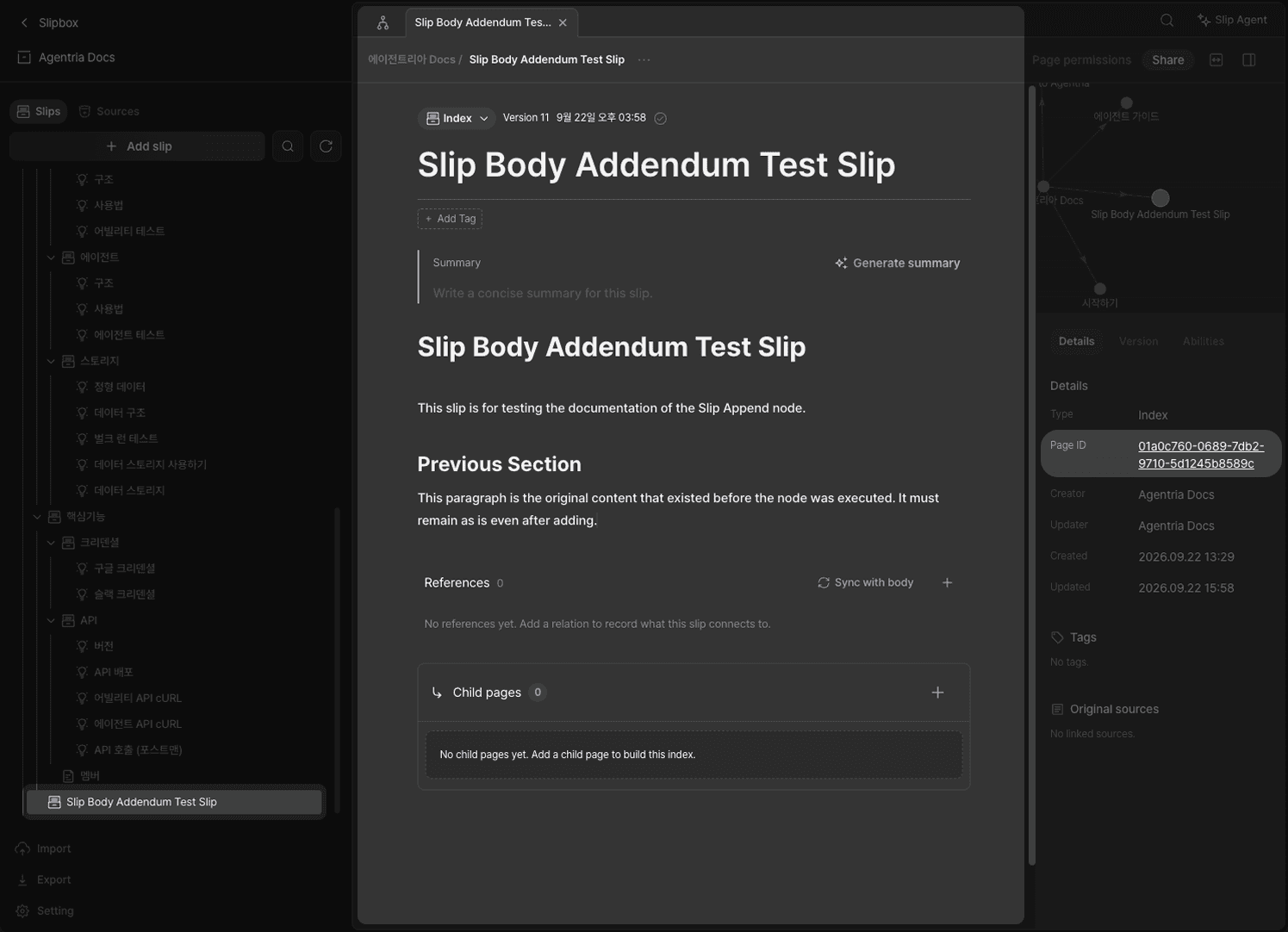
Go to the Agentria Docs slipbox and click Add Slip to create a new test slip. Enter a simple title and body and save it, then copy its public UUID from the details panel on the right. You'll use this value as the uuid input when you run the test.
Step 7: Run the Test
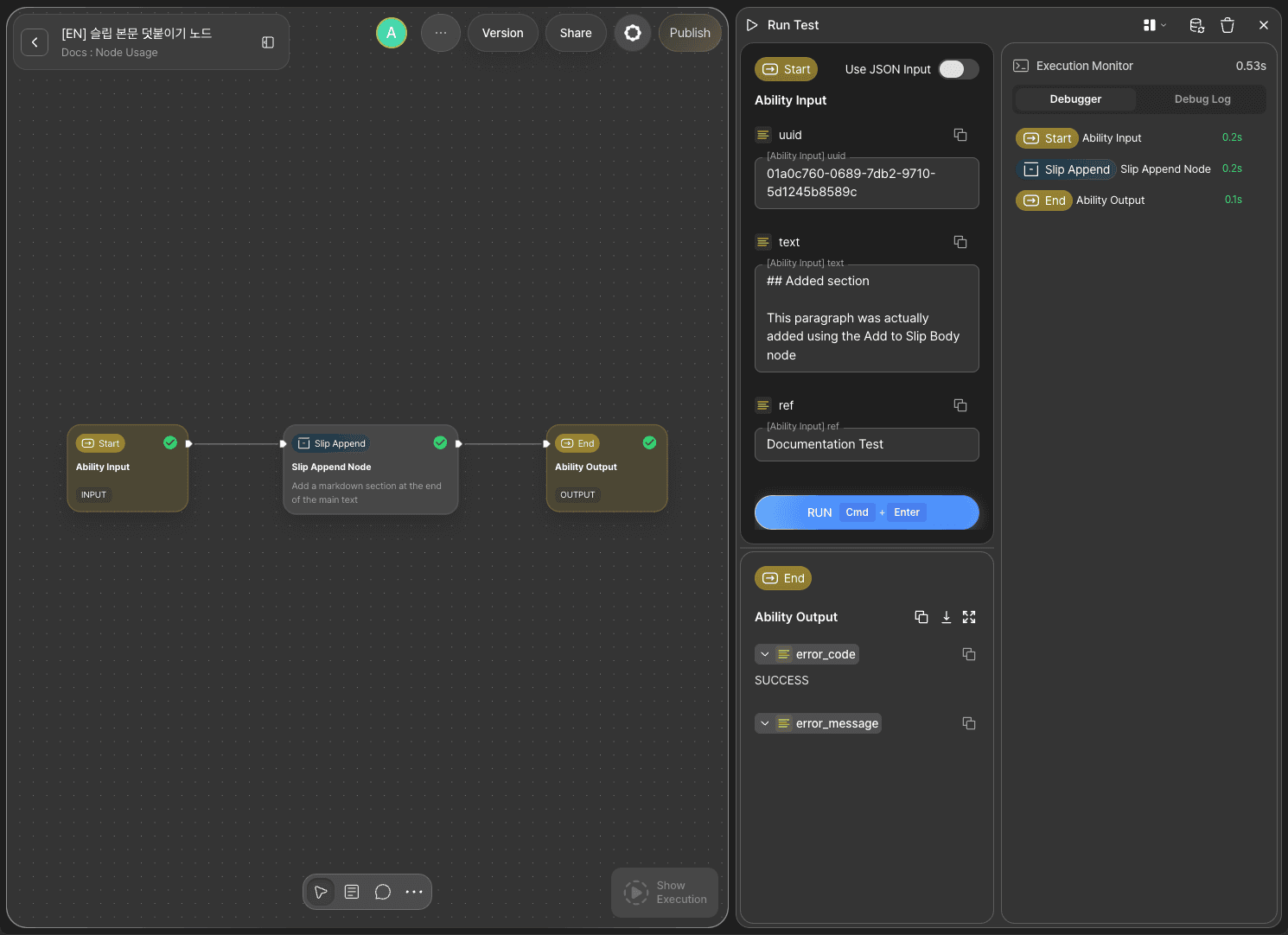
Paste the slip's public UUID you copied earlier into uuid. In text, write the content to append as a markdown section.
Enter Documentation test for ref, then click RUN TEST. If the result output is SUCCESS, the test succeeded.
Step 8: Check the Debug Log
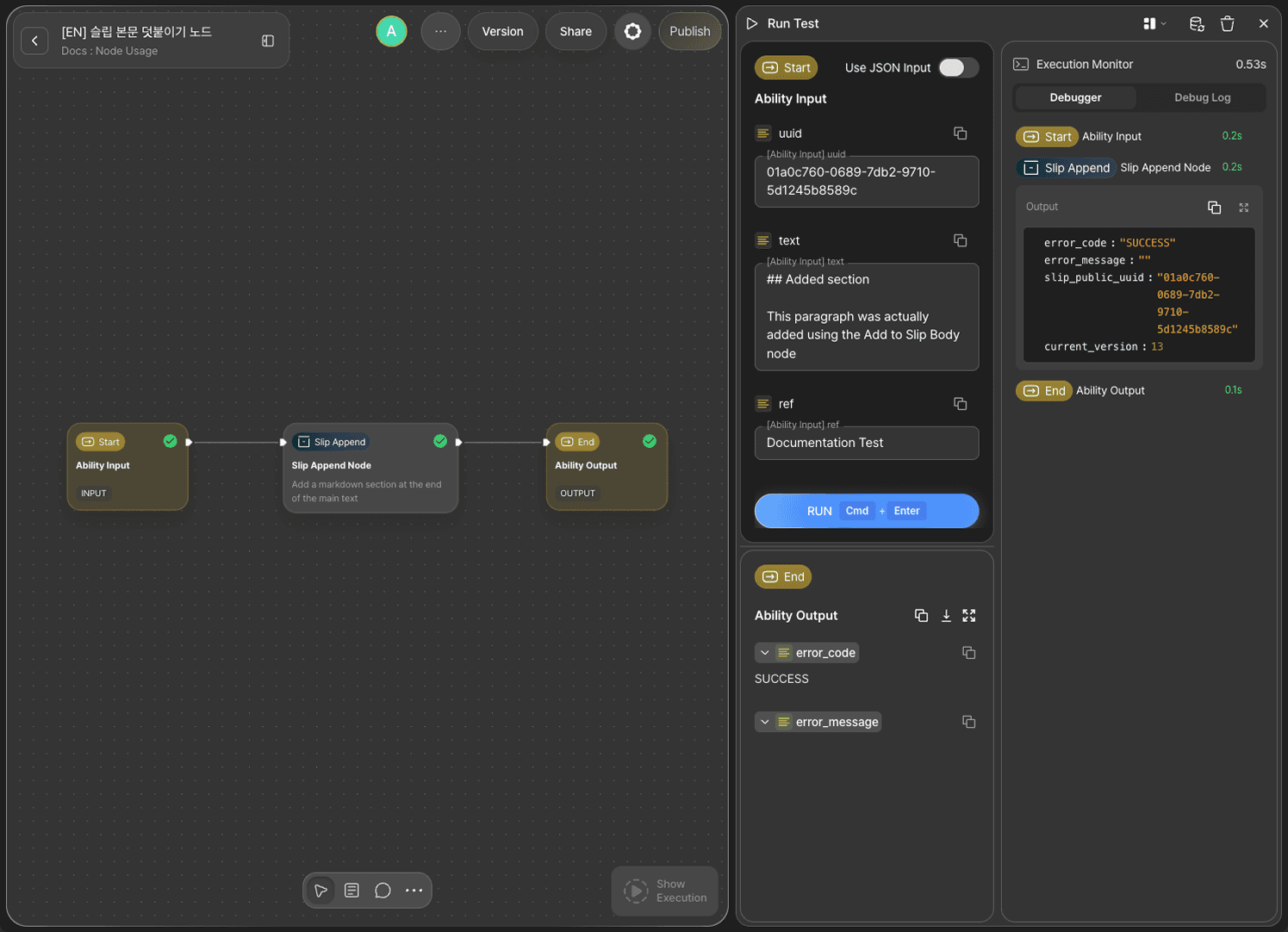
Check the Debug Log of the Slip Append node to see the details showing error_code returned as SUCCESS, along with the current_version value that came back with it. It's one higher than the version before appending.
Step 9: Verify the Result in the Slipbox
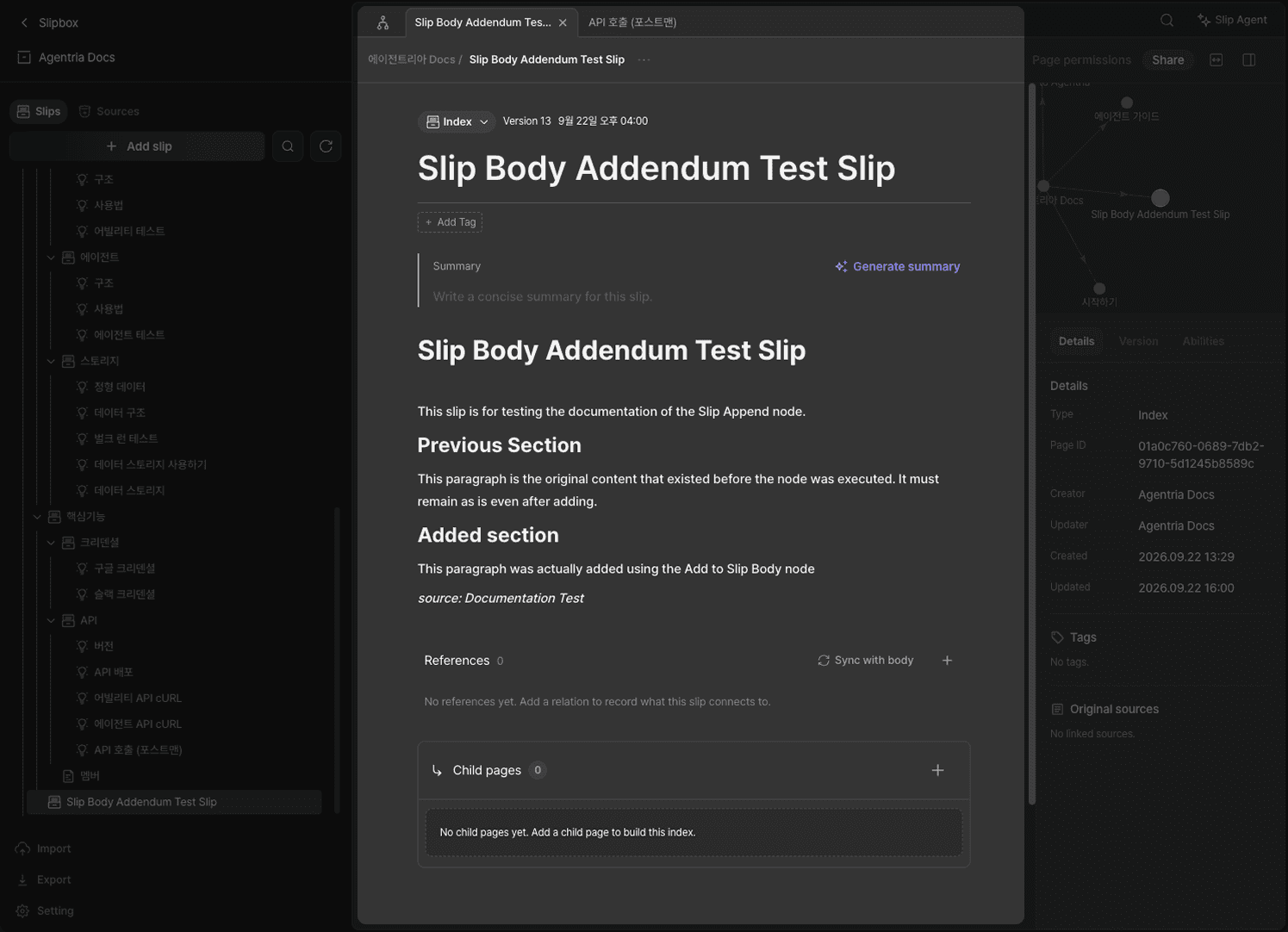
Go to the Agentria Docs slipbox and open the test slip you just created — the existing content is still there, and the ## Appended Section section you just wrote has been added below it. Right under the section, the Source Attribution value Documentation test is recorded as a single italicized line.
Next Steps
🎉 Congratulations! You've successfully built the "Append Content to a Slip" workflow using Agentria.
Connect this node to an Agent Loop node as a tool, and you can extend it into a workflow where the agent appends to slip content on its own whenever it decides it's needed during a conversation.
Agentria is a place where ideas become reality—your workflow can expand infinitely with your creativity.
For more node examples, visit the 🔗Node Usage page.
Frequently Asked Questions
What does the Slip Append node do?
The Slip Append node adds a new markdown section to the end of a slip's body in a Slipbox. It identifies the target slip by its public UUID and appends only the section you pass, while the server preserves the existing body as-is.
How is the Slip Append node different from the Slip Field Update node?
The Slip Field Update node replaces an entire field — like the title, summary, or body — with a new value, so the existing content of any field you bind is lost. The Slip Append node, on the other hand, never touches the existing body and only adds a new section to the end, which makes it a better fit when you want to keep a history and keep adding to it over time.
Do I have to fill in Source Attribution?
No, it's optional. If you fill it in, the source is recorded as a single line right below the appended section, which makes it easy to trace where the content came from later. A short note like a document name, URL, or speaker is enough.
What happens if I append to the same slip multiple times?
Each time you append, a new section is added to the end of the body, and the slip's version (current_version) goes up by one with every run. Everything you appended before stays in place, which makes it a good fit for building up a chronological record.