Slipbox
Slipbox
Slipbox is a work knowledge brain for executable agents. It transforms the tacit knowledge, judgment criteria, and work rules of field personnel and experts in specific domains into a knowledge system that AI agents can read and execute to help agents find documents they need and call DB, API, and Tool to generate actual work results.
Slipbox is more than a place to store knowledge. It is an executable knowledge system that guides Agents on what to read, what data to retrieve, and in what order to make decisions. There is no need to build a new data lake — knowledge is managed as meta-knowledge within Agentria, and documents written by team members instantly become Agent knowledge. No ontology experts or data modelers required.
Create a Slipbox
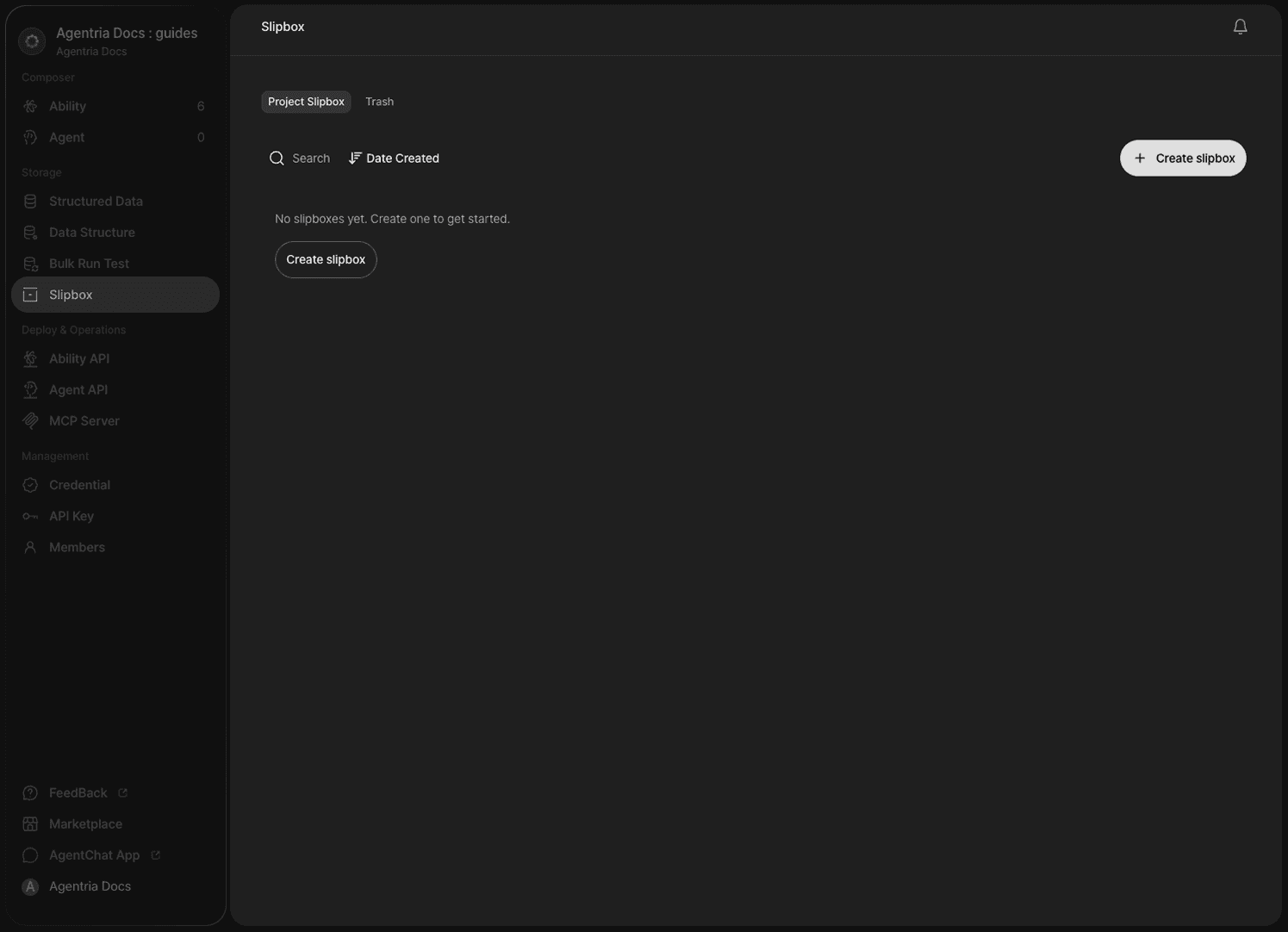
Click Slipbox in the left panel of your project to enter the Slipbox section. Click Create Slipbox to create a new one.
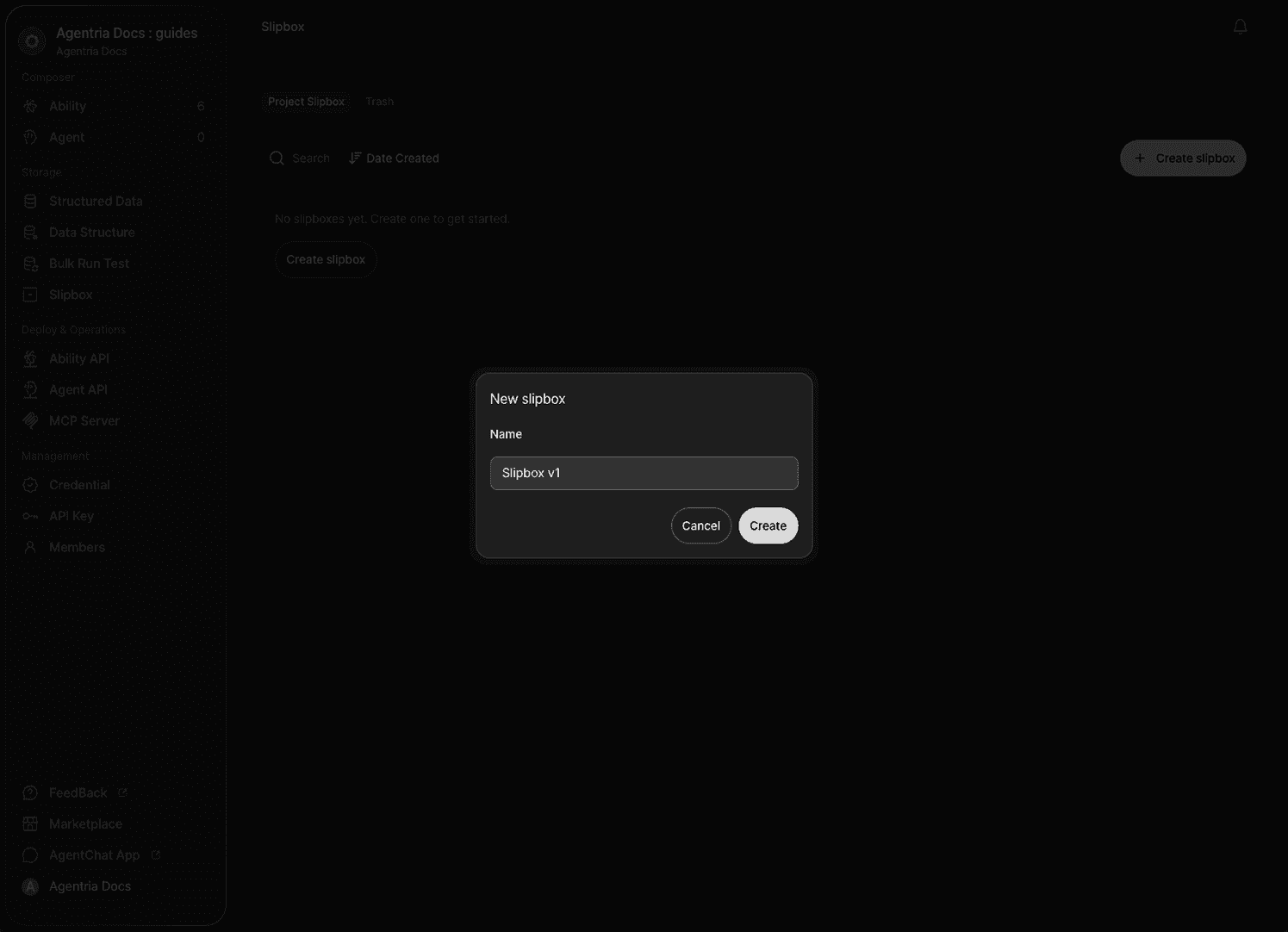
Enter a name for the Slipbox and click Create.
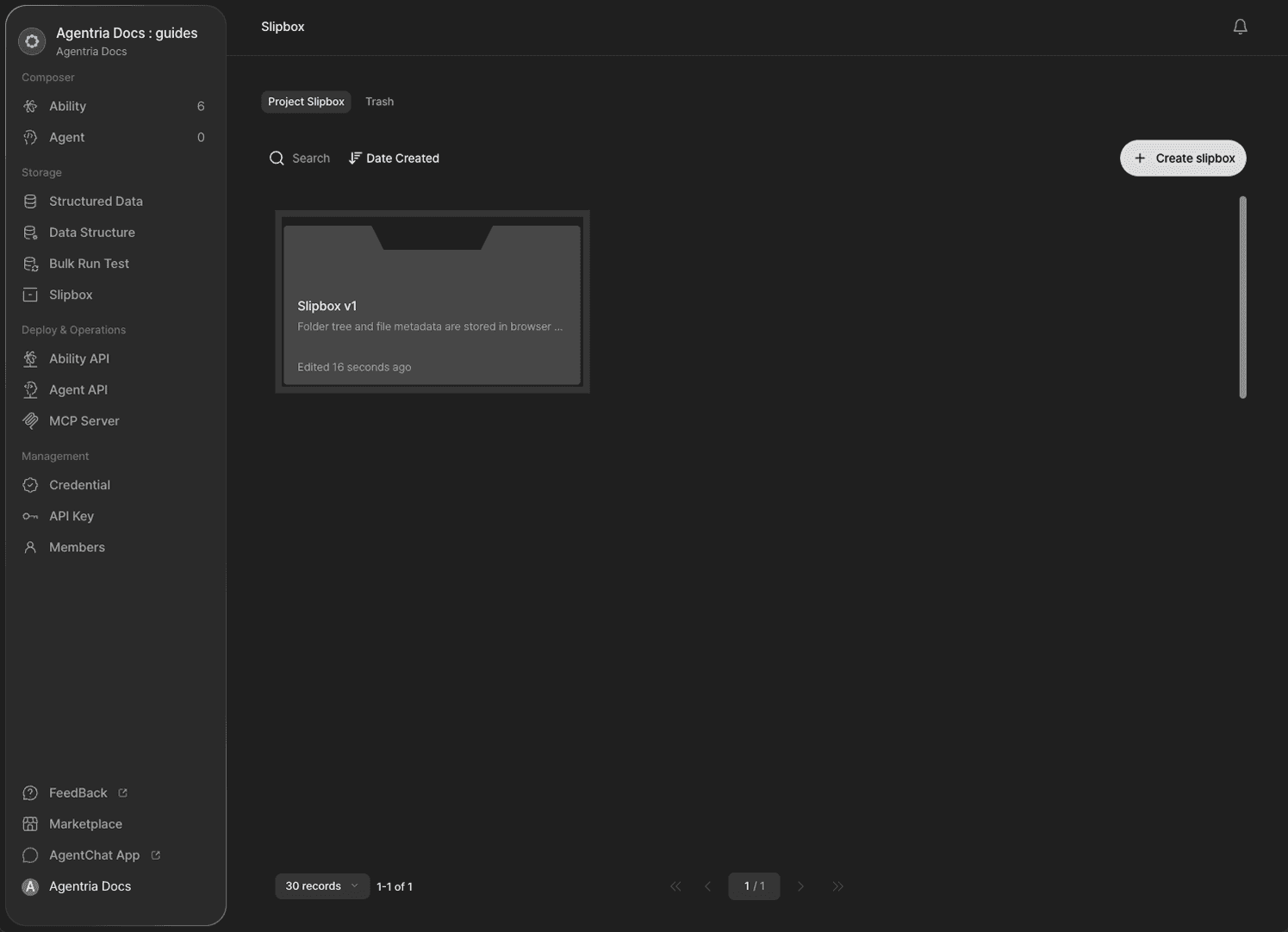
The Slipbox has been created.
Slipbox Layout
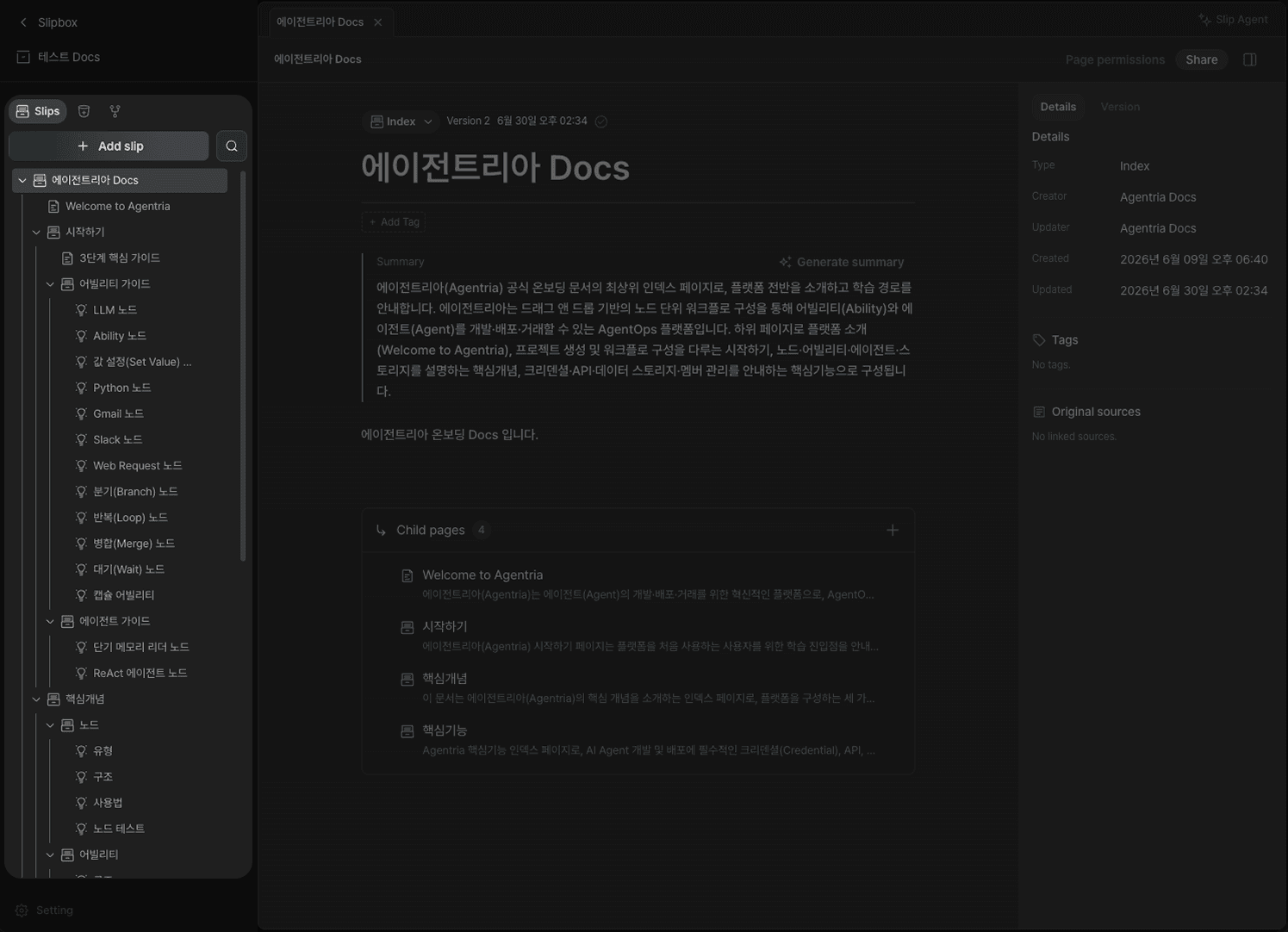
The Slipbox workspace is divided into three areas.
Left panel: Add slips and manage the table of contents
Center area: Edit area for writing slip content
Right panel: Set slip properties such as type, tags, and summary
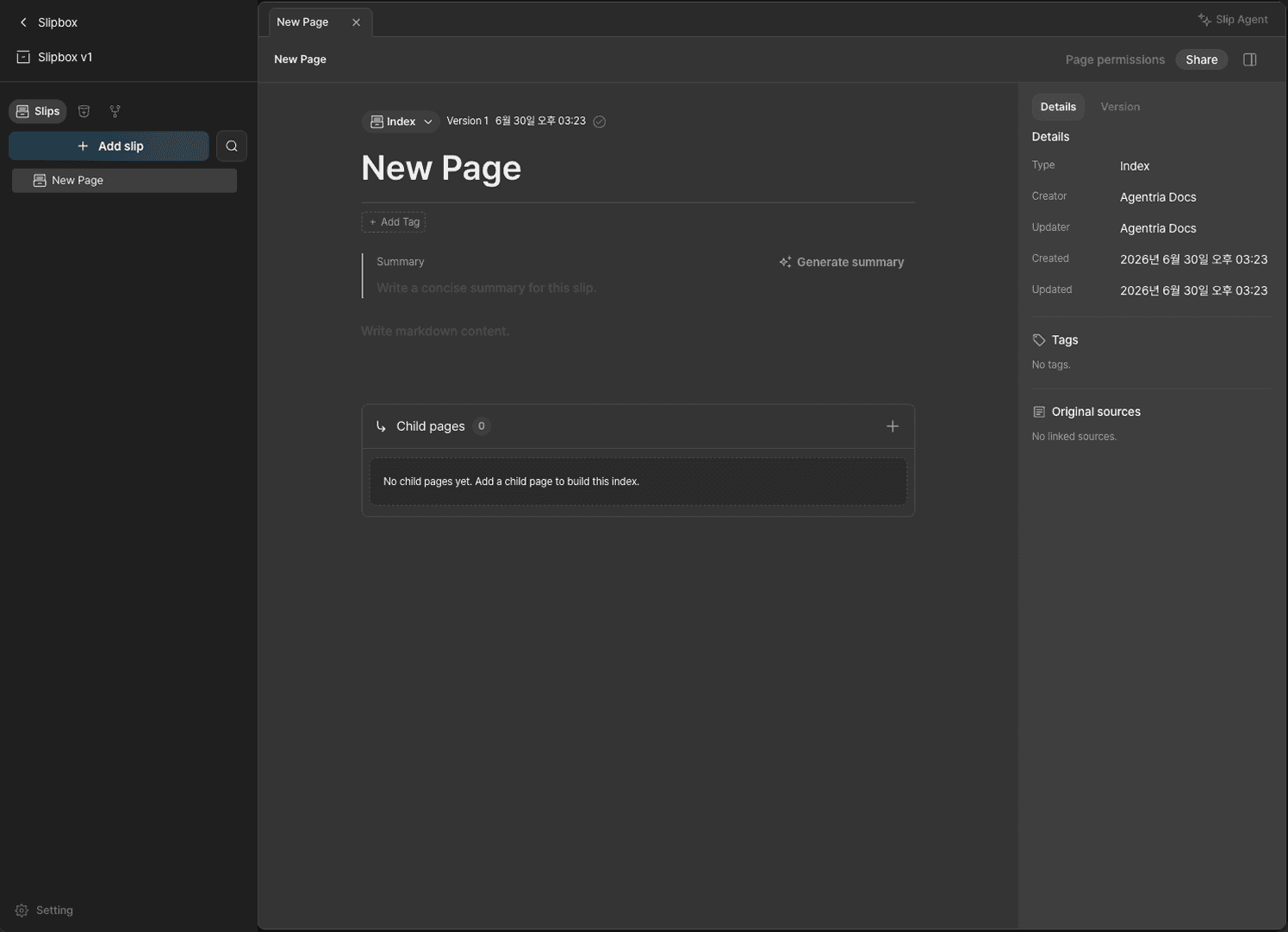
A well-structured table of contents builds the knowledge system your Agent will reference. Below is an example Slipbox built from Agentria Docs.
Writing a Slip
Document Type
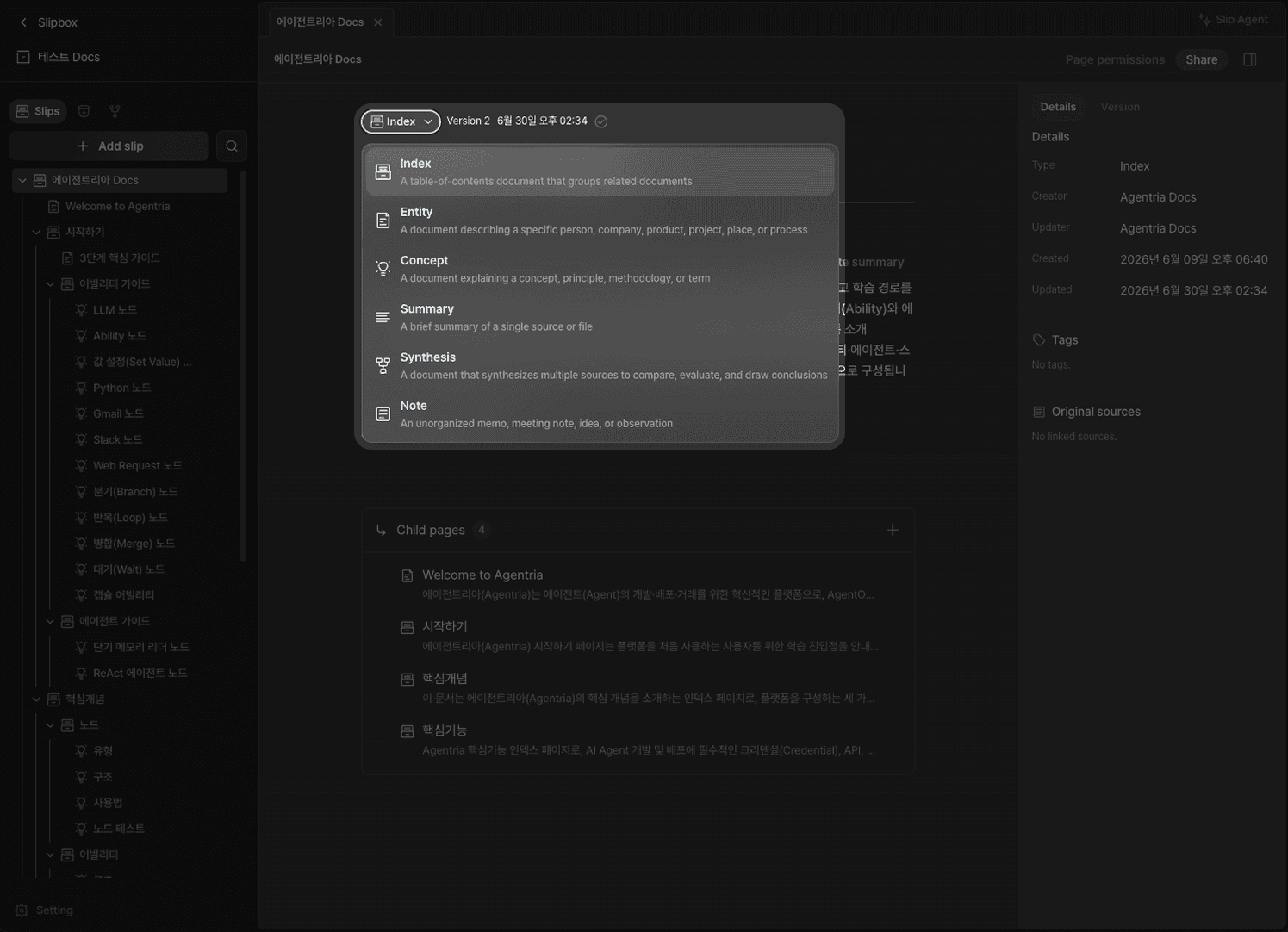
Each slip in a Slipbox has a document type suited to its purpose.
Type | Description |
|---|---|
Index | A table-of-contents document that groups related documents. Supports child pages, making it ideal for managing hierarchies. |
Entity | A document describing a specific person, company, product, project, location, or procedure |
Concept | A document explaining concepts, principles, methodologies, or terminology |
Summary | A condensed write-up of a single source or file |
Synthesis | A document that compiles multiple sources to compare, judge, and draw conclusions |
Note | Unorganized memos, meeting notes, ideas, or observations |
Title
Since the slip title is also used as a file name, characters forbidden by the file system — < > : " / \ | ? * — cannot be entered.
Write Body
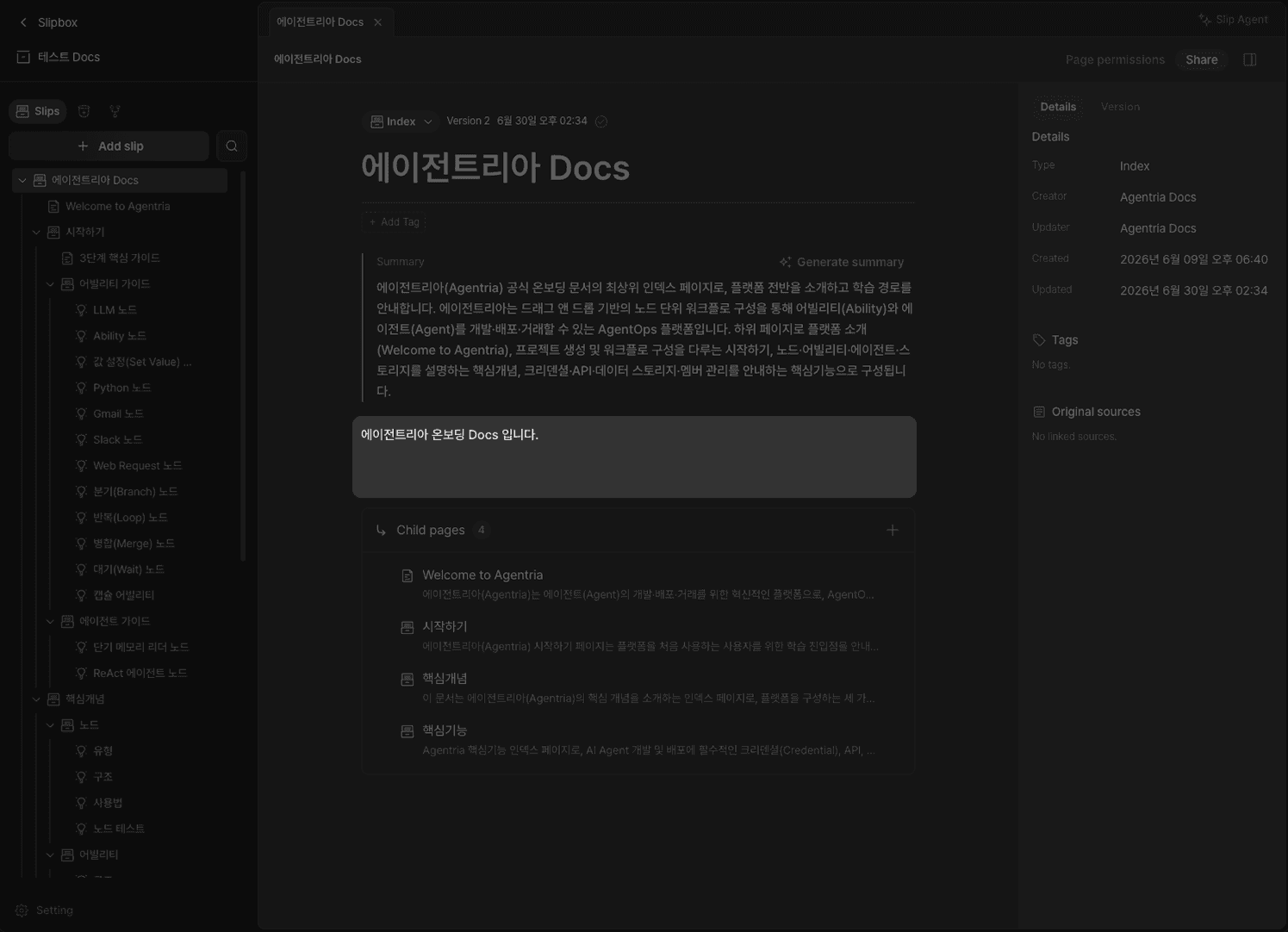
Write the slip content freely in the center editing area.
Tags
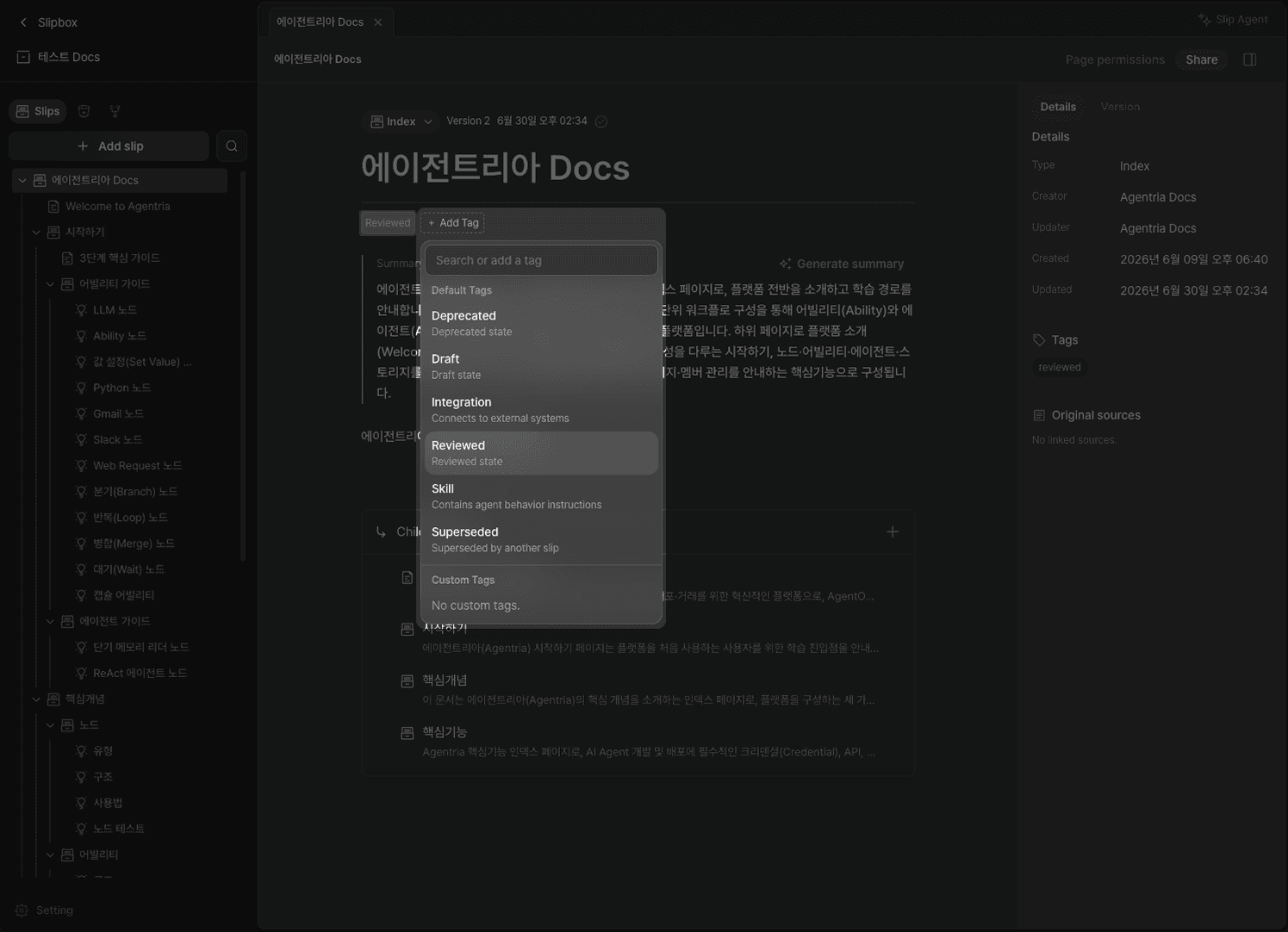
Use the right panel to mark the status or attributes of a slip with tags. Custom tags can be added in addition to the default tags.
Tag | Description |
|---|---|
| Marked as obsolete |
| Work in progress |
| Connected to an external system |
| Review completed |
| Contains Agent behavior guidelines |
| Replaced by another slip |
Generate Summary
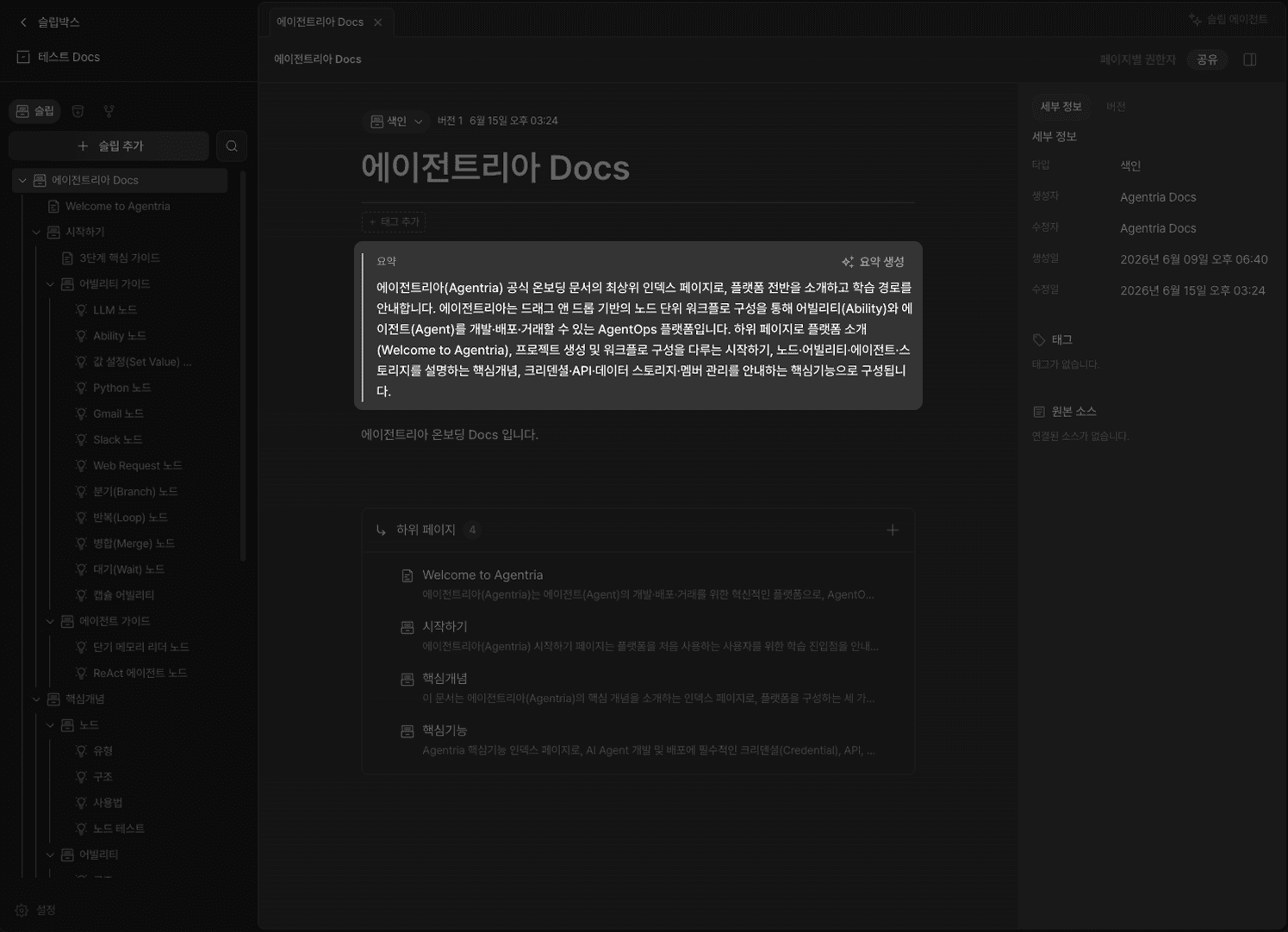
Click Generate Summary to automatically create a summary based on the slip content.
Important: The summary is the key basis used by the Slipbox Query node to locate documents. Always generate a summary after writing a slip.
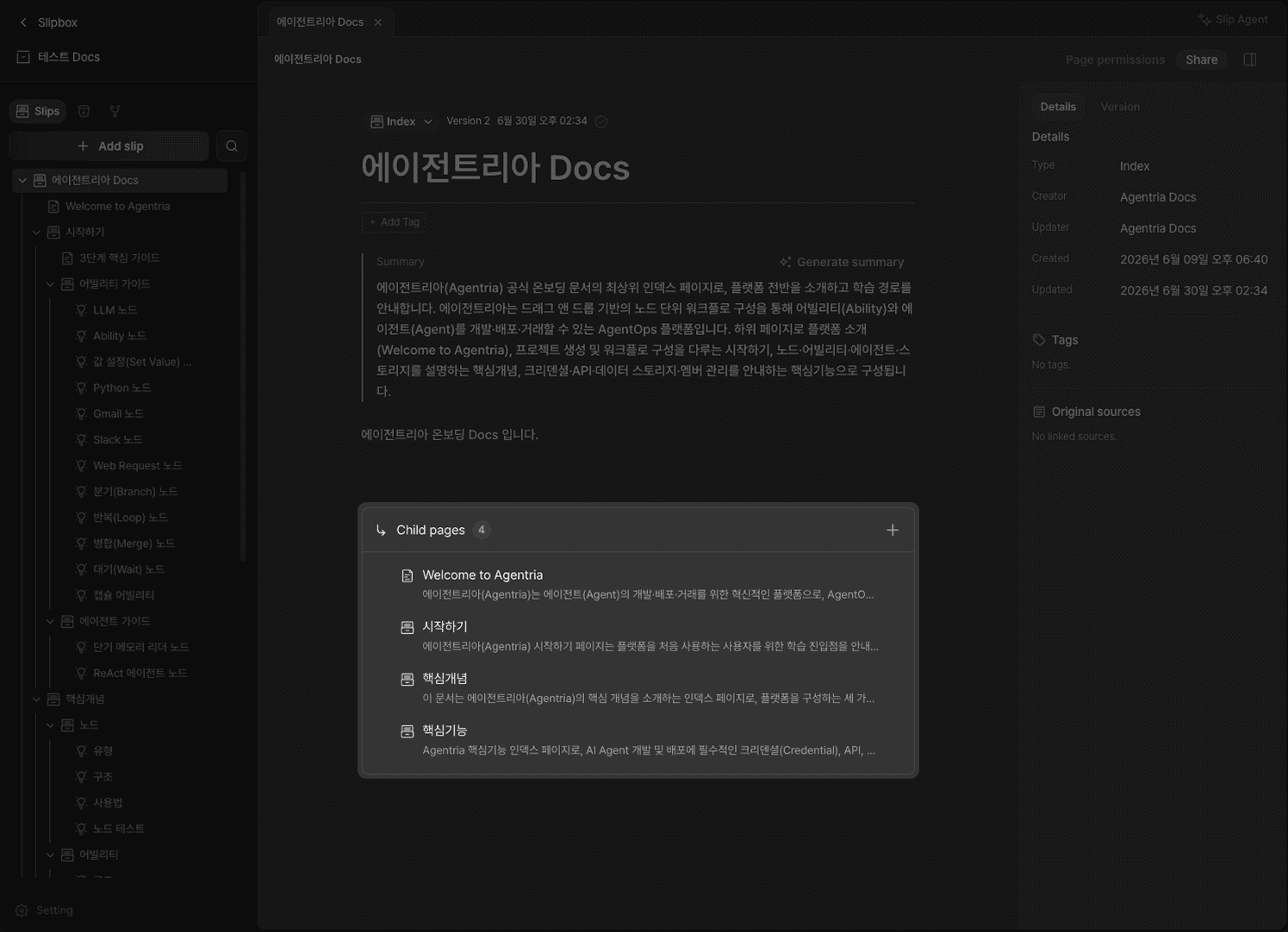
For Index documents, a list of child pages is displayed. When generating a summary for an Index document, the child pages' summaries are referenced — child page summaries must be generated first. Missing child page summaries will degrade query performance for that slip.
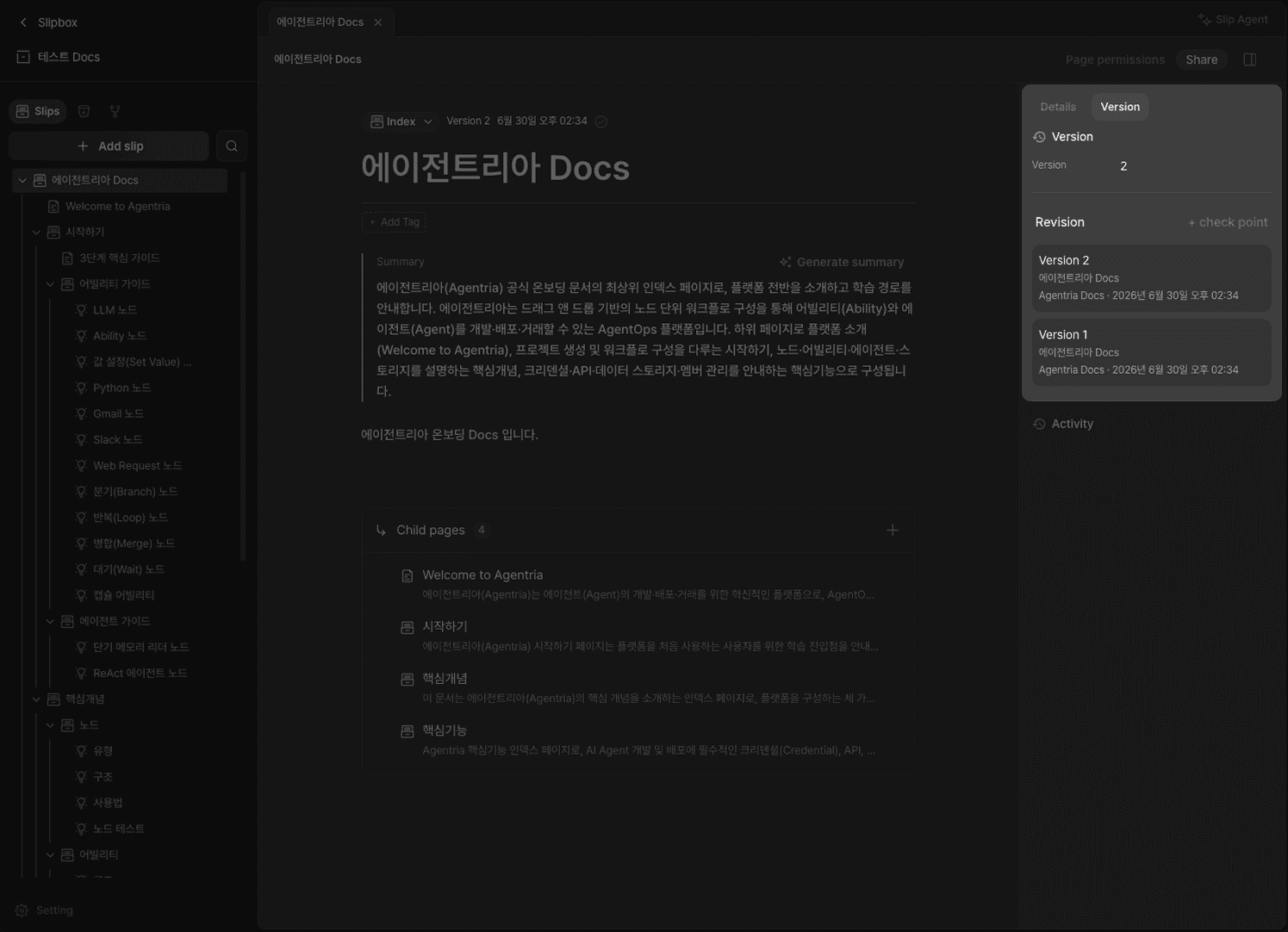
Version Management
Go to Version in the right panel to manage document versions using check point. Versioning while building a workflow allows you to roll back to any version.
Ingest
Ingest is a feature that uploads your existing files and automatically converts them into a Slipbox structure. Click Source in the left tab, then click Upload to register documents. Use folder creation to manage multiple documents together.
The file types that can currently be converted into knowledge are PDF and Markdown. (Support planned for PDF, HTML, TXT, images, URL sources, etc.)
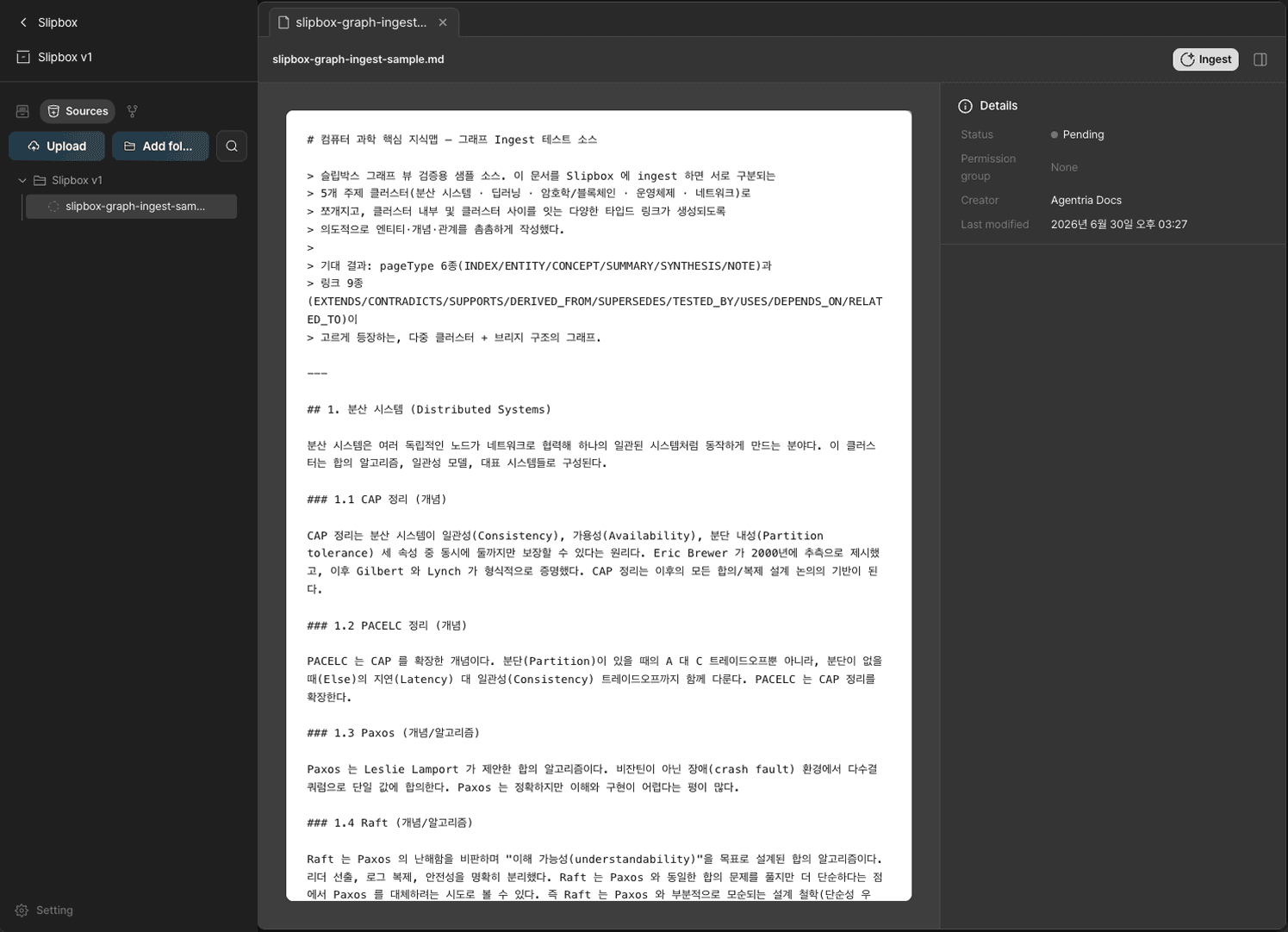
Click Ingest in the top right to automatically convert uploaded documents into a Slipbox structure. Choose one of two conversion modes.
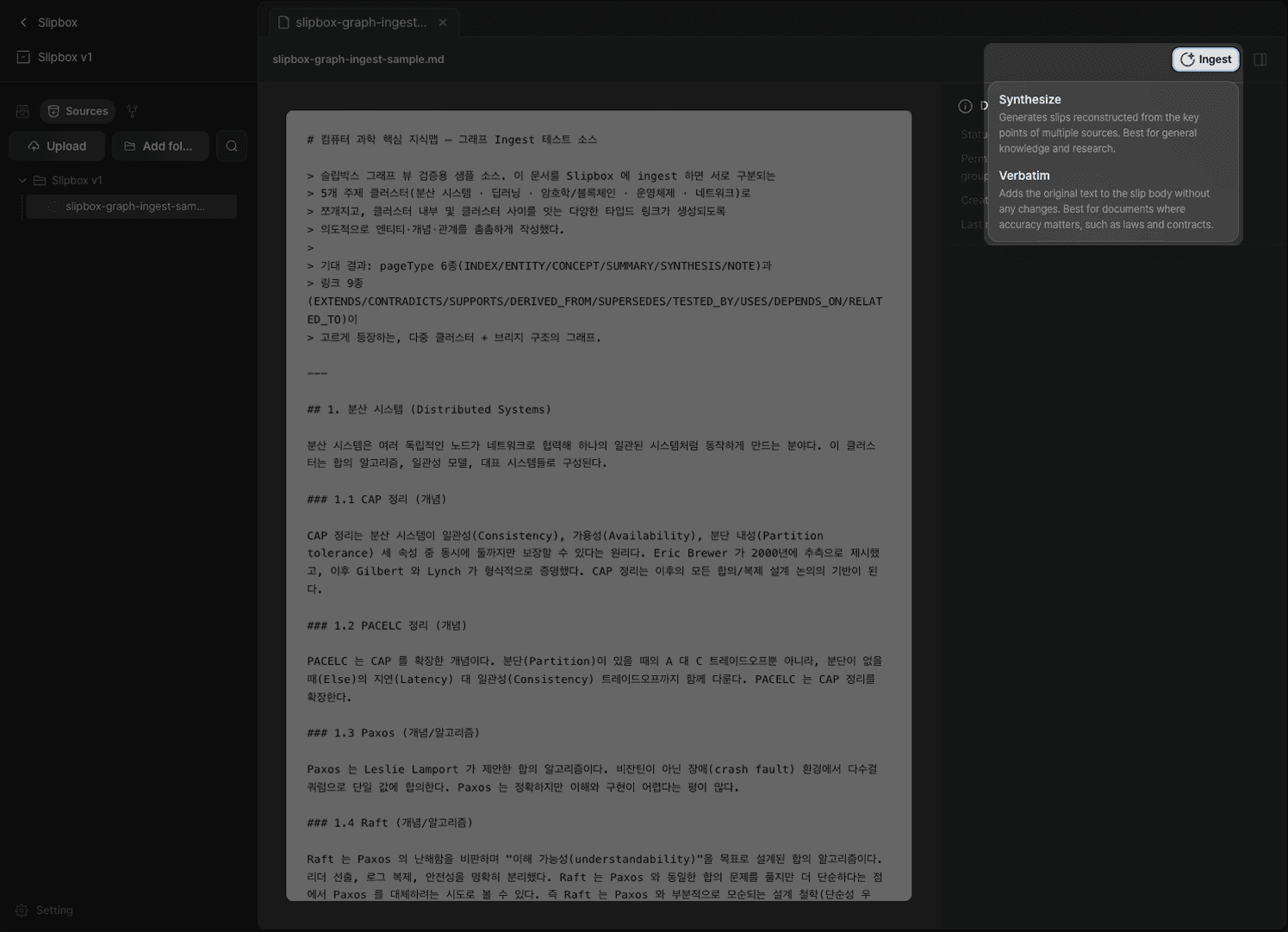
Synthesis: Generates slips reconstructed from the core content of multiple sources. Suitable for general knowledge and research.
Preserve Original: Adds the original text to the slip body without modification. Suitable for documents where accuracy is critical, such as regulations or contracts.
When ingest is complete, the table of contents is automatically structured and a summary is generated for each slip.
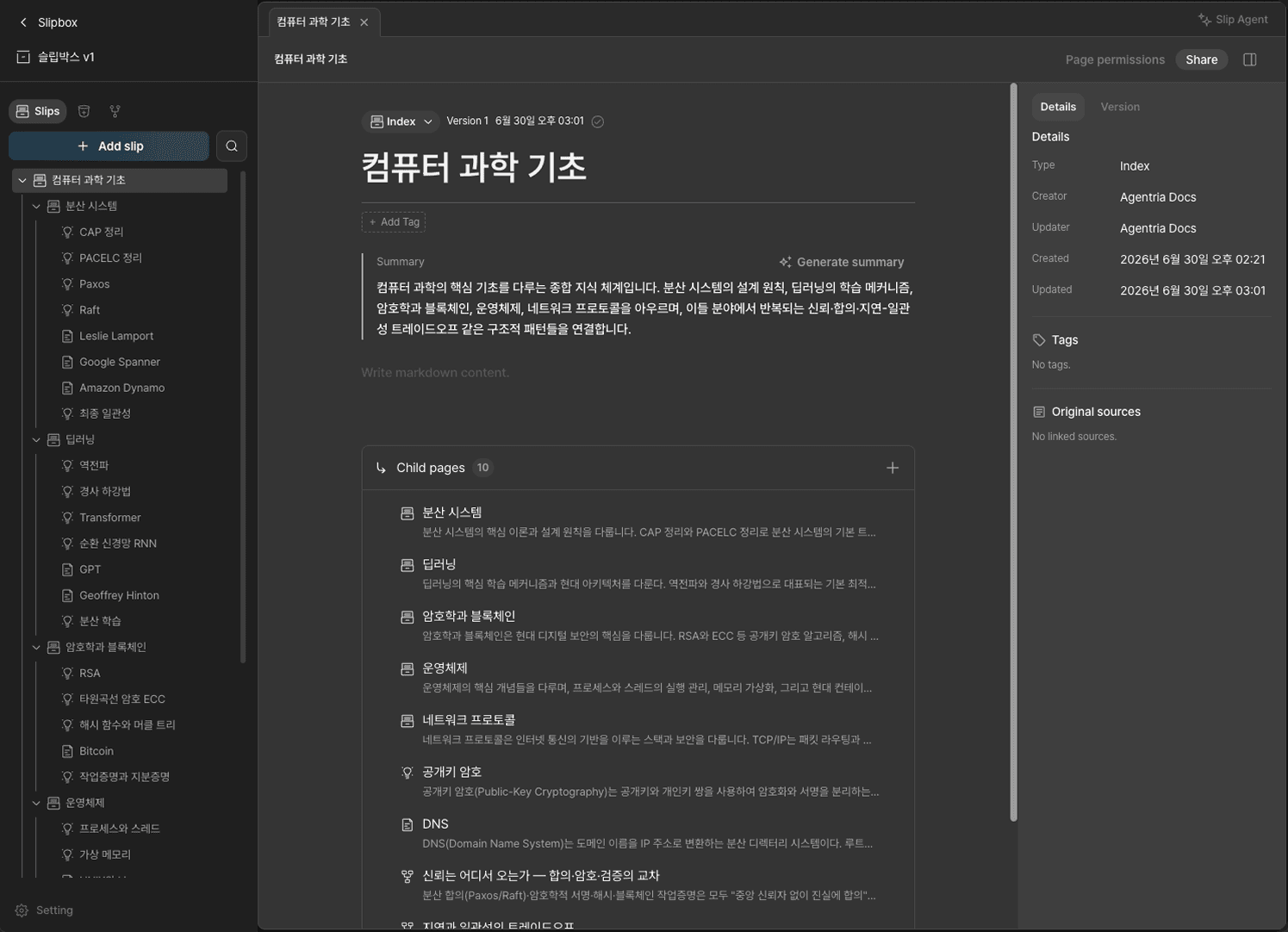
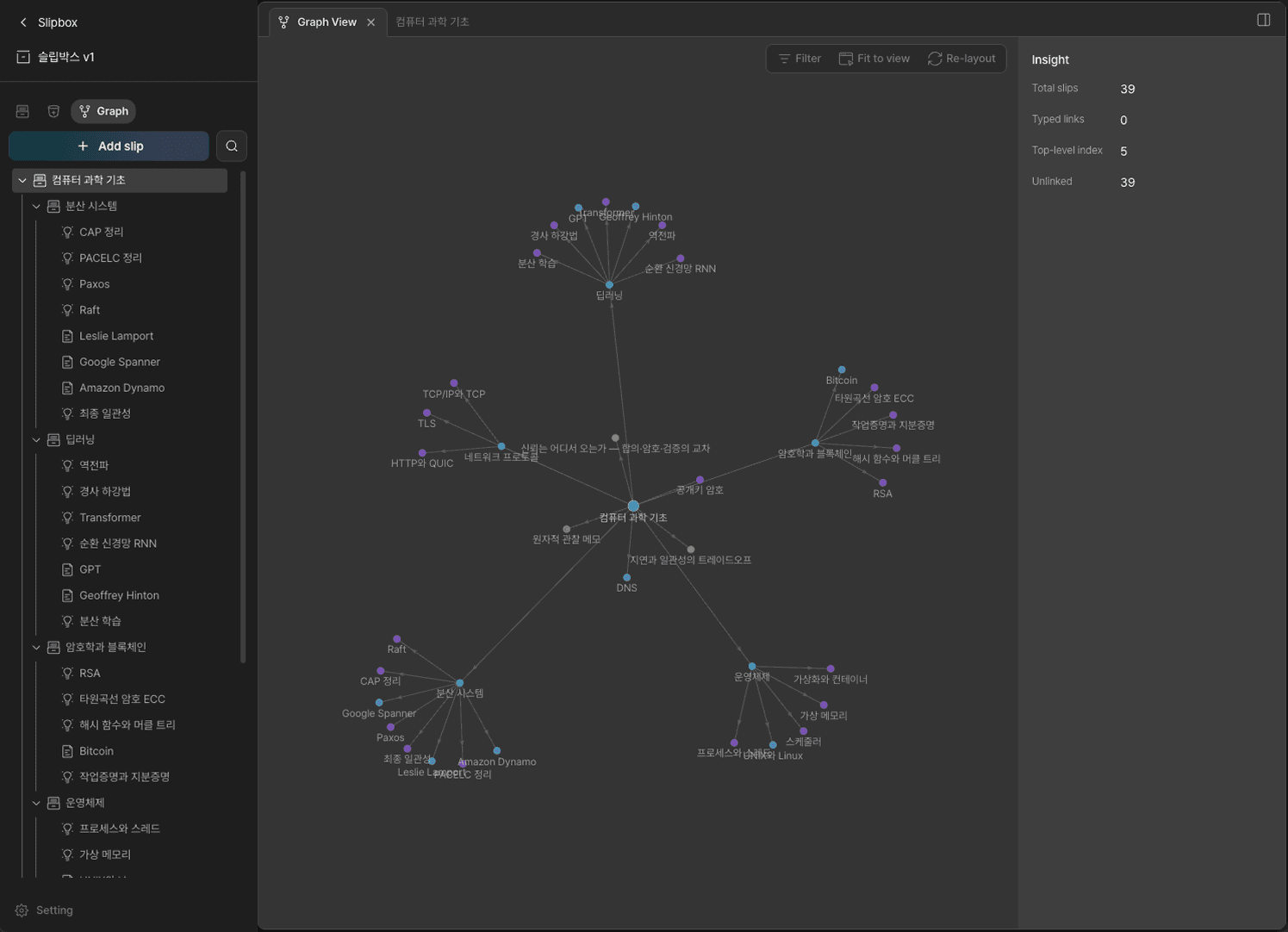
Graph View
Go to Graph in the left panel to view the entire Slipbox structure in graph form.
Slip Agent
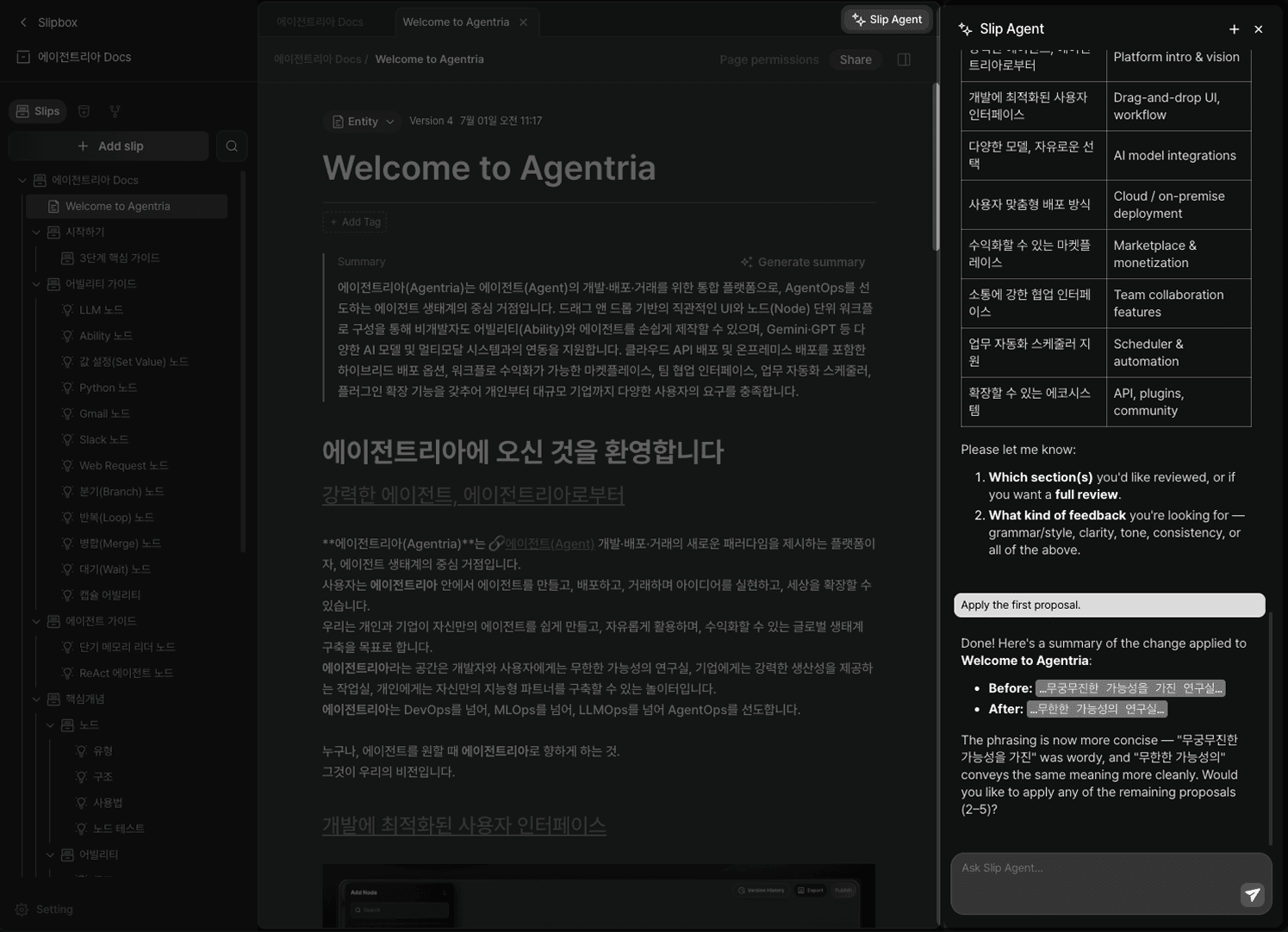
Use the Slip Agent in the top right of the Slipbox to improve your slipbox. Send requests through a chat interface.
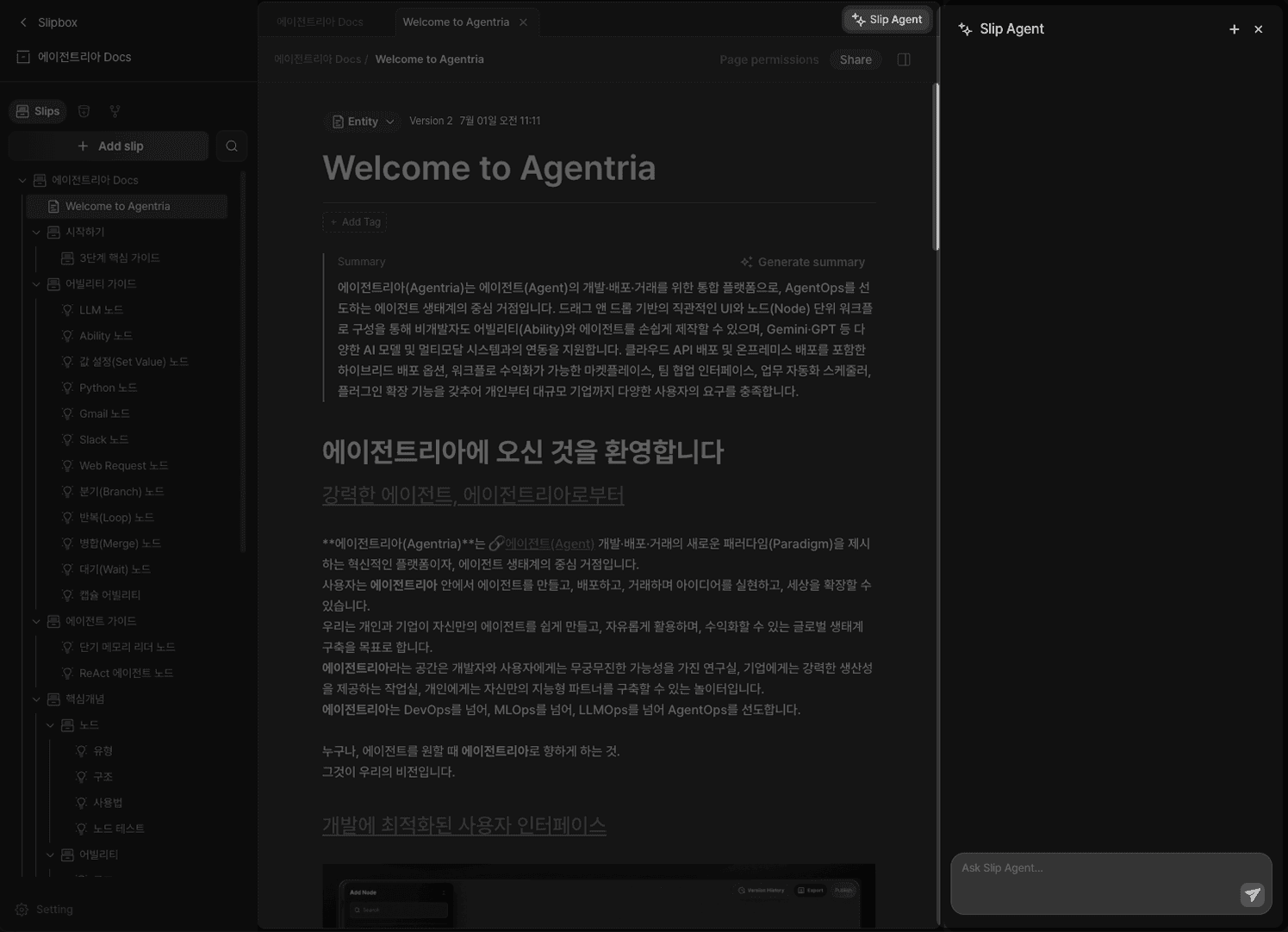
Select part of a slip and click Add to Chat to have the Slip Agent act on that content.
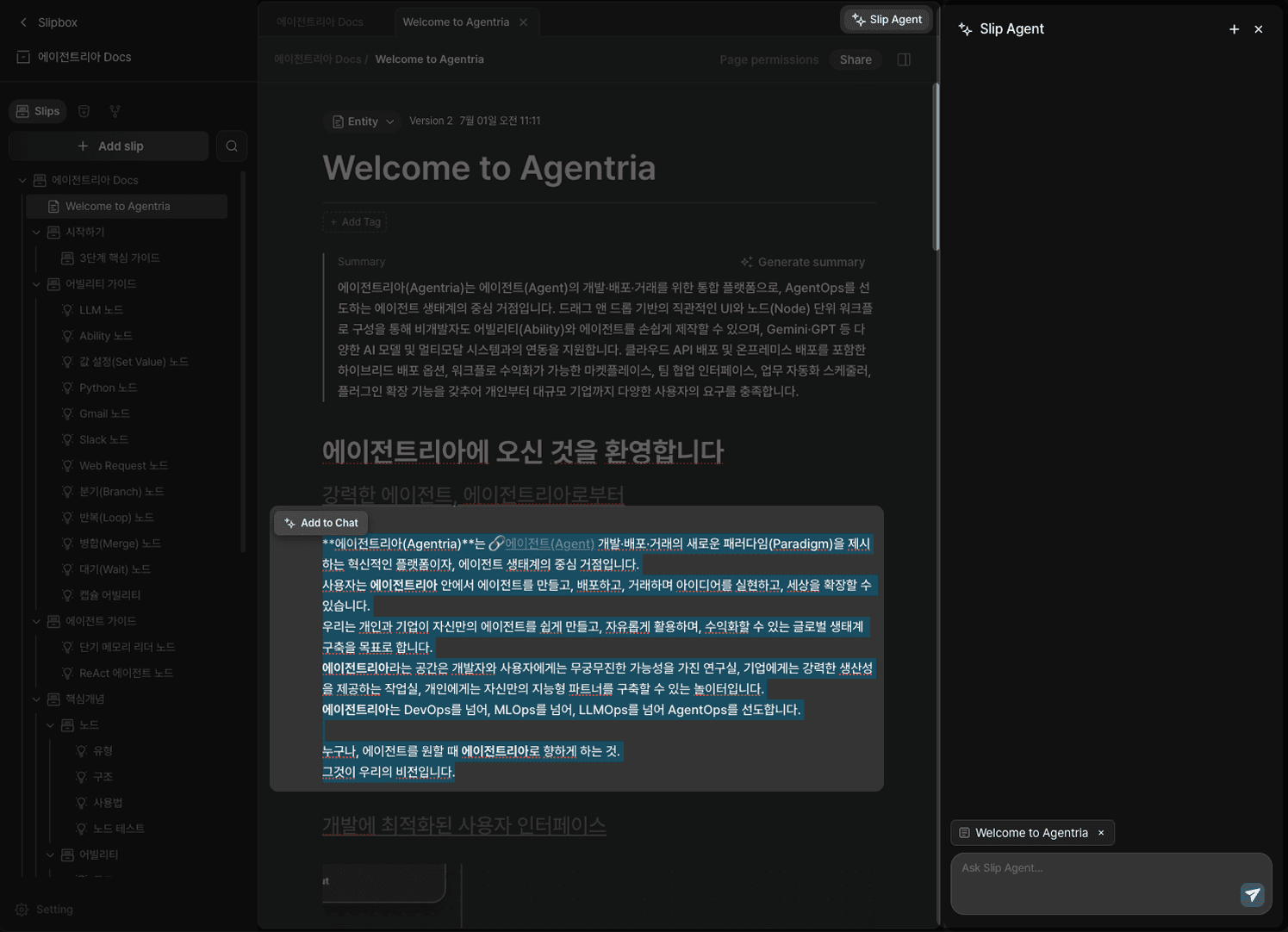
Check spelling, context, and grammar — or request suggestions to write polished slip documents.
Import / Export
Use the Import / Export buttons in the bottom left to exchange a Slipbox as a zip file.
Import: Uploads a zip file to load a Slipbox.
Export: Downloads the entire Slipbox as a zip file. Available only to the project Owner.
Schema Rules
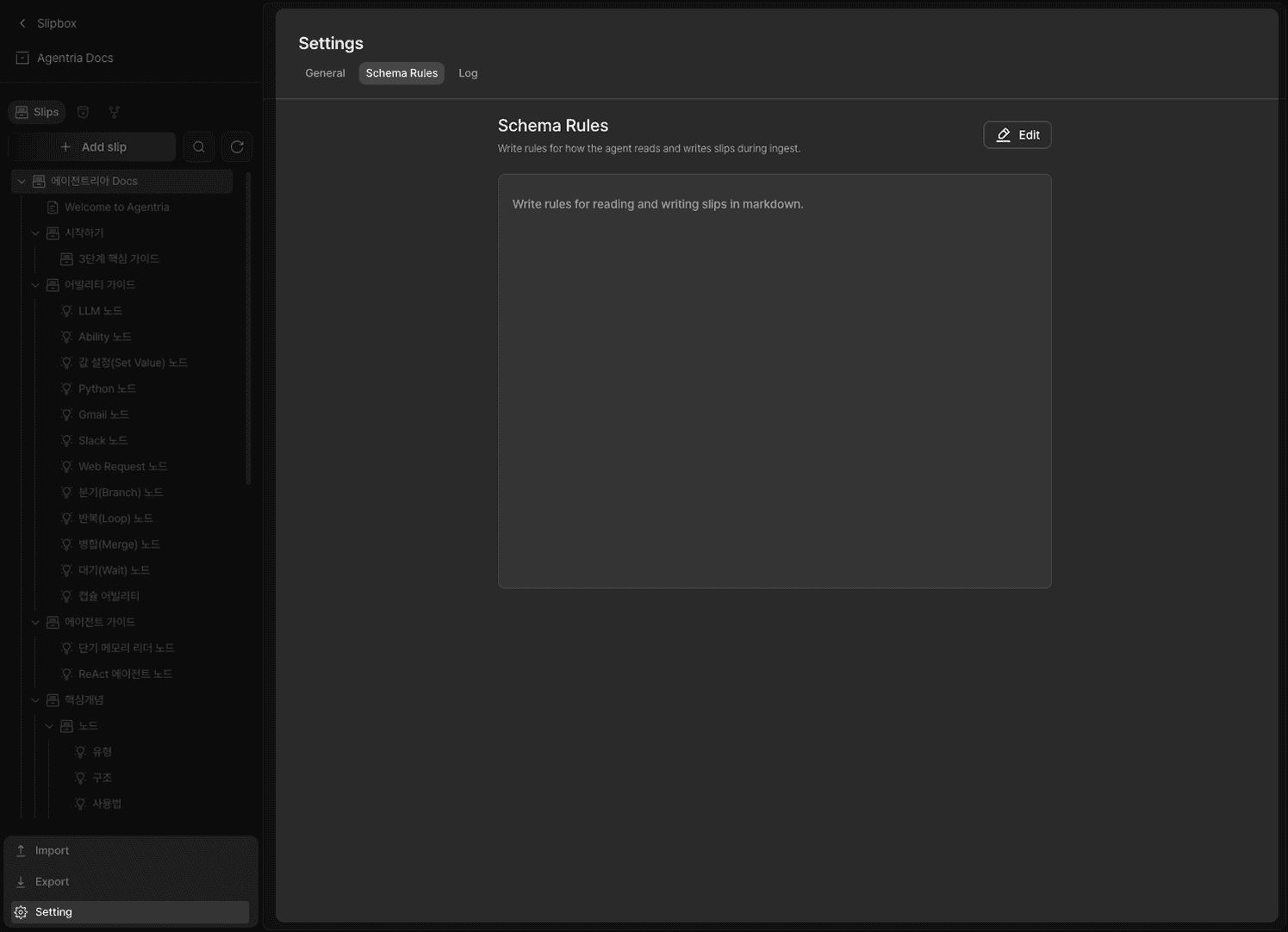
In the same location, go to Settings → Schema Rules to write, in markdown, the rules that define how the Agent reads and writes slips during ingest.
Next Steps
Setup complete.
You can now connect the Slipbox to an Agent workflow and put it to use.
🔗Slip Query Node — How to search and call a Slipbox from an Agent workflow
🔗Slip Create Node — How to create a new page in a Slipbox
🔗Slip Read Node — How to read a specific Slipbox page by its ID
🔗Slip Field Update Node — How to replace a slip's title, summary, and body field by field
🔗Slip Text Replace Node — How to partially replace specific text in a slip's body