API Request (Postman)
If you’ve deployed your API, you can use a client tool to verify that it’s working correctly.
This guide is for beginners who are new to APIs and walks through how to test calls using Postman.
If you’re already familiar with APIs, refer to the API integration guides instead.
Step 1: Install and open Postman
Download Postman from the 🔗Postman website, sign up, and launch it.
In Postman, click the + button at the top to create a new HTTP request.
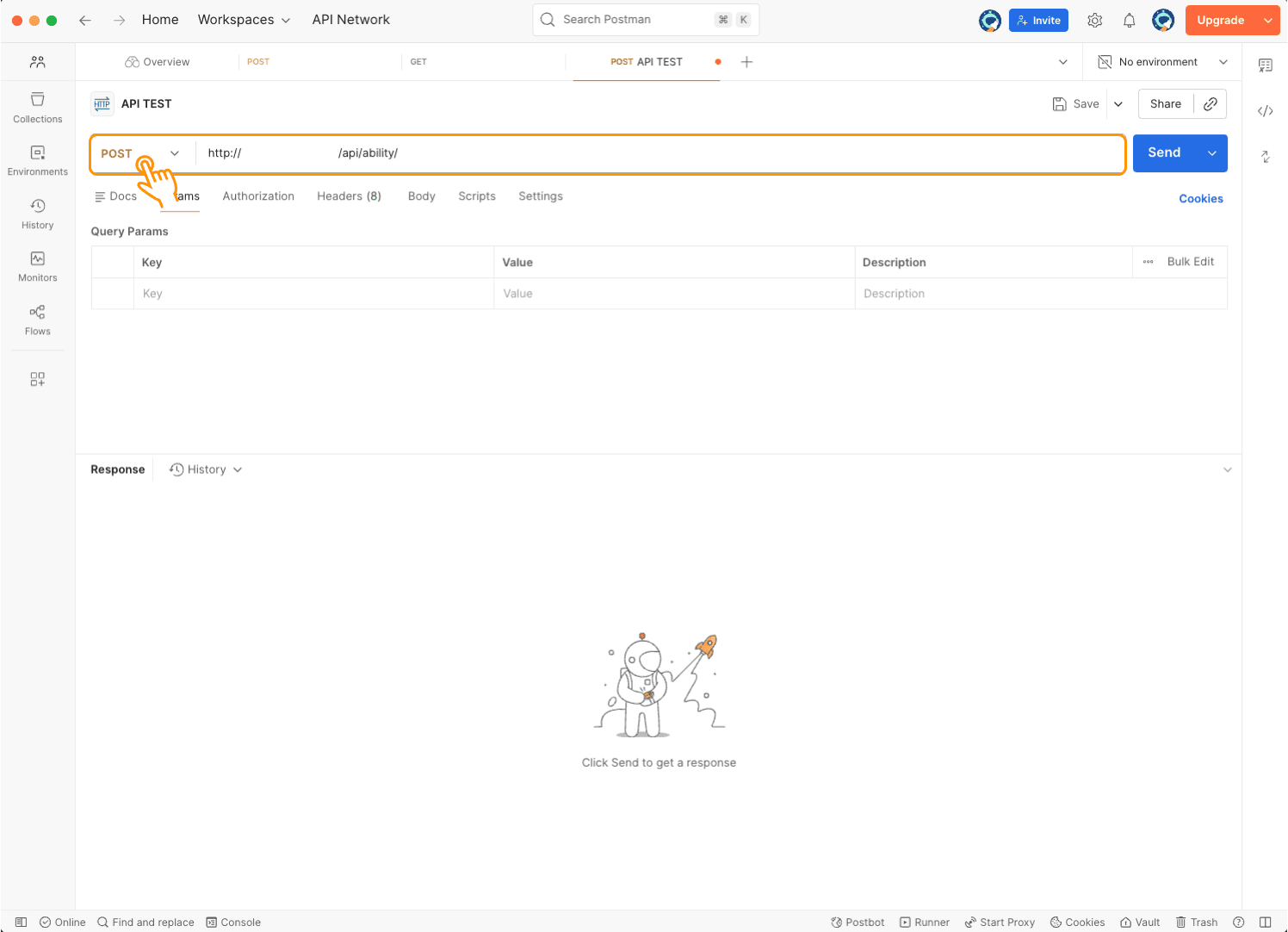
Step 2: Set the request method to POST
When calling an API, choose the method based on what kind of action you want the server to perform.
The POST method is used to send new data or initiate an action on the server.
To request an action from the server, set the method to POST and enter the endpoint URL.
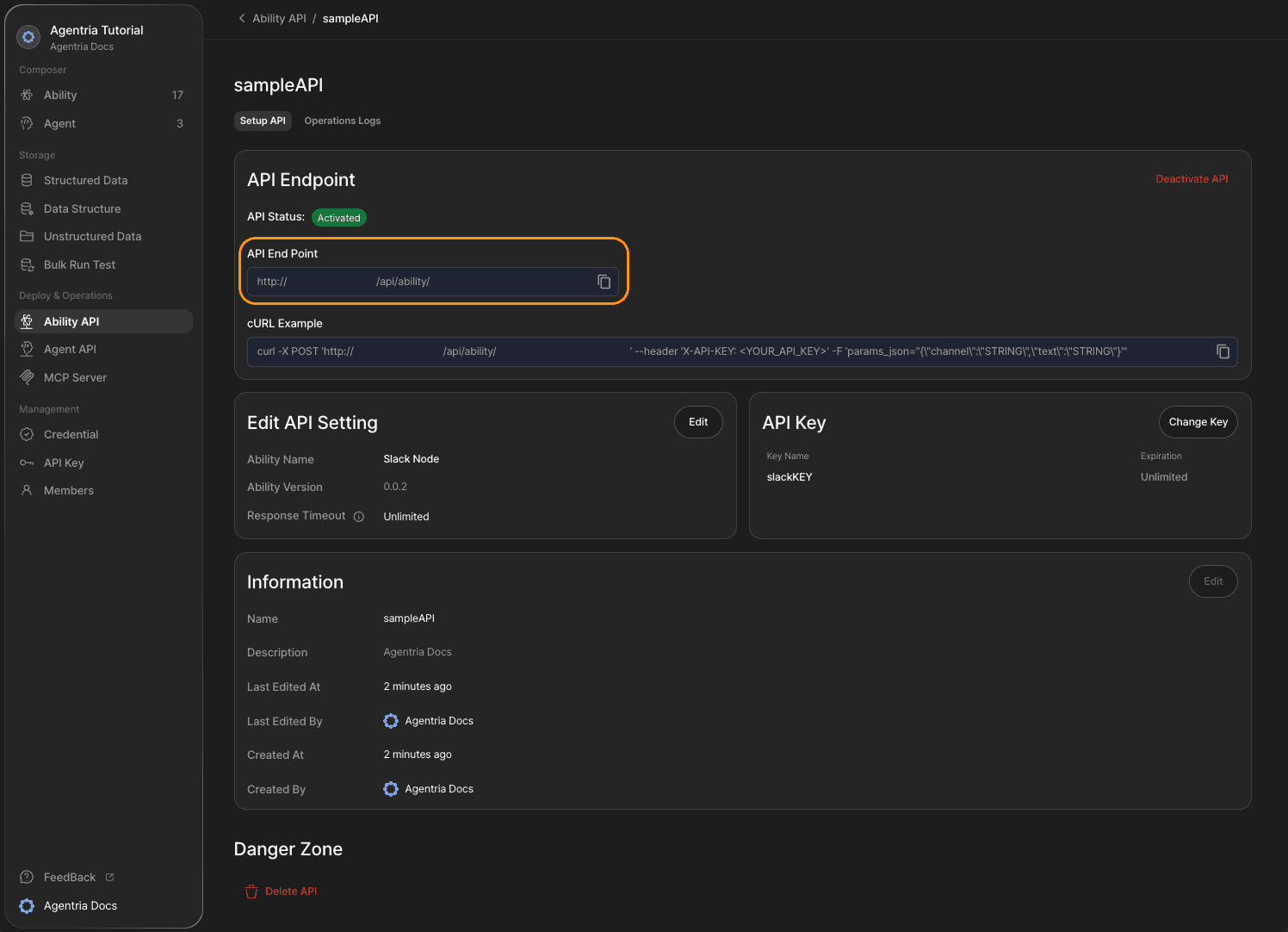
You can find API endpoints in Agentria’s Ability/Agent API tab.
Step 3: Configure POST headers
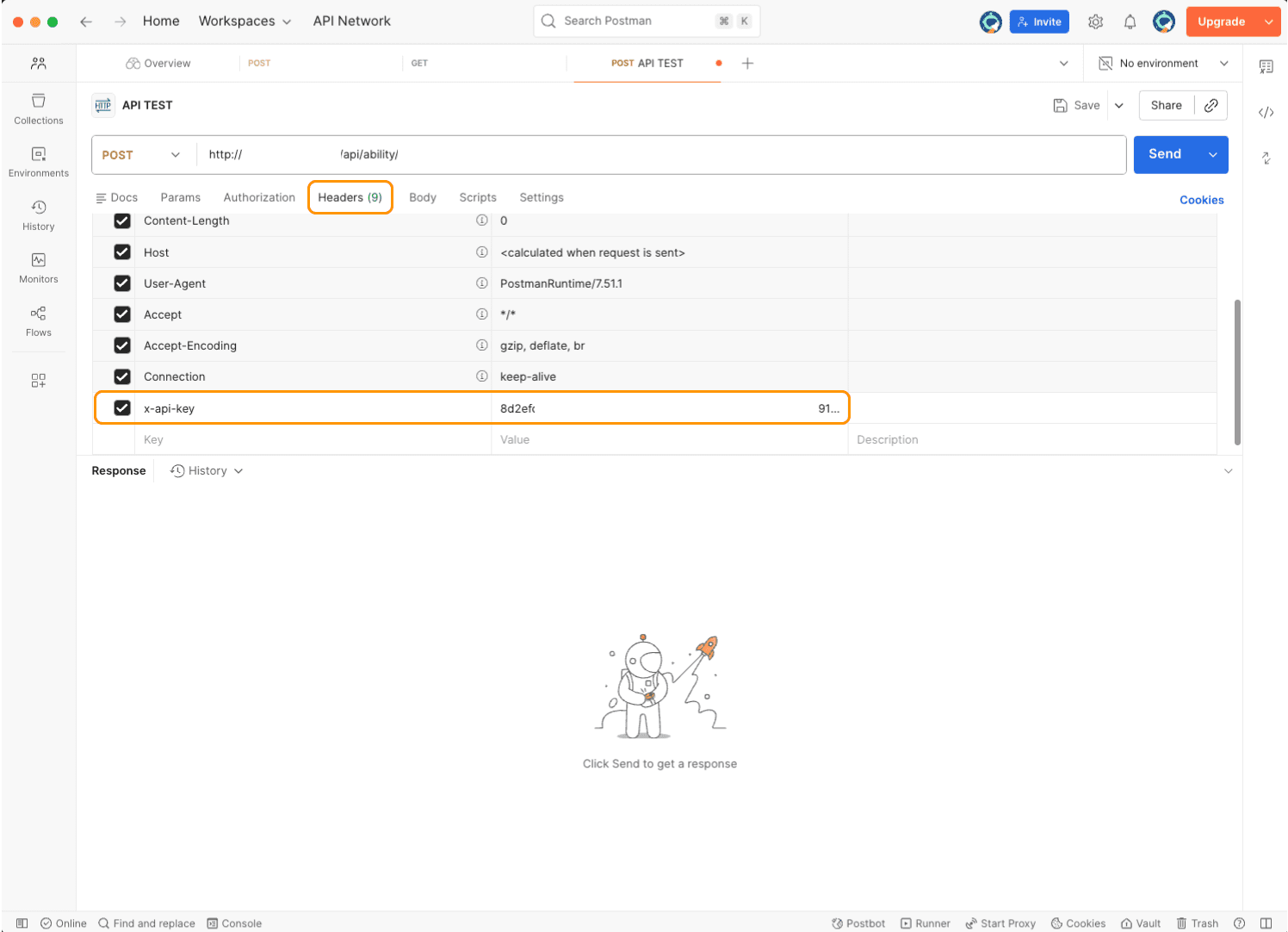
Agentria requires the X-API-KEY header on every request.
Open the Headers tab in Postman and enter the key and value.
Set the key to x-api-key and the value to your API key.
When issuing an API key (🔗Get an API Key), store it in a safe place and copy it when needed.
Step 4: Configure POST body
Go to the Body tab, select form-data, and enter the key and value.
Use params_json as the key and set the type to Text.
For the value, enter the input data for the node you want to run as a JSON object.
Example:
{
"Name": "Joy",
"BirthDay": "20010101"
}
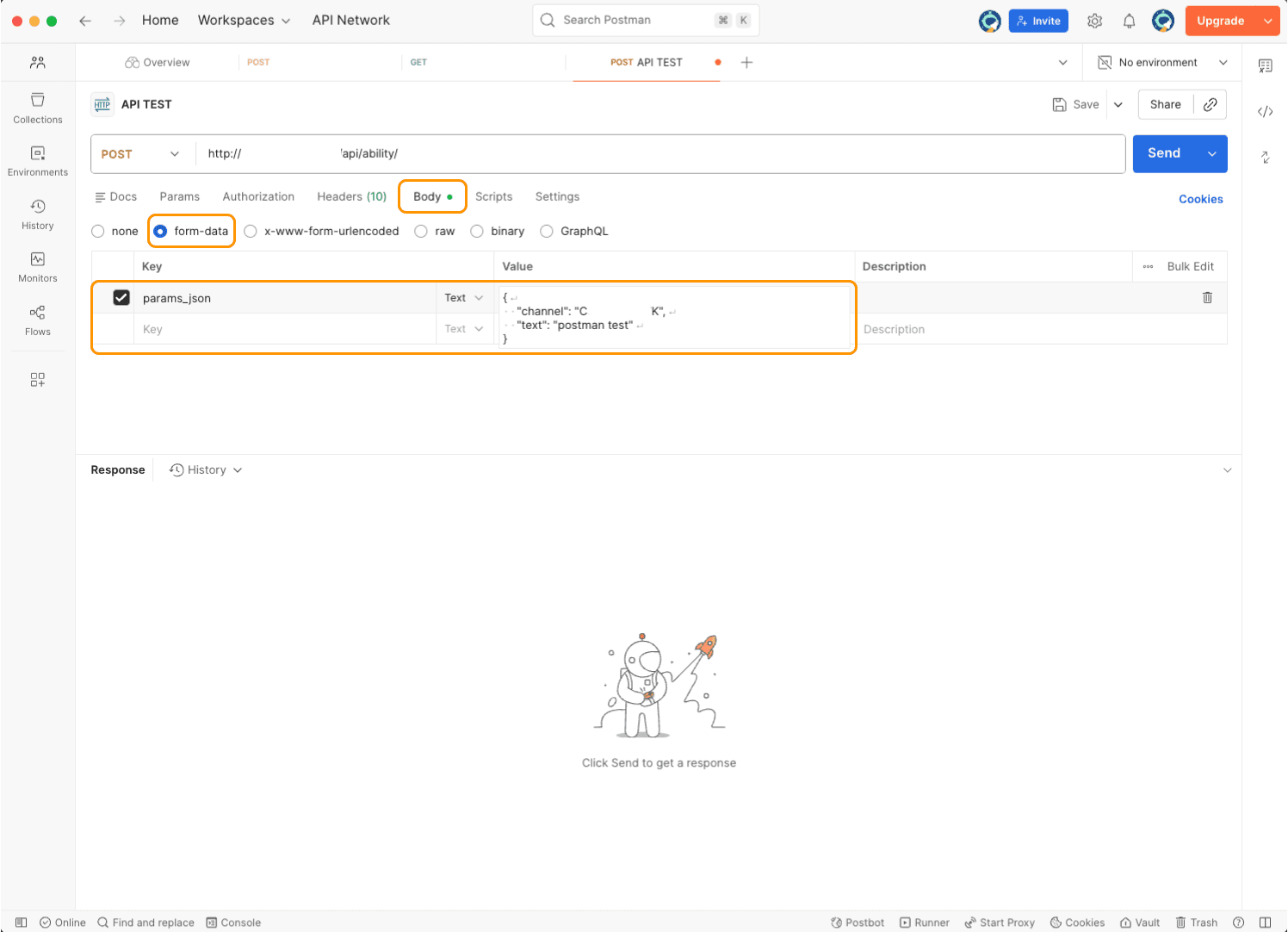
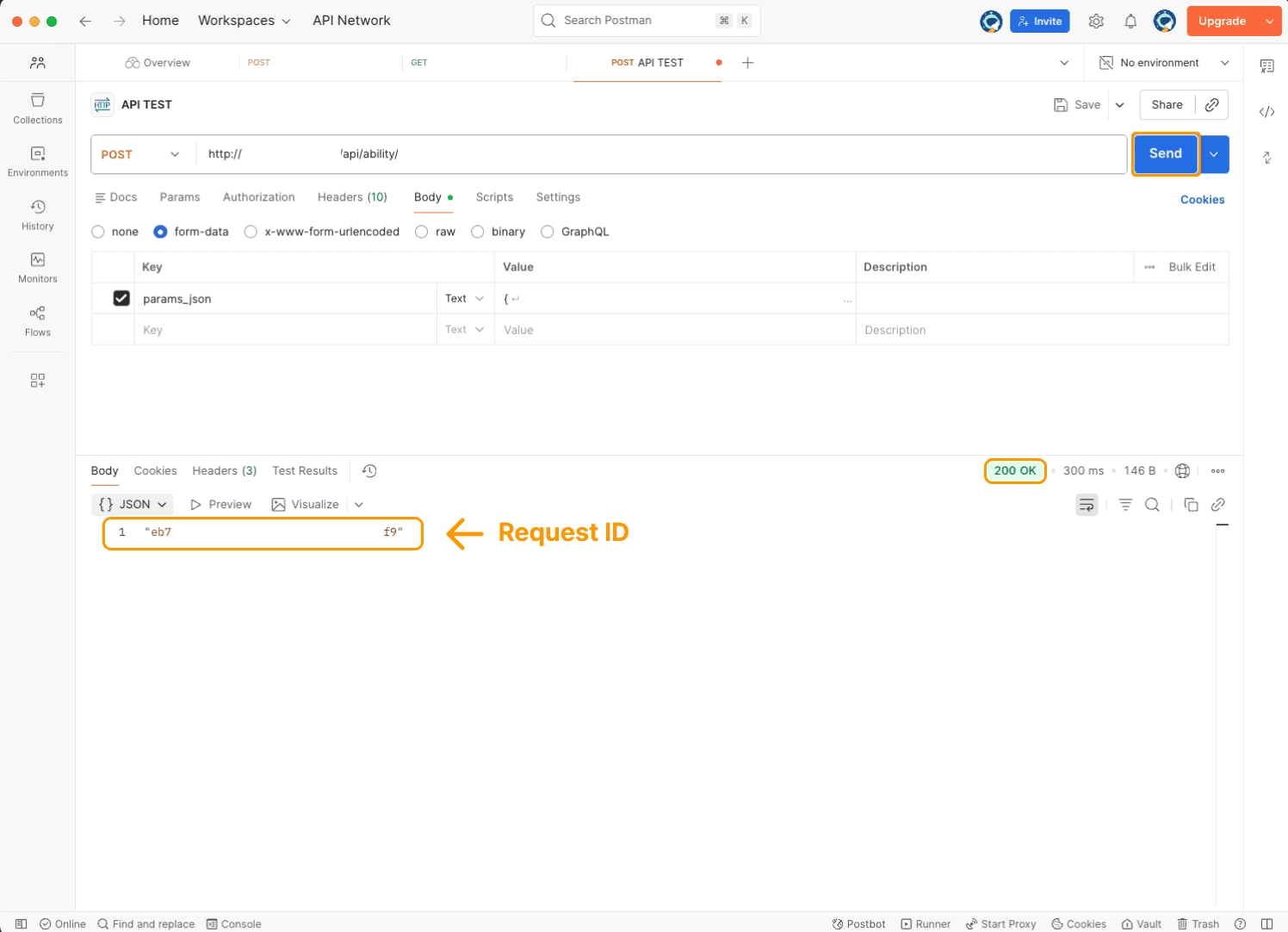
Then click Send. You’ll see a Request ID in the response.
If you get 200 OK, the API call succeeded.
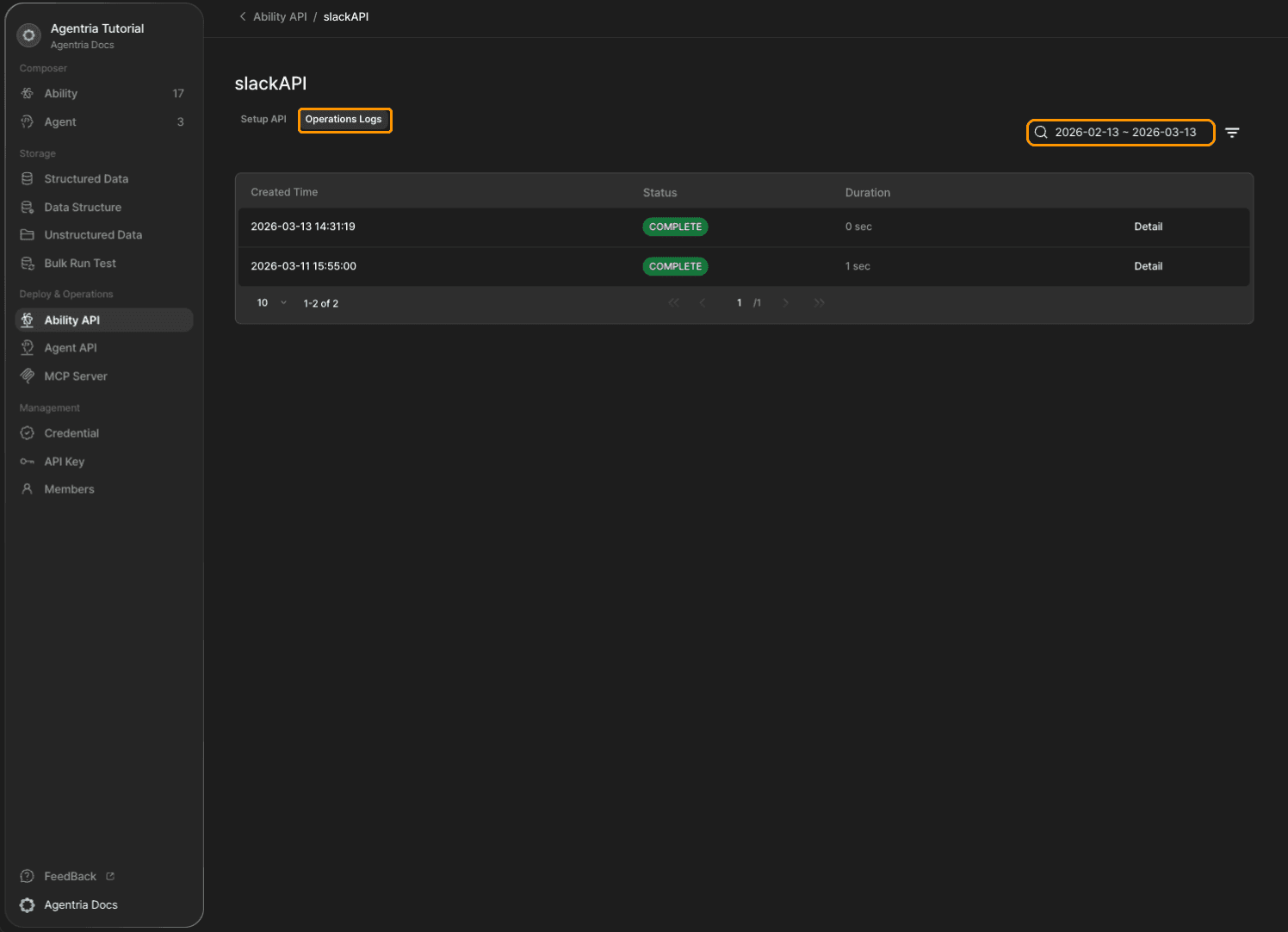
You can check call details in the logs under Agentria’s API tab.
Step 5: Set the request method to GET
The GET method is used to retrieve data.
By fetching information stored on the server, you can check the result of the API call you tested.
You can skip this step if you only need to test the API request itself.
In Postman, click the + button at the top to open a new HTTP tab.
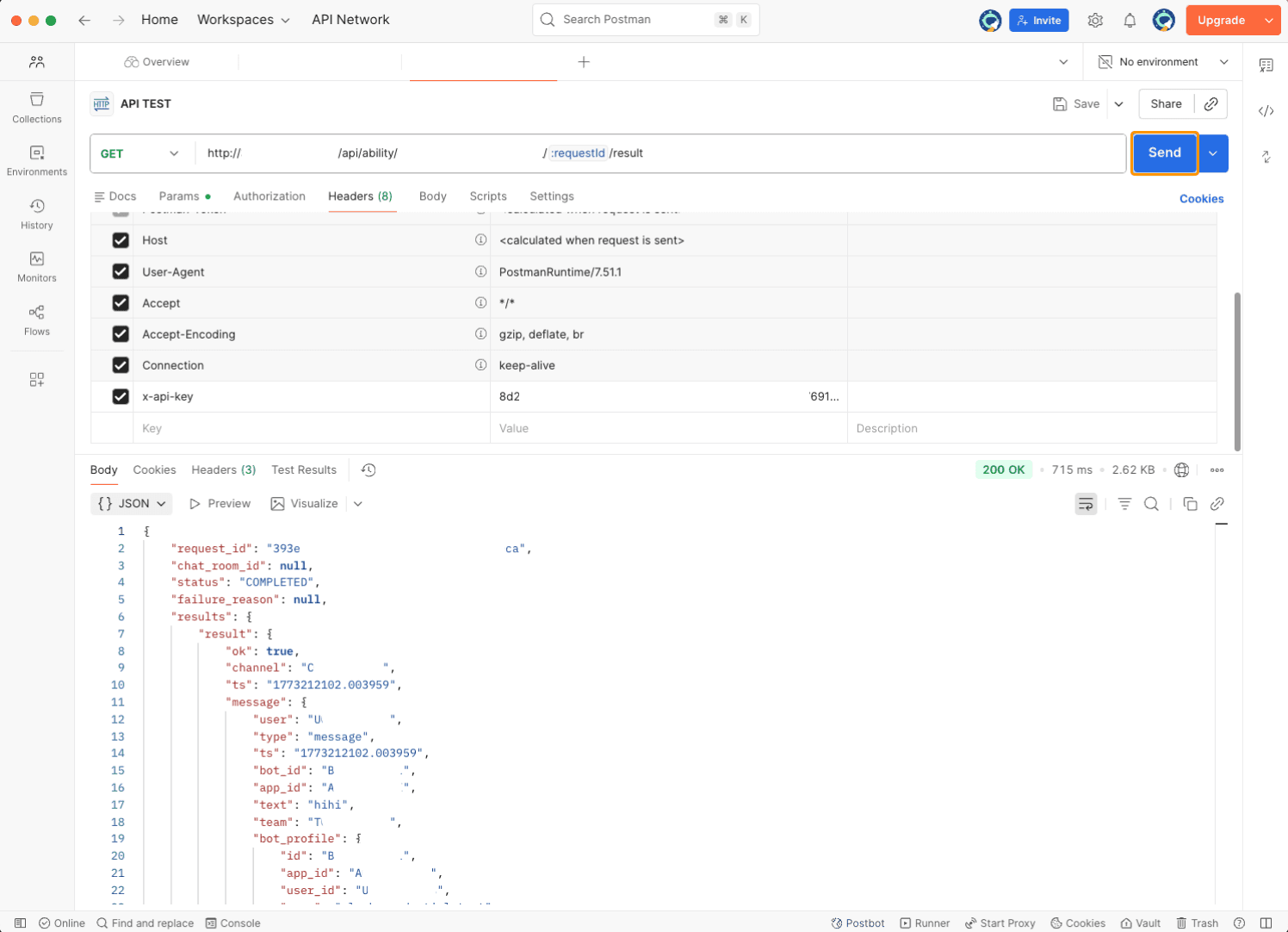
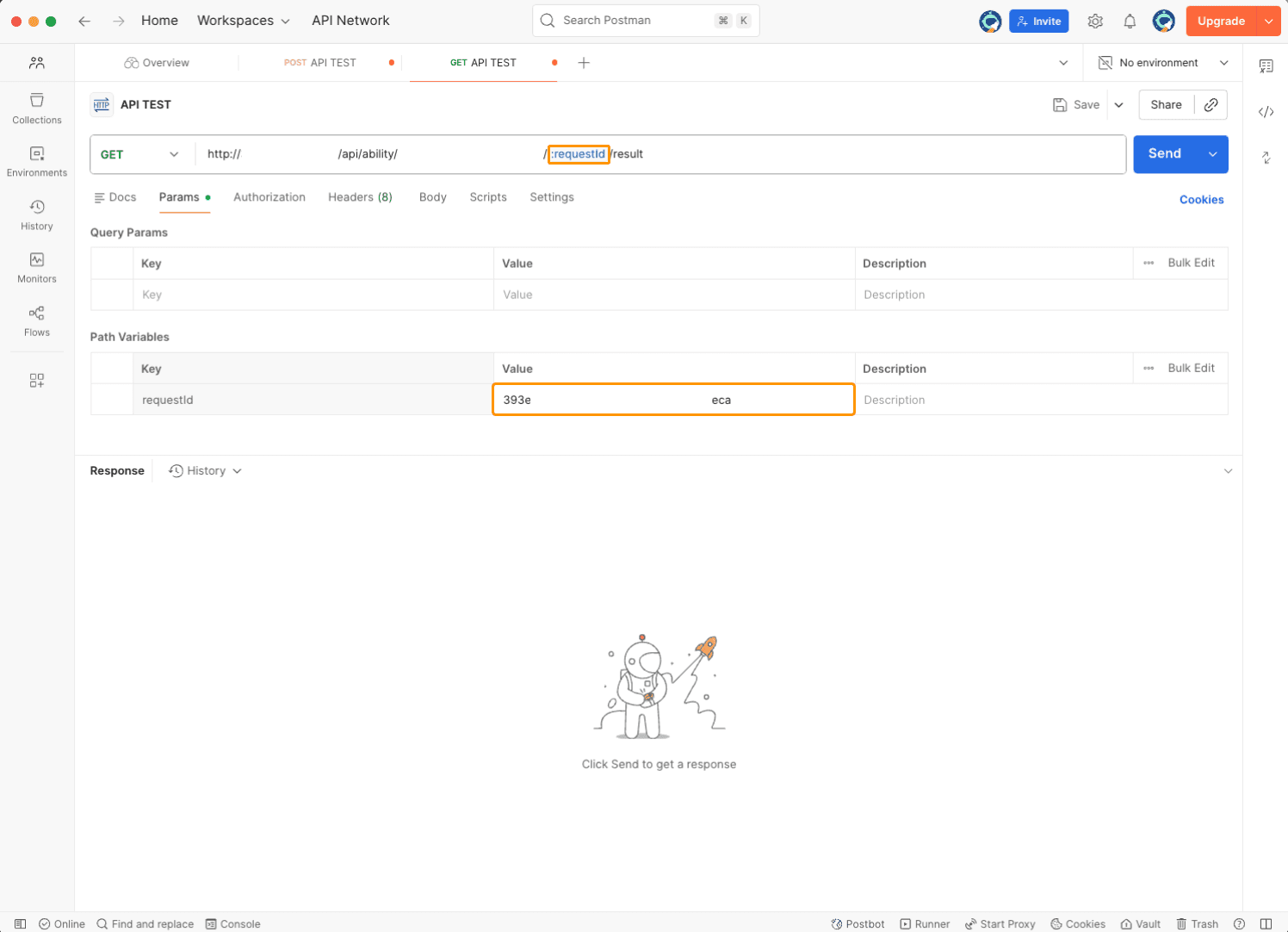
Set the method to GET and enter the same endpoint URL as the POST request.
Then append the Request ID you got from the POST request to the end of the URL in the following format:
/{Request ID}/status
/status and /result return the same result.
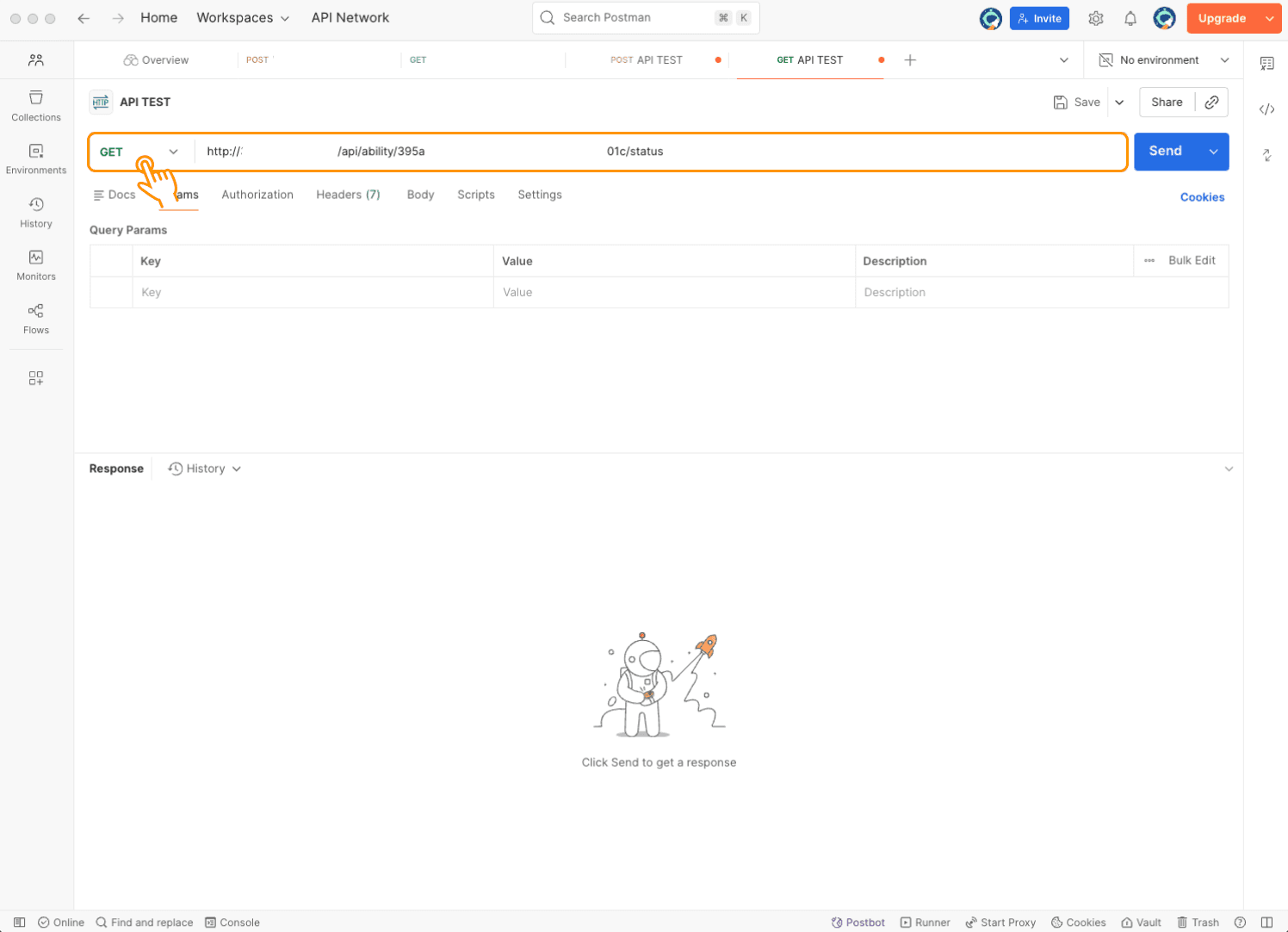
If you write :requestId, Postman treats it as a path variable, which can be conveniently set in Params.
/
:requestId/status
Step 6: Configure GET headers
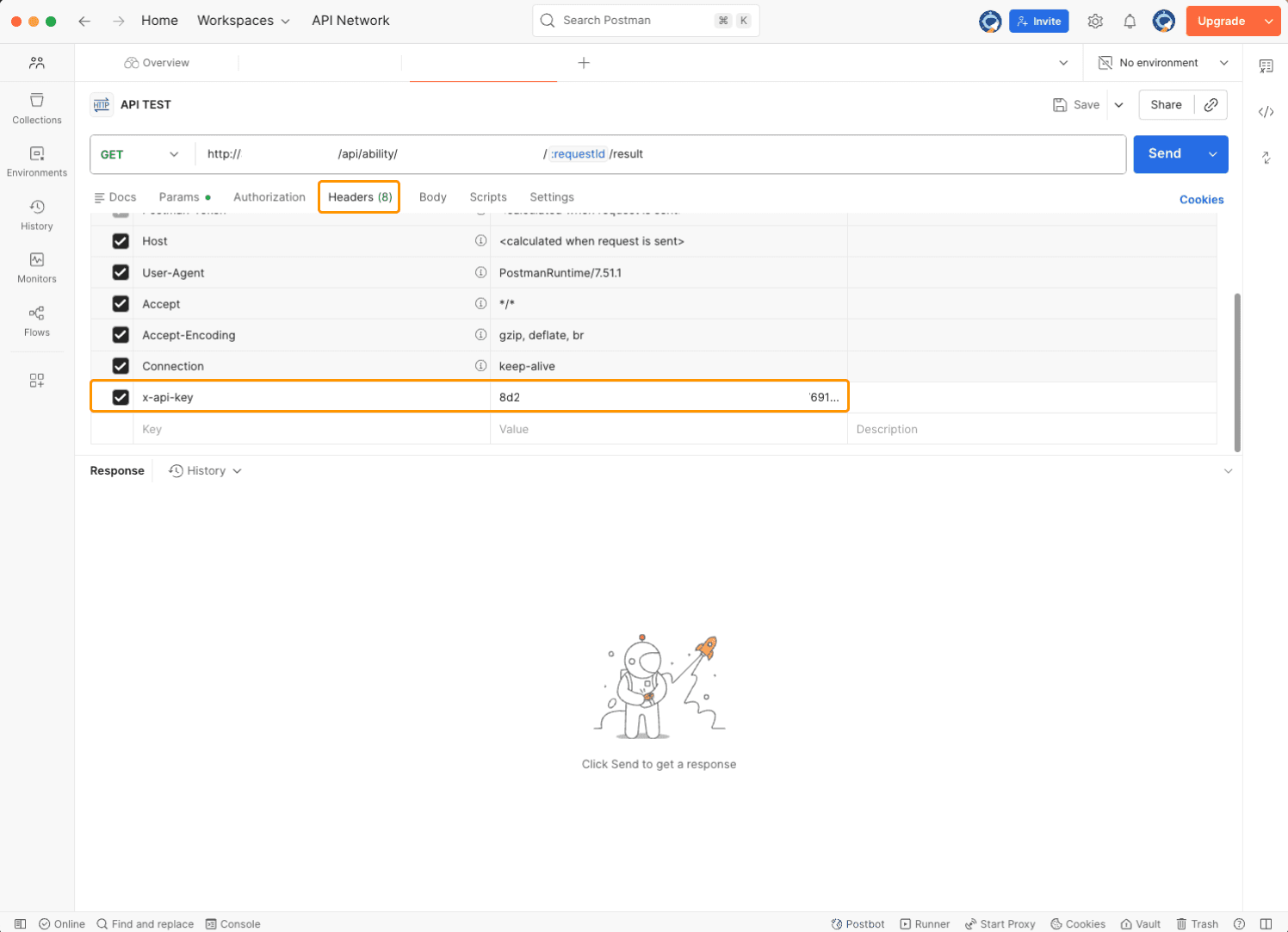
Open the Headers tab and enter the key and value.
As in Step 3, set x-api-key.
Step 7: Check the result
For GET requests, you don’t set a Body.
Click Send to see the JSON response returned by the API.