Types
Nodes can be categorized into essential nodes and utilitarian nodes based on their role and importance.
Essential Nodes
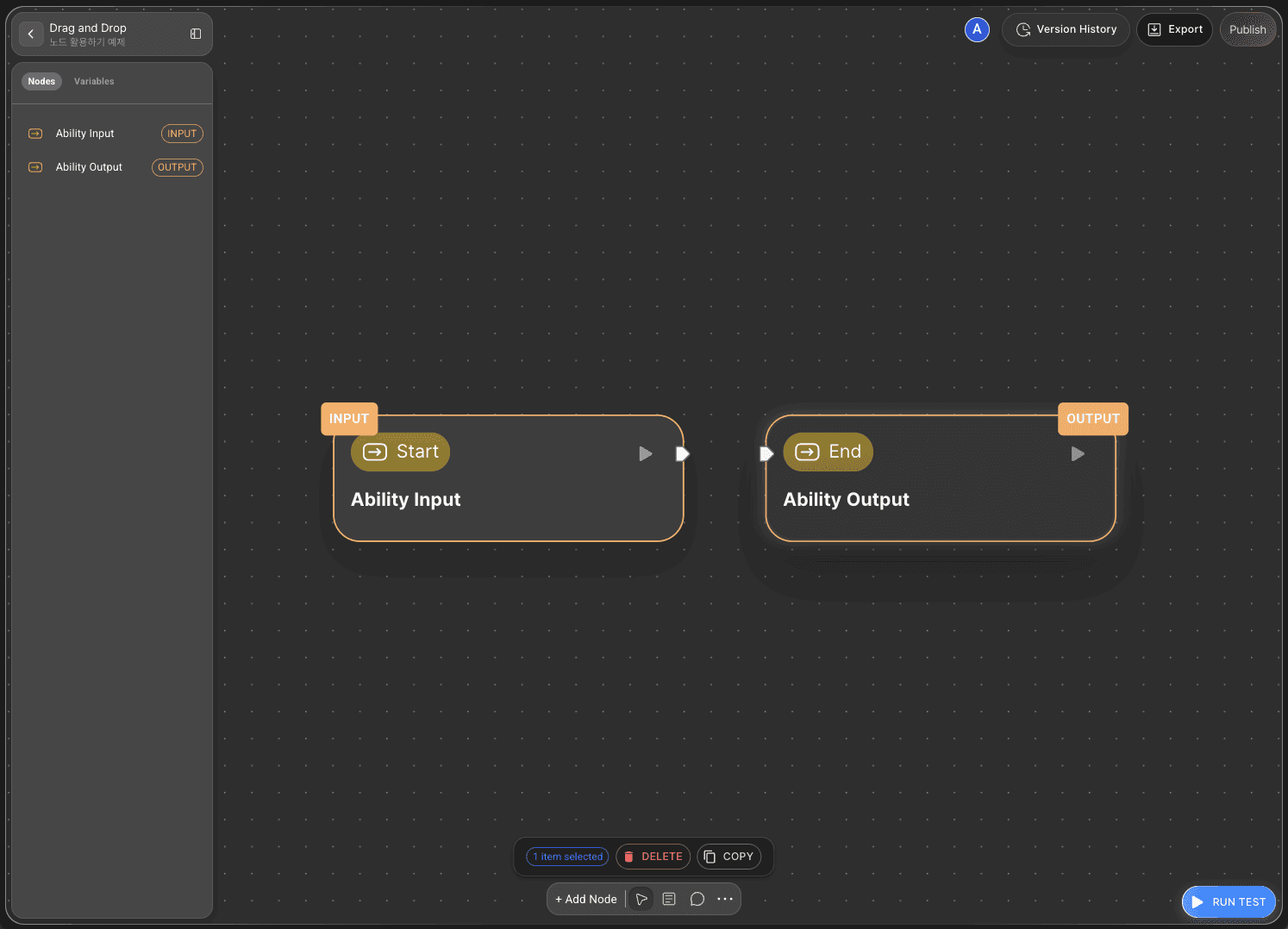
This is a core node essential for constructing workflows.
Start node : Start
Acts as the starting point for executing the entire workflow.
Sets initial data and conditions such as input values and default variables to be used in the workflow.
Use cases: User input, external data collection, setting initial conditions
End Node : End
Acts as the termination point for the entire workflow.
Calculates the final result and returns it as an Output variable.
Use cases: Saving results, generating reports, transferring data to external systems
Utilization Nodes
Agentria provides various nodes capable of performing diverse automation functions.
When designing your target workflow, you can select and combine nodes suited to each function.
Category | Usage | Model |
AI | AI model-based tasks like text generation, summarization, sentiment analysis | Azure OpenAI LLM, Bedrock Anthropic LLM, Google Gemini LLM, etc. |
Tools / Web Tools | Integration with external tools like web search, browser automation, API calls | Notion, Slack, Google Sheets, Supabase, Web Request, DuckDuckGo Web Search, etc. |
File Handling Tools | File reading/writing, conversion, upload/download tasks | PDF Text Reader, Upstage AI OCR, etc. |
Code | Code execution and custom script writing | Python support |
Database | Database queries, inserts, updates, and deletes | Structured Data Reader/Writer, Embedding Data Writer/Searcher, etc. |
Flow Control | Workflow flow control including conditional branching, loops, and parallel processing | - |
Ability | Utilizing Agentria's unique features or extension modules | - |
Function Nodes
Utility nodes can be configured in either normal mode or function mode.
When you connect a function pin with an edge, the node on the receiving end will be able to recognize and use that function.
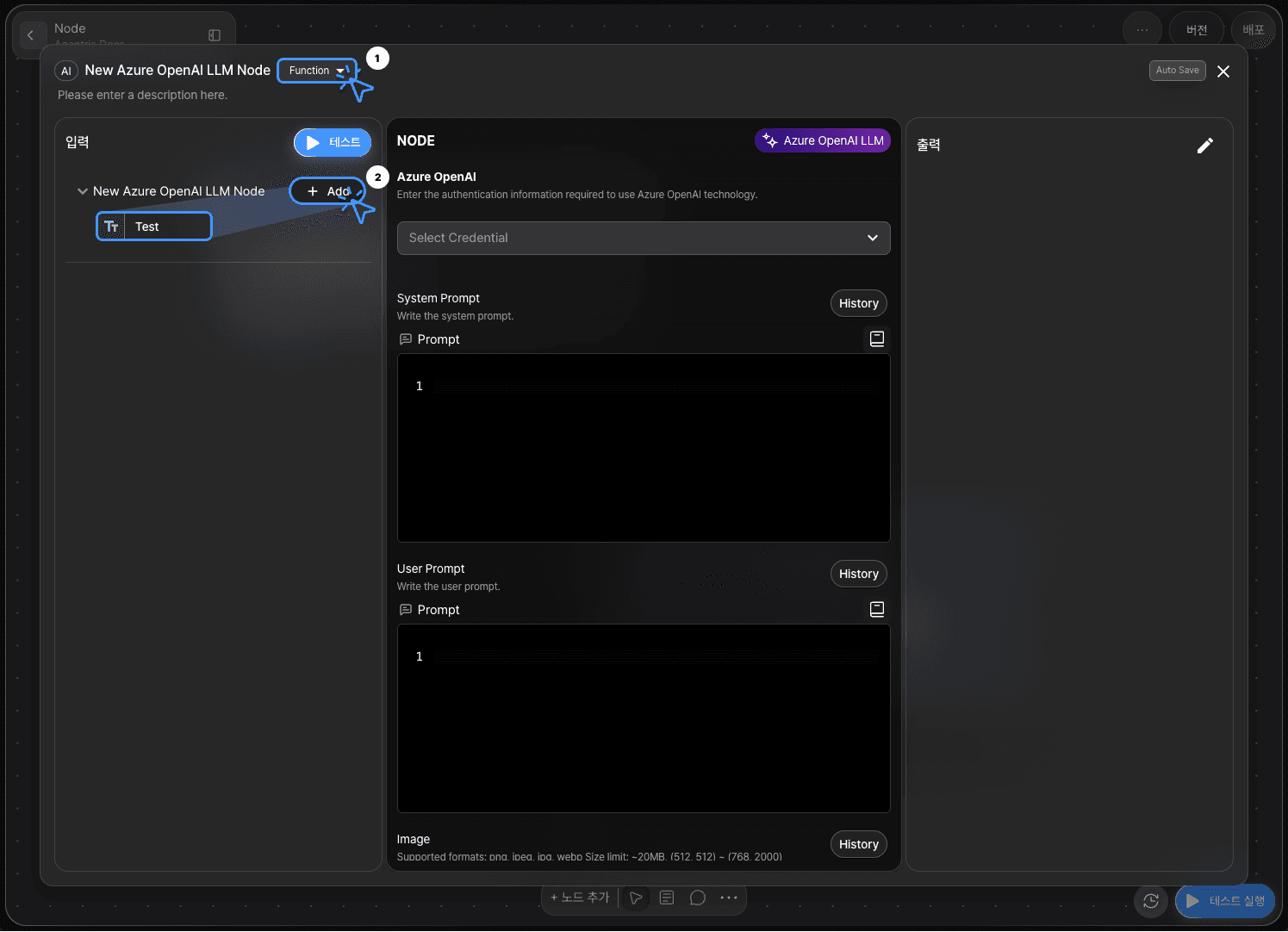
Double-click the node you want to use as a function to open the node editor.
Click the Normal button at the top-left to switch the node type to Function.
Once converted, a Function Pin will be added to the node.
In the input section, click +Add to declare functions that can be used by other nodes.
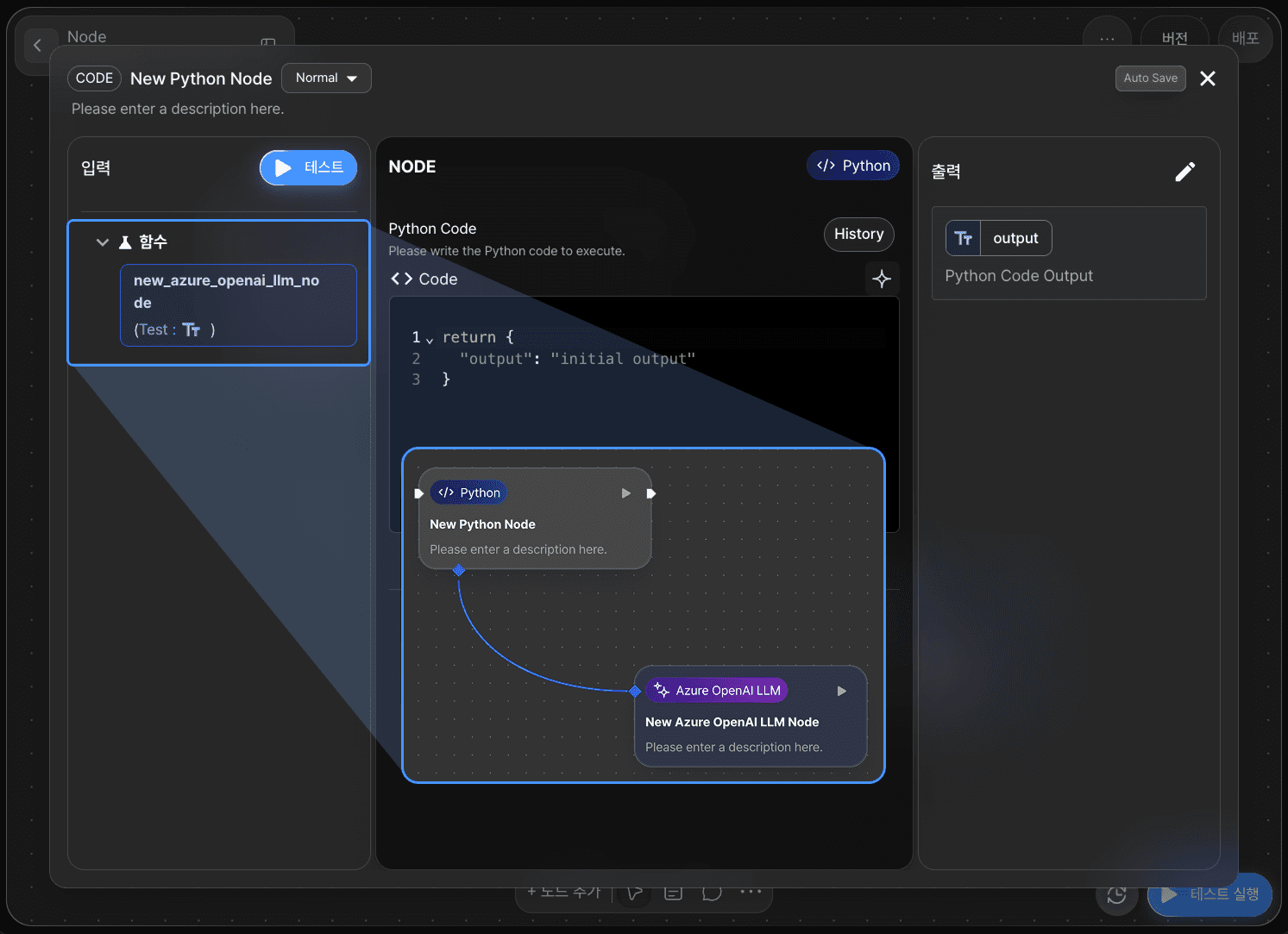
When a node is connected via an edge, the input section of the function node becomes read-only.
If you need to make changes, you must first disconnect the edge.
.