Get Started
Learning to Use Nodes - Google Calendar Node
The Google Calendar node connects to the Google Calendar API to manage calendars and events.
You can use it for the full range of Google Calendar's core operations — creating, retrieving, updating, deleting, and listing events; checking calendar availability (free/busy time); and listing, creating, and deleting calendars — all from a single node by selecting an "Operation." Before using this node, you need a credential with completed Google account authentication.
Adding the Node
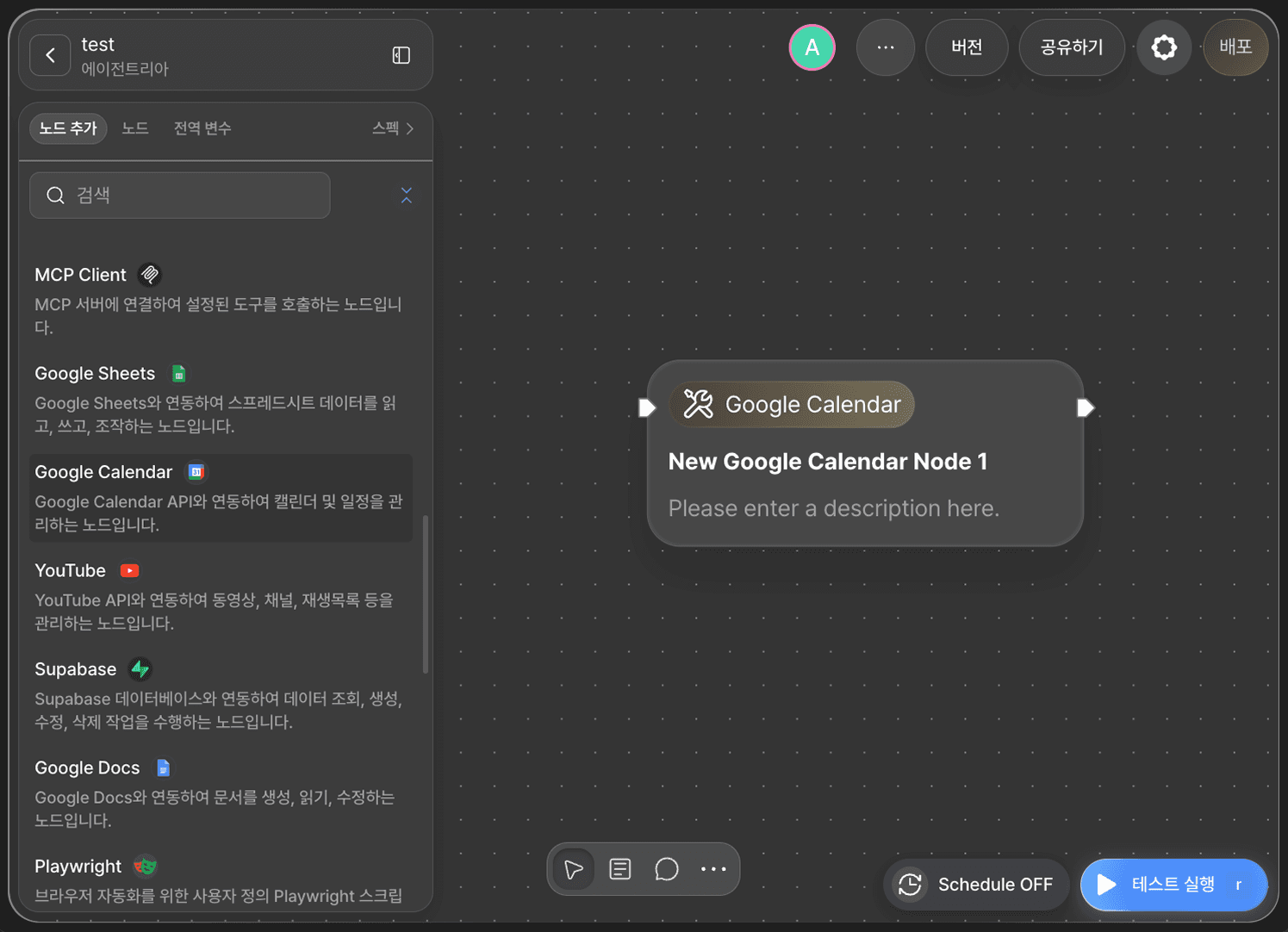
Click +Add Node on the canvas, then find and place the Google Calendar node under the Utility/Productivity category.
Setting Up the Credential
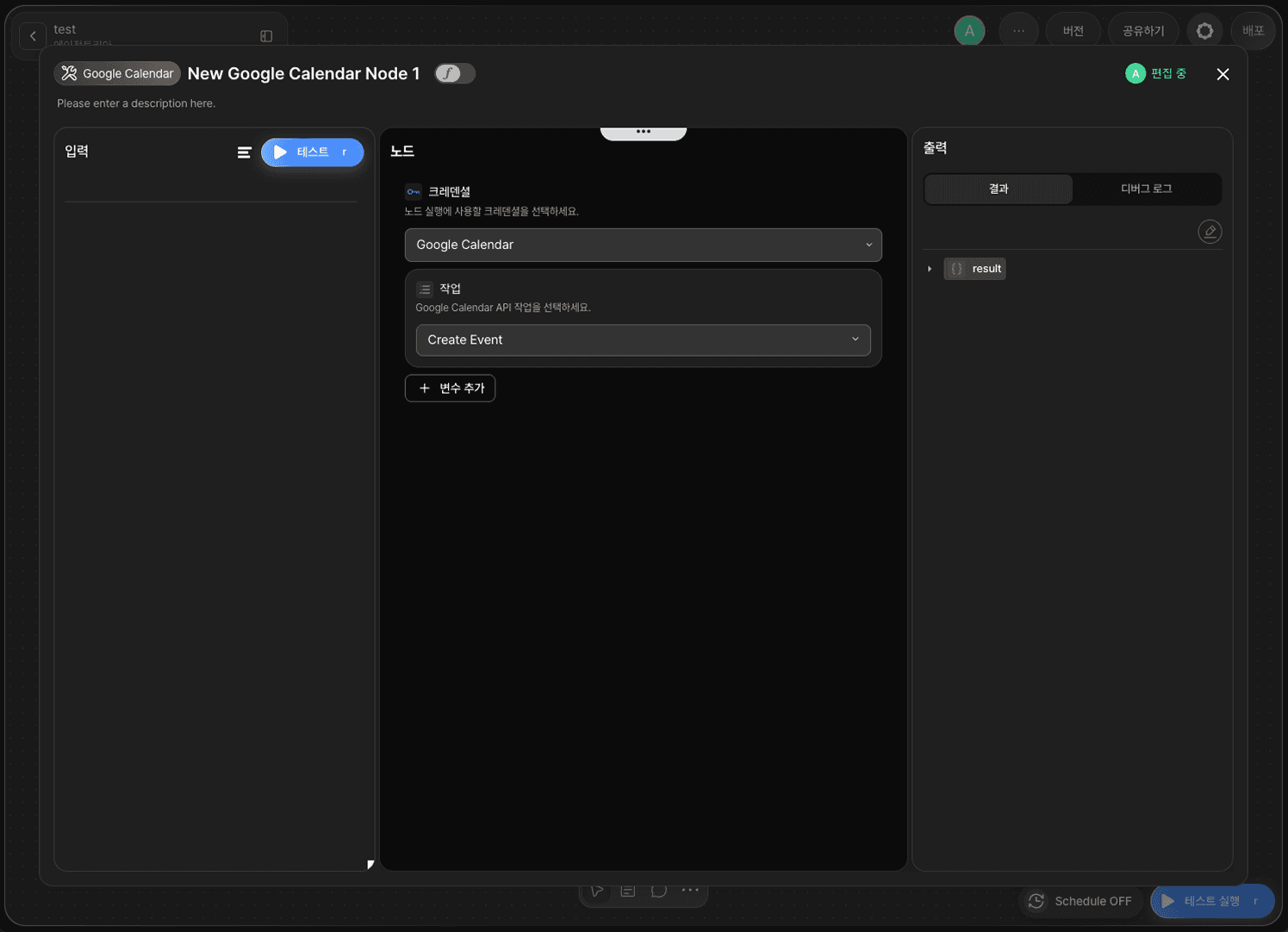
Double-click the node to open the Node Editor. The first thing you'll see is the Credential dropdown — select the Google credential to use when running the node.
If you don't have a credential registered yet, the node can't run. Complete the 🔗Google Credential Setup guide first to register one.
Selecting an Operation
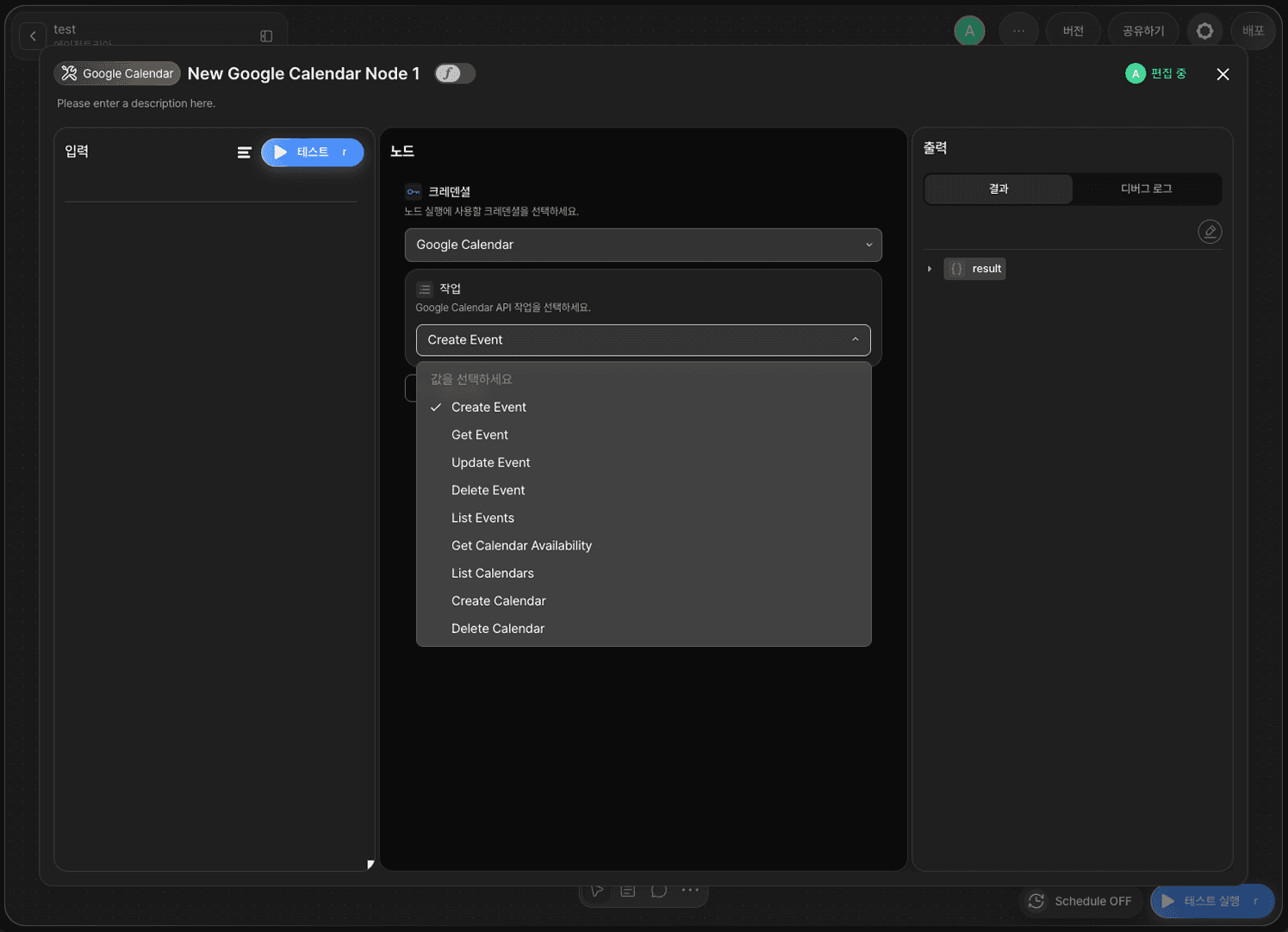
In the Operation dropdown, select the Google Calendar API operation to perform. The node supports the following 9 operations.
Create Event, Get Event, Update Event, Delete Event, List Events — create, retrieve, update, delete, or list events
Get Calendar Availability — check a calendar's availability (free/busy time)
List Calendars, Create Calendar, Delete Calendar — list, create, or delete calendars
Once you select an operation, click +Add Variable to add the option variables it needs. See the table below for each operation's option variables.
Operation | Option Variables |
|---|---|
Create Event |
|
Get Event |
|
Update Event |
|
Delete Event |
|
List Events |
|
Get Calendar Availability |
|
List Calendars |
|
Create Calendar |
|
Delete Calendar |
|
Here's what each option variable name means.
Variable | Description |
|---|---|
| ID of the target calendar |
| ID of the target event |
| Event title |
| Event description |
| Event location |
| Start/end time of the event (or of the query range) |
| Time zone |
| List of attendees (e.g., email addresses) |
| Whether the event is an all-day event |
| Event visibility (e.g., public/private) |
| Whether to send notification emails to attendees |
| Recurrence rule for the event |
| Maximum number of results to return |
| Start/end of the query time range |
| Search query |
| Name of the calendar to create |
| Request timeout |
Checking the Result
The operation's result is stored in the result variable (Object type) and passed on to the next node.
Click RUN TEST to test the node and confirm it works correctly.